How to Connect VPN Without Download: Built-In and Browser Options
Learn how to connect to a VPN without downloading an app, using built-in device settings, browser extensions, or a web-based service.
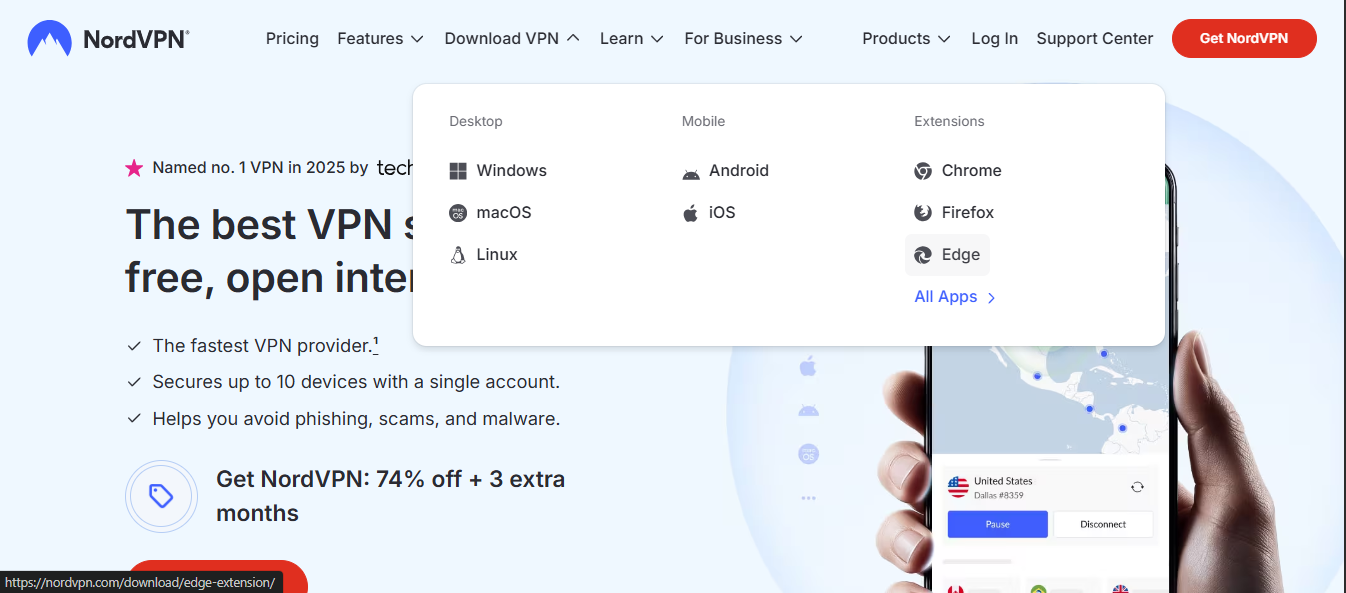
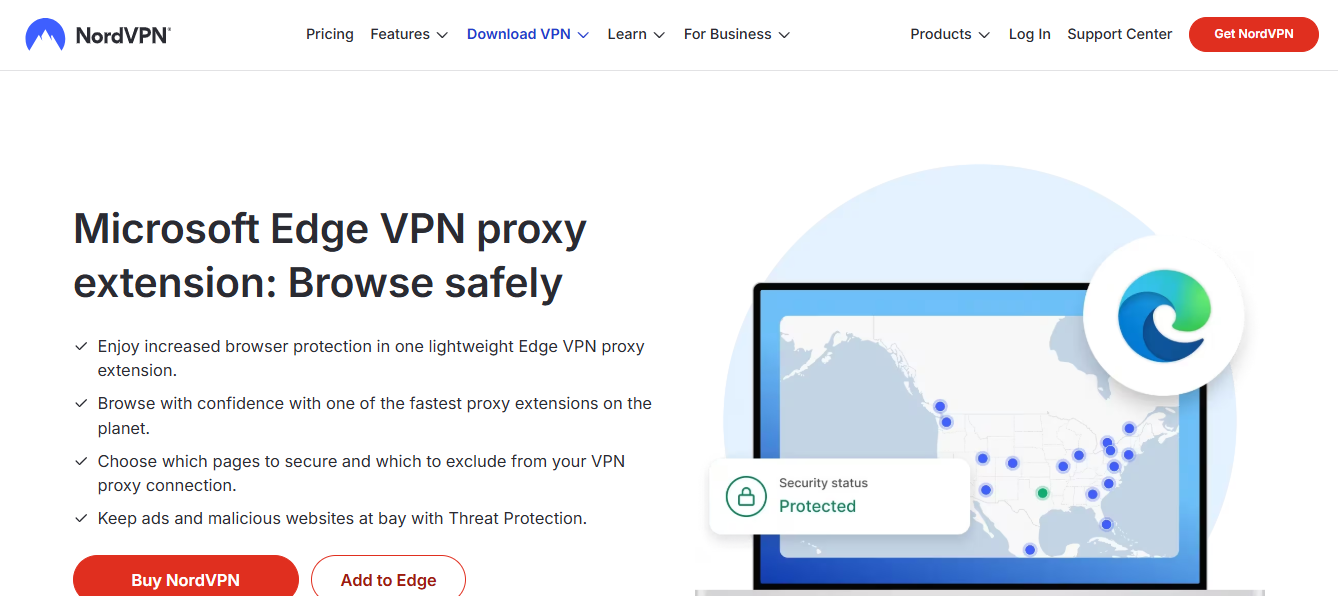
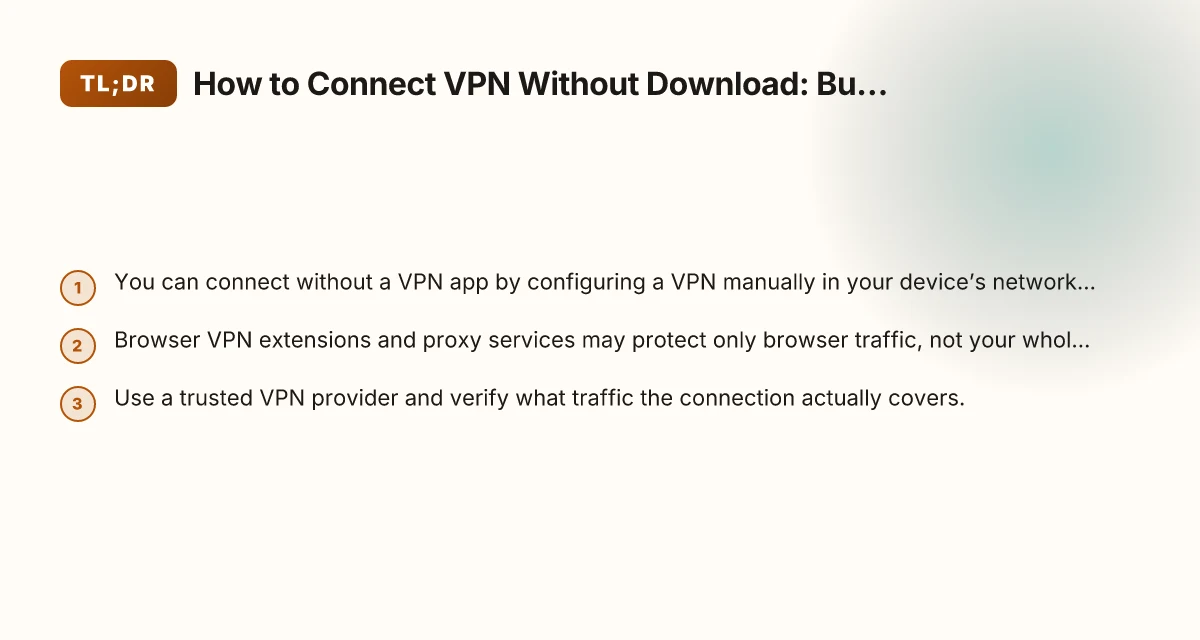
If you want to connect to a VPN without downloading an app, use your device’s built-in VPN settings and enter connection details from a trusted VPN provider. Depending on your device and provider, you may also be able to use a browser extension or a provider’s web-based service. These options have different levels of protection: a manually configured VPN can cover more device traffic, while a browser tool usually applies only inside that browser.

Editor's pick: NordVPN — fast, secure VPN — Strong encryption, a no-logs policy and apps for every device. 30-day money-back guarantee. Get NordVPN →
Compare the three ways to connect without installing a VPN app
| Method | Where it runs | Covers all device traffic? | Account or configuration needed? | Main limitation |
|---|---|---|---|---|
| Device VPN settings | Operating system | Yes, when connected | VPN service details and setup | Requires a compatible VPN service |
| Browser VPN extension | Supported browser | No, browser traffic only | Usually an extension and service account | Does not protect other apps |
| Web-based VPN or proxy | Website in a browser | No, only activity through the site | Usually no device setup | Limited to supported web traffic |
| Device settings | Phone, tablet, or computer | Yes, for apps and browsers | Manual configuration may be needed | Setup varies by device and provider |
| Browser extension | Browser | No | Browser permission and extension setup | Only applies in that browser |
| Web-based option | Browser tab | No | Open the service website | Not suitable for many apps or services |
Compiled November 2026; check the provider's site for current details.
| VPN | Obfuscation | From / month | Plan | Free plan | Refund | Alipay | UnionPay | Crypto | Website opens in China | Trustpilot | |
|---|---|---|---|---|---|---|---|---|---|---|---|
 ZoogVPN | Turn on manually Shadow | $2.49/mo | 27 months: $59.99 | Yes | 7 days | ✓ | ✓ | ✓ | ✓ | Official site blocked; our special link opens (4.4 s) | 4.2/5 (195 reviews) |
 NordVPN | Turn on manually Obfuscated Servers / NordWhisper | $3.49/mo | 27 months: $94.23 | No | 30 days | ? | ✗ | ✓ | ✓ | ✗ Blocked | 4.2/5 (51,628 reviews) |
 ExpressVPN | ✓ On by default all servers | $3.00/mo | 28 months: $84 | No | 30 days | ✗ | ✗ | ✓ | ✗ | ✗ Blocked | 4.4/5 (29,706 reviews) |
 Surfshark | ✓ On by default Camouflage, with OpenVPN | See site | See site | No | 30 days | ✗ | ✗ | ✗ | ✓ | ✗ Blocked | 4.3/5 (31,823 reviews) |
 Proton VPN | Turn on manually Stealth, free plan too | $2.99/mo | 12 months: $35.88 | Yes | 30 days | ✗ | ✗ | ✗ | ✓ | ✗ Blocked | 2.1/5 (1,040 reviews) |
 Astrill VPN | Turn on manually StealthVPN / OpenWeb | $12.50/mo | 24 months: $300 | No | See site | ✗ | ✗ | ✗ | ✓ | ✗ Blocked | 1.3/5 (110 reviews) |
 Private Internet Access | Turn on manually Shadowsocks, OpenVPN only | $2.03/mo | 40 months: $81.2 | No | 30 days | ✗ | ✗ | ✗ | ✗ | ✗ Blocked | 4.2/5 (11,033 reviews) |
 CyberGhost | Turn on manually selected servers | $2.19/mo | 28 months: $61.32 | No | 45 days | ✗ | ✗ | ✗ | ✓ | ✗ Blocked | 4.0/5 (24,178 reviews) |
 PureVPN | Turn on manually switch to OpenVPN | $1.69/mo | 60 months: $101.55 | No | 31 days | ? | ? | ✗ | ✓ | ✗ Blocked | 4.4/5 (17,994 reviews) |
 AdGuard VPN | ✓ On by default TrustTunnel | $2.99/mo | 24 months: $71.76 | Yes | 30 days | ✓ | ✗ | ✓ | ✓ | Official site blocked; our special link opens (3.7 s) | 4.3/5 (290 reviews) |
 Mullvad | Turn on manually QUIC / Shadowsocks / LWO | $5.61/mo | €5/mo | No | 14 days | ✗ | ✗ | ✗ | ✓ | ✗ Blocked | 3.2/5 (192 reviews) |
 Windscribe | Turn on manually Stealth / WStunnel | $5.75/mo | 12 months: $69 | Yes | See site | ✗ | ✗ | ✗ | ✓ | ✗ Blocked | 4.7/5 (13,355 reviews) |
 StrongVPN | Turn on manually Scramble, OpenVPN TCP | See site | See site | No | 30 days | ✓ | ✗ | ✗ | ✗ | ✗ Blocked | 4.4/5 (2,695 reviews) |
 LightXtreme 闪连 | Not listed | $7.08/mo | 12 months: $84.99 | Yes | 30 days | ✓ | ✓ | ✓ | ✓ | ✓ Yes (3.5 s) | No page |
Prices checked 2026-11-10 on each vendor's pricing page (cheapest long plan, USD). Check the vendor's checkout for the final price.
Obfuscation checked 2026-11-14 on each vendor's site and help center: "on by default" = nothing to set; "turn on manually" = switch protocol or mode in settings; "not listed" = the vendor describes no obfuscation.
Payment methods checked 2026-11-10 on each vendor's payment pages: all 14 take cards and PayPal; ✗ = not listed, ? = the vendor's own pages disagree.
China access: whether the official website opens from mainland China networks (tests the website only, not the VPN connection). Last checked 2026-11-18 01:02 Beijing time.
Trustpilot score and review count checked 2026-11-10.
What “without download” means
Connecting without downloading an app does not always mean connecting without installing anything. A manual VPN setup uses software already included with many operating systems, but you still need a VPN account and configuration information. A browser-based option may require adding an extension, which is a small download, or signing in to a website.
A VPN creates an encrypted connection between your device and a VPN server. Your traffic then goes through that server before reaching websites or other online services. A VPN can help protect traffic on untrusted networks and change the apparent location of your connection, but it does not make you completely anonymous or protect you from every online threat.
Before choosing a method, check whether you need protection for:
- One browser, such as Chrome or Firefox
- All internet traffic from your device
- A specific connection, such as a work VPN
- A one-time task or regular use
Option 1: Configure a VPN in your device settings
Many computers, phones, and tablets can connect to a VPN using built-in network settings. The exact menus vary by operating system and version, but the general process is similar. VPN Extension Free Edge: How to Choose a Free VPN for Microsoft Edge
- Choose a reputable VPN provider that supports manual connections.
- Sign up for an account and open the provider’s setup instructions.
- Get the required details. These may include a server address, VPN protocol, account name, password, certificate, or configuration file.
- Open your device’s VPN or network settings and choose the option to add a VPN connection.
- Enter the information exactly as provided, save the configuration, and connect.
- Check the device’s VPN indicator and the provider’s recommended way to verify your connection.
Do not guess at server settings. The configuration must match the provider’s instructions, and some protocols require certificates or other files. If a provider offers only app-based connections, manual setup may not be available.
Manual configuration can be useful if you cannot install apps on a device or prefer not to use a dedicated client. However, it may not include features found in the provider’s app, such as an automatic kill switch, server selection, or connection troubleshooting.
Choose a method based on what you need to protect
| If you need to… | Best-fit option | Coverage | Setup effort | Keep in mind |
|---|---|---|---|---|
| Route traffic from multiple apps | Device VPN settings | Device-wide | Moderate | Requires service configuration |
| Change a browser’s apparent location | Browser VPN extension | Browser only | Low | Choose a trustworthy extension |
| Access a basic website through an intermediary | Web-based VPN or proxy | Specific web activity | Low | Avoid sensitive sign-ins |
| Protect traffic outside the browser | Device VPN settings | Device-wide | Moderate | Confirm the VPN is connected |
| Avoid changing device network settings | Browser extension | Browser only | Low | Other apps remain outside it |
| Try a web option without installing software | Web-based VPN or proxy | Website use only | Low | Capabilities and privacy vary |
Compiled November 2026; check the provider's site for current details. Best Free VPN Extension for Edge: Top Options and How to Choose
Option 2: Use a browser VPN extension
Some VPN providers offer extensions for browsers. Once added and signed in, an extension may let you choose a location and route browser traffic through the provider.
This can be convenient for browsing, but read the provider’s description carefully. Some browser extensions act as encrypted proxies rather than full-device VPNs. In that case, traffic from other apps, such as email clients, games, or system updates, may use your regular internet connection.
Check these details before using an extension:
- Which browsers and websites it covers
- Whether it encrypts traffic between your browser and the provider
- What account or permissions it requires
- Whether it comes from the provider’s official website or browser store
- How the provider handles logs and personal information
Avoid installing an extension simply because its name includes “VPN.” A misleading or untrustworthy extension could collect browsing data instead of protecting it. Norton VPN APK for Firestick: What to Know Before You Install
Option 3: Use a web-based VPN or proxy
A web proxy lets you visit a website through an intermediary page. You enter a web address on the proxy’s site, and it fetches that page for you. This may work for basic access to some websites, but it is not the same as a full-device VPN.
A proxy generally does not route all your device traffic, and its encryption and privacy protections vary. It may also fail with sites that require sign-in, interactive features, or apps. Never enter sensitive information, such as banking credentials, through an unfamiliar proxy.
| Method | Requires a VPN app? | Typical coverage | Main consideration |
|---|---|---|---|
| Built-in VPN settings | No dedicated app | Potentially the whole device | Requires provider setup details |
| Browser extension | Usually no desktop app | Usually browser traffic | May not protect other apps |
| Web proxy | No app in many cases | Individual web pages or sites | Often limited privacy and functionality |
Check safety and troubleshoot common problems
| Issue or check | Device VPN settings | Browser VPN extension | Web-based VPN or proxy |
|---|---|---|---|
| Confirm what traffic is covered | Check device VPN status | Check browser-only coverage | Check which site activity is routed |
| Connection fails | Verify configuration and service details | Check extension settings and permissions | Try another supported page or service |
| VPN does not appear connected | Review device network settings | Check the browser’s extension controls | Confirm the service page is active |
| Sensitive activity | Prefer a trusted VPN service | Review provider privacy practices | Avoid entering sensitive information |
| Unexpected location | Check selected VPN server or profile | Check extension’s selected location | Location options may be limited |
| Privacy confidence | Depends on VPN provider | Depends on extension provider | Depends on website or proxy operator |
| Does not cover other apps | Not applicable when device-wide VPN is active | Yes | Yes |
Compiled November 2026; check the provider's site for current details. My IP ExpressVPN: How to Check Your IP Address and VPN Connection
Choosing a safe method and fixing common problems
Start with a provider you trust. Review its privacy policy, supported protocols, security features, and instructions for manual setup. Free services are not automatically unsafe, but a free service still needs a way to pay its costs. Understand what information it collects and whether it limits speed, data, or server choice.
If the connection does not work:
- Recheck the server address, username, password, and protocol.
- Confirm that your subscription includes manual connections or browser access.
- Try a different server recommended by the provider.
- Check whether your network, school, or employer blocks VPN connections.
- Remove outdated profiles and follow the provider’s current setup guide.
- Contact the provider’s support team rather than downloading a configuration tool from an unverified site.
For sensitive browsing, verify that the VPN is active before sending information. Remember that the VPN provider may be able to see some connection details, and websites can still identify you through account sign-ins, cookies, or browser fingerprinting.
Recommendation
For whole-device protection without downloading a dedicated VPN app, use your operating system’s built-in VPN settings with configuration details from a reputable provider. Choose a browser extension only when browser-only coverage is enough, and treat web proxies as limited tools rather than substitutes for a full VPN. VPN Location Changer Free: How to Change Your IP Address Safely