Enable VPN in Edge: Turn On Microsoft Edge Secure Network
Learn how to enable Edge Secure Network, check whether it is available, and understand its limits.
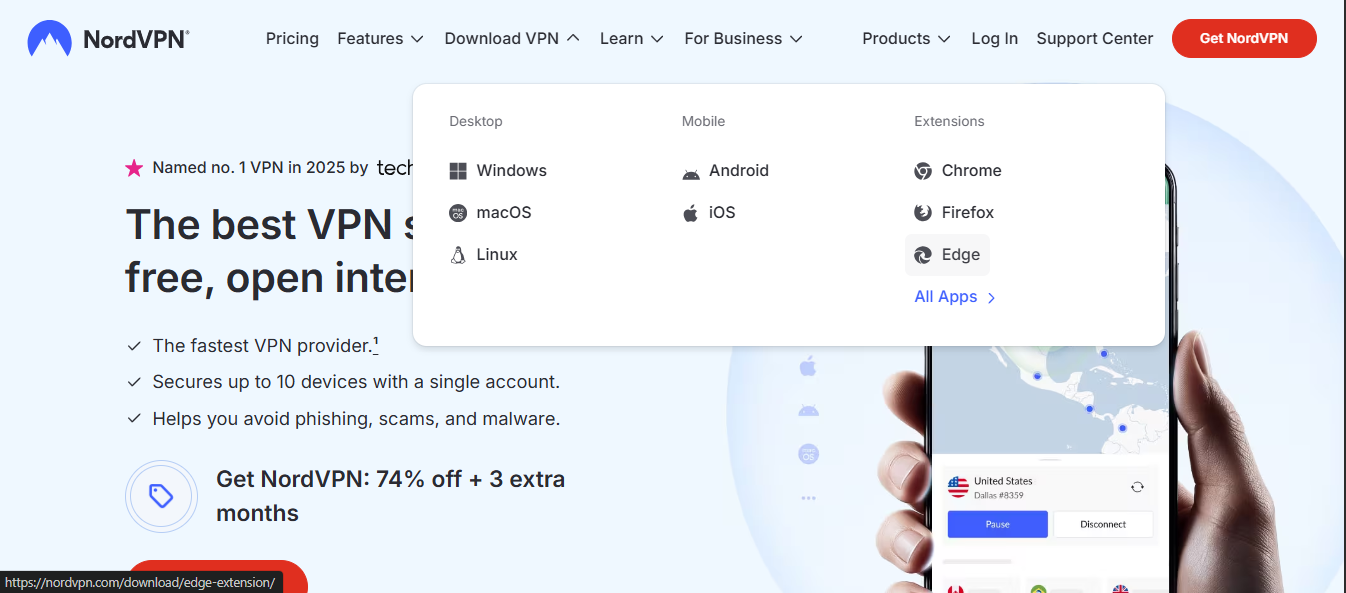
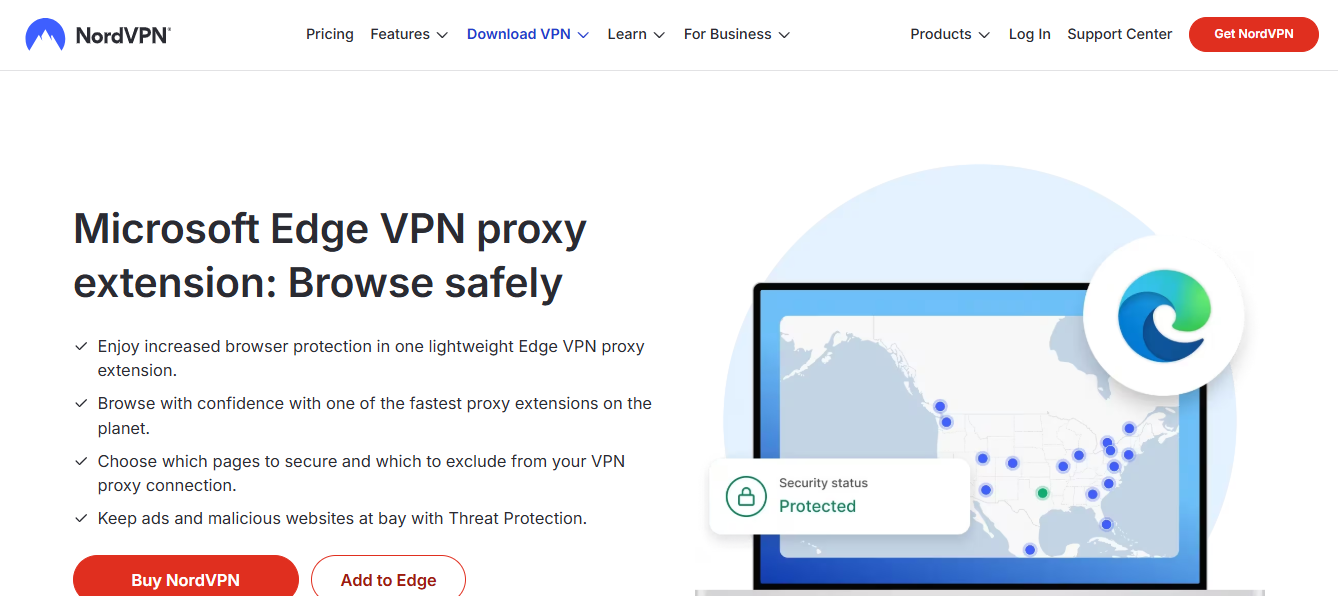
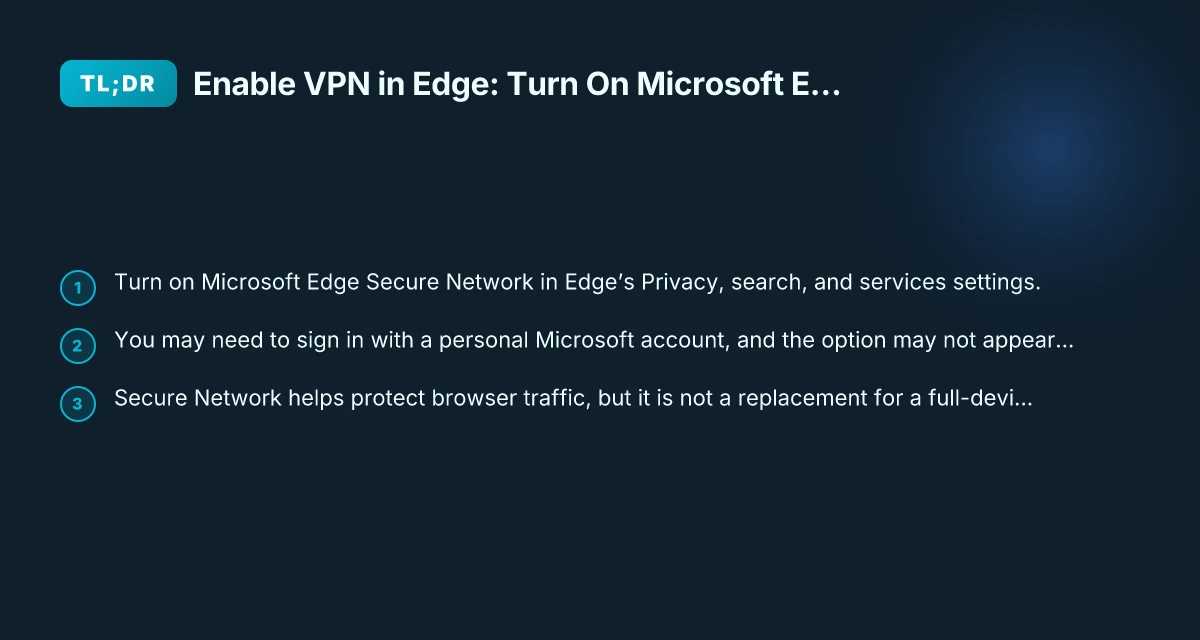
To enable VPN in Edge, open Settings and more (the three-dot menu), select Settings, then go to Privacy, search, and services. Find Microsoft Edge Secure Network and switch it on. If prompted, sign in with a personal Microsoft account. The feature uses VPN technology to help protect browsing traffic, particularly on open Wi-Fi networks, but availability and settings can vary.

Editor's pick: NordVPN — fast, secure VPN — Strong encryption, a no-logs policy and apps for every device. 30-day money-back guarantee. Get NordVPN →
Edge Secure Network at a glance
| Aspect | Edge Secure Network | Typical VPN service | What to know |
|---|---|---|---|
| Provider | Microsoft Edge | VPN provider | Edge’s feature is built into the browser |
| Protection | Encrypts browsing traffic | Encrypts traffic | Coverage can differ |
| Browser coverage | Edge browsing | Often device-wide | Edge protection is browser-focused |
| Sign-in | Microsoft account may be required | Depends on provider | Check Edge’s prompt |
| Availability | May vary by account or region | Depends on provider | The setting may not appear for everyone |
| Data limit | May have a usage limit | Depends on plan | Check the current allowance |
| Server choice | Limited or automatic | Often selectable | Options vary by service |
| Best suited for | Extra privacy while browsing in Edge | Broader VPN needs | Choose based on where you need protection |
Compiled November 2026; check the provider's site for current details.
| VPN | Obfuscation | From / month | Plan | Free plan | Refund | Alipay | UnionPay | Crypto | Website opens in China | Trustpilot | |
|---|---|---|---|---|---|---|---|---|---|---|---|
 ZoogVPN | Turn on manually Shadow | $2.49/mo | 27 months: $59.99 | Yes | 7 days | ✓ | ✓ | ✓ | ✓ | Official site blocked; our special link opens (4.4 s) | 4.2/5 (195 reviews) |
 NordVPN | Turn on manually Obfuscated Servers / NordWhisper | $3.49/mo | 27 months: $94.23 | No | 30 days | ? | ✗ | ✓ | ✓ | ✗ Blocked | 4.2/5 (51,628 reviews) |
 ExpressVPN | ✓ On by default all servers | $3.00/mo | 28 months: $84 | No | 30 days | ✗ | ✗ | ✓ | ✗ | ✗ Blocked | 4.4/5 (29,706 reviews) |
 Surfshark | ✓ On by default Camouflage, with OpenVPN | See site | See site | No | 30 days | ✗ | ✗ | ✗ | ✓ | ✗ Blocked | 4.3/5 (31,823 reviews) |
 Proton VPN | Turn on manually Stealth, free plan too | $2.99/mo | 12 months: $35.88 | Yes | 30 days | ✗ | ✗ | ✗ | ✓ | ✗ Blocked | 2.1/5 (1,040 reviews) |
 Astrill VPN | Turn on manually StealthVPN / OpenWeb | $12.50/mo | 24 months: $300 | No | See site | ✗ | ✗ | ✗ | ✓ | ✗ Blocked | 1.3/5 (110 reviews) |
 Private Internet Access | Turn on manually Shadowsocks, OpenVPN only | $2.03/mo | 40 months: $81.2 | No | 30 days | ✗ | ✗ | ✗ | ✗ | ✗ Blocked | 4.2/5 (11,033 reviews) |
 CyberGhost | Turn on manually selected servers | $2.19/mo | 28 months: $61.32 | No | 45 days | ✗ | ✗ | ✗ | ✓ | ✗ Blocked | 4.0/5 (24,178 reviews) |
 PureVPN | Turn on manually switch to OpenVPN | $1.69/mo | 60 months: $101.55 | No | 31 days | ? | ? | ✗ | ✓ | ✗ Blocked | 4.4/5 (17,994 reviews) |
 AdGuard VPN | ✓ On by default TrustTunnel | $2.99/mo | 24 months: $71.76 | Yes | 30 days | ✓ | ✗ | ✓ | ✓ | Official site blocked; our special link opens (3.7 s) | 4.3/5 (290 reviews) |
 Mullvad | Turn on manually QUIC / Shadowsocks / LWO | $5.61/mo | €5/mo | No | 14 days | ✗ | ✗ | ✗ | ✓ | ✗ Blocked | 3.2/5 (192 reviews) |
 Windscribe | Turn on manually Stealth / WStunnel | $5.75/mo | 12 months: $69 | Yes | See site | ✗ | ✗ | ✗ | ✓ | ✗ Blocked | 4.7/5 (13,355 reviews) |
 StrongVPN | Turn on manually Scramble, OpenVPN TCP | See site | See site | No | 30 days | ✓ | ✗ | ✗ | ✗ | ✗ Blocked | 4.4/5 (2,695 reviews) |
 LightXtreme 闪连 | Not listed | $7.08/mo | 12 months: $84.99 | Yes | 30 days | ✓ | ✓ | ✓ | ✓ | ✓ Yes (3.5 s) | No page |
Prices checked 2026-11-10 on each vendor's pricing page (cheapest long plan, USD). Check the vendor's checkout for the final price.
Obfuscation checked 2026-11-14 on each vendor's site and help center: "on by default" = nothing to set; "turn on manually" = switch protocol or mode in settings; "not listed" = the vendor describes no obfuscation.
Payment methods checked 2026-11-10 on each vendor's payment pages: all 14 take cards and PayPal; ✗ = not listed, ? = the vendor's own pages disagree.
China access: whether the official website opens from mainland China networks (tests the website only, not the VPN connection). Last checked 2026-11-18 01:02 Beijing time.
Trustpilot score and review count checked 2026-11-10.
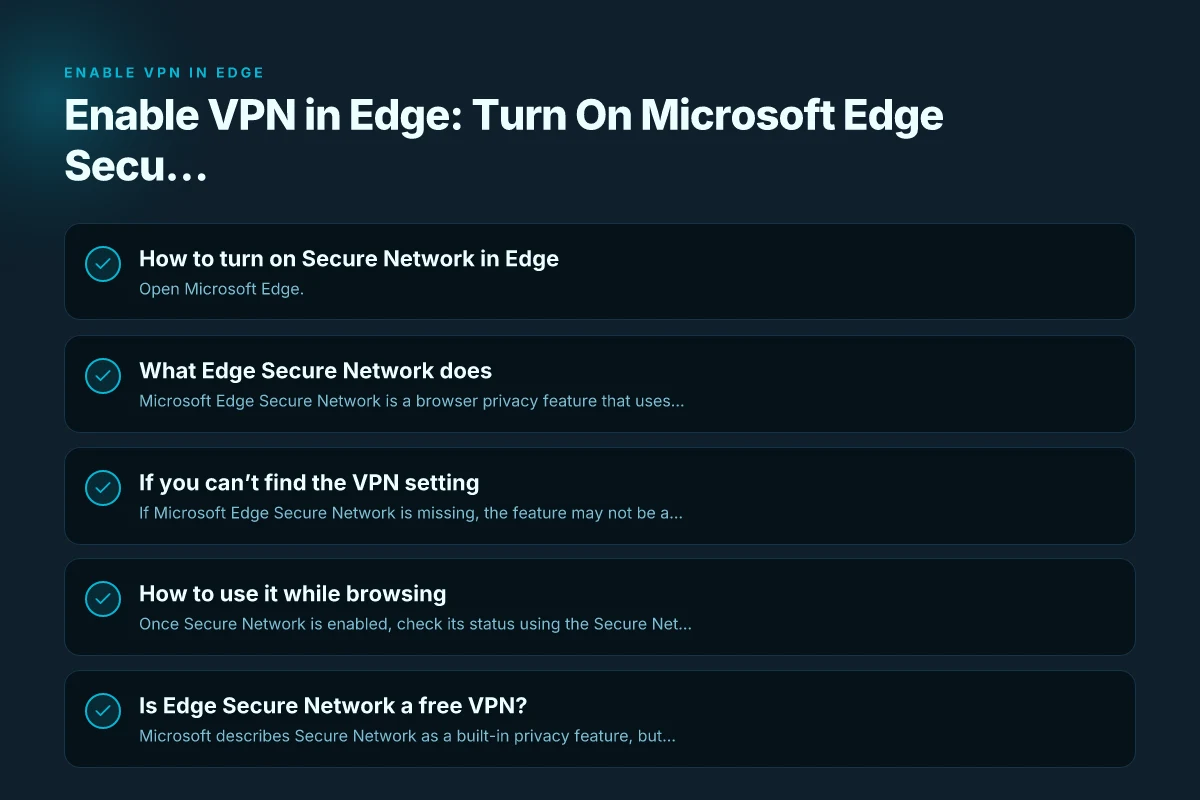
How to turn on Secure Network in Edge
- Open Microsoft Edge.
- Select Settings and more in the upper-right corner, or press Alt+F.
- Choose Settings.
- Select Privacy, search, and services.
- Find the Security section and locate Microsoft Edge Secure Network.
- Turn the feature on and follow any sign-in prompts.
Depending on your Edge version, the option may be described as Secure Network or Microsoft Edge Secure Network. If Edge asks you to sign in, use a personal Microsoft account and then return to the setting.
You can also search for “Secure Network” in the Settings search box to check whether the relevant setting is available.
What Edge Secure Network does
Microsoft Edge Secure Network is a browser privacy feature that uses VPN technology to help protect internet traffic from Edge. It can be useful when browsing on an open or public Wi-Fi network, where you may want an extra layer of protection for your connection.
It is important to understand the scope: Secure Network is designed to protect traffic in Edge, not every connection made by your device. Other browsers and apps may continue to use your regular internet connection. It also does not make you completely anonymous online or guarantee that every website, tracker, or threat is blocked. VPN Extension Edge: How to Choose and Use One Safely
| Feature | Edge Secure Network | Full-device VPN app |
|---|---|---|
| Traffic covered | Browsing traffic in Edge | Usually traffic across the device, depending on the app and settings |
| Setup | Built into Edge when available | Requires installing or configuring a VPN service |
| Best suited to | Extra protection for Edge browsing, including on open Wi-Fi | Protecting connections from multiple browsers and apps |
| Availability | May depend on account, version, or region | Depends on the provider and device |
Choose the right protection for your browsing
| Need | Edge Secure Network | Full VPN app | No VPN |
|---|---|---|---|
| Encrypt browsing on public Wi-Fi | Supported in Edge | Supported | No |
| Protect traffic outside Edge | No | Often supported | No |
| Choose a specific location | Limited or unavailable | Often supported | No |
| Use protection without a separate app | Yes, when available | No | Yes |
| Avoid usage limits | May have a limit | Depends on plan | Not applicable |
| Keep protection on across apps | No | Often supported | No |
| Simplify setup | Built into Edge | Requires installation | Simplest |
| Suitable for sensitive browsing | Adds protection, not anonymity | Depends on provider and settings | Not recommended on untrusted networks |
Compiled November 2026; check the provider's site for current details.
If you can’t find the VPN setting
If Microsoft Edge Secure Network is missing, the feature may not be available for your account, region, or current Edge setup. Try these checks:
- Sign in to Edge: The feature may require a personal Microsoft account. A work or school account may not meet the requirement.
- Update Edge: Install available browser updates, then check Settings > Privacy, search, and services again.
- Search Settings: Enter “Secure Network” in the settings search box.
- Check account restrictions: A managed work or school device may have policies that control or hide browser features.
- Restart Edge: Close and reopen the browser after signing in or updating it.
If the option still does not appear, there may be no setting you can enable on that installation. Avoid installing an extension that claims to switch on Microsoft’s built-in Secure Network. Extensions are separate products and do not activate Edge’s feature. OVPN File: What It Is, How to Open It, and How to Use It
How to use it while browsing
Once Secure Network is enabled, check its status using the Secure Network control in Edge, if it is shown in your browser. Follow any on-screen instructions to connect or manage the feature. The exact controls can differ between Edge versions, so use the wording displayed in your settings.
Keep in mind that enabling a VPN feature is not the same as changing your location for every service. Websites may use other signals, such as account details or browser settings, and some services may restrict access when they detect VPN traffic.
For the best results:
- Turn it on before using public or open Wi-Fi.
- Keep Edge updated.
- Review the feature’s prompts and privacy information.
- Use a full-device VPN if you need coverage beyond Edge.
Is Edge Secure Network a free VPN?
Microsoft describes Secure Network as a built-in privacy feature, but availability and usage conditions can change. Check the feature’s current information and any prompts in Edge for the terms that apply to your account. Do not assume it offers the same coverage or controls as a dedicated VPN service. Proton VPN Windows Download: How to Get and Install the Official App
Does Edge have a built-in VPN?
Edge has Microsoft Edge Secure Network, which uses VPN technology to help protect browser traffic when the feature is available and enabled. It is not necessarily equivalent to a standalone VPN that covers all apps on your device.
How do I turn the VPN off?
Return to Settings > Privacy, search, and services, find Microsoft Edge Secure Network, and switch it off. If you cannot find the setting, search for it in Settings or check whether the feature is available for your account.
Check these points before turning it on
| Check | What to look for | If available | If missing |
|---|---|---|---|
| Edge version | Latest browser update | Open Secure Network settings | Update Edge |
| Account | Microsoft account sign-in prompt | Sign in if requested | Check account status |
| Region | Feature availability | Turn it on in settings | Availability may be limited |
| Settings location | Privacy, search, and services | Find Secure Network controls | Search Edge settings |
| Activation | Secure Network switch | Enable it | Restart or update Edge |
| Browsing status | Protection indicator | Confirm it is active | Check settings and connection |
| Data allowance | Usage details or notice | Monitor usage | Review current feature terms |
| Scope | Edge browser traffic | Browse in Edge | Use a full VPN for other apps |
Compiled November 2026; check the provider's site for current details. Proton VPN free: What You Get, Its Limits, and Whether It’s Worth Using
Recommendation
Enable Microsoft Edge Secure Network if you want an added layer of protection for browsing in Edge, especially on open Wi-Fi. If you need VPN protection for all browsers and apps, choose a reputable full-device VPN instead, and confirm its coverage and privacy terms before relying on it.