Free VPN for PC Extension Edge: What to Know Before You Install
Find a free VPN extension for Microsoft Edge, understand its limits, and choose a safer option for browsing.
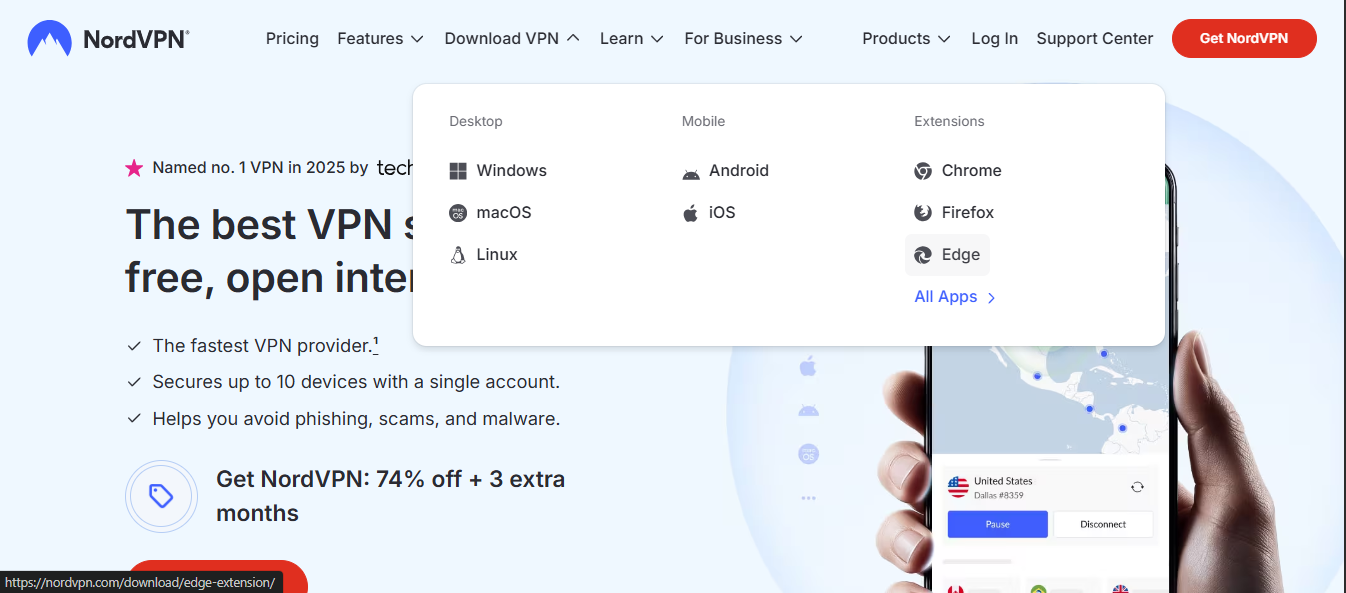
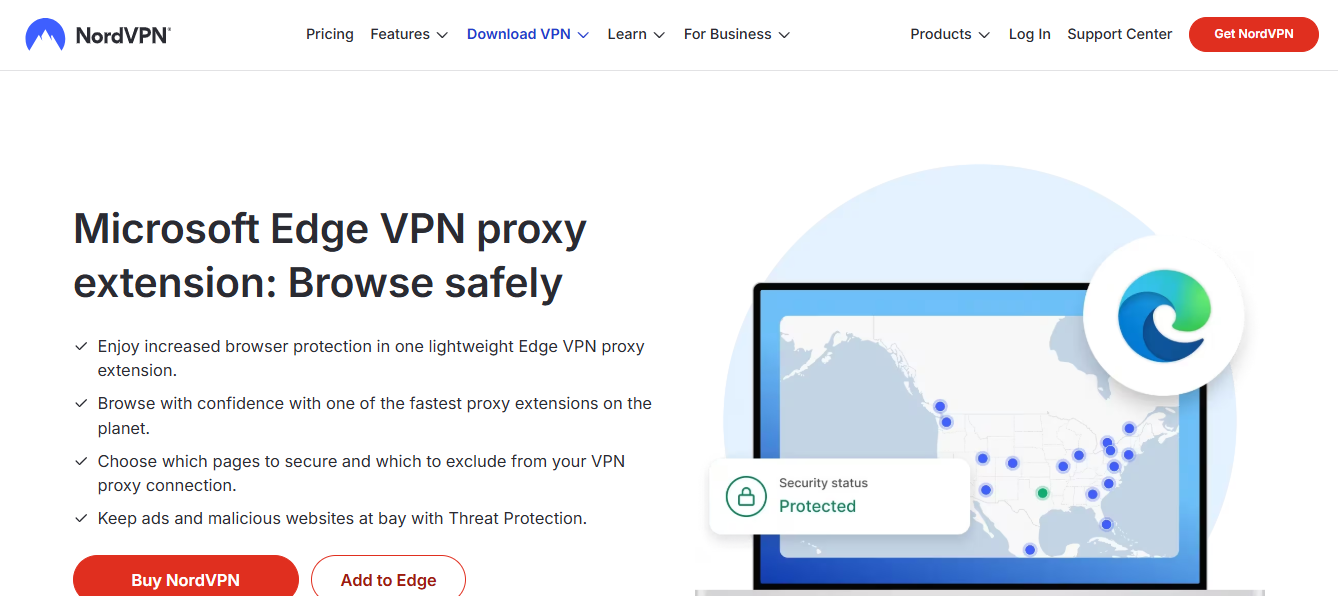
If you’re looking for a free VPN for PC extension Edge users can install quickly, start with a reputable provider’s official extension in the Microsoft Edge Add-ons store. A browser extension may help protect traffic inside Edge or change the apparent location of your browser connection, but it usually does not secure every program on your computer. Before choosing one, check exactly what it protects, how it handles data, and whether its free plan fits your needs.

Editor's pick: NordVPN — fast, secure VPN — Strong encryption, a no-logs policy and apps for every device. 30-day money-back guarantee. Get NordVPN →
Compare Edge VPN extension options using the features that matter before installing.
| Option | Traffic covered | Setup | Best for | Main limitation |
|---|---|---|---|---|
| Free VPN extension | Browser traffic | Add to Edge | Basic browser privacy | May not cover other apps |
| Paid VPN extension | Browser traffic | Add to Edge | More features in the browser | Usually requires a subscription |
| Free VPN app | Device traffic | Install an app | Protecting multiple apps | Free plans may be limited |
| Paid VPN app | Device traffic | Install an app | Broader device protection | Requires a subscription |
| Built-in browser privacy tools | Browser activity, depending on settings | Change Edge settings | Basic privacy controls | Not a VPN |
| Proxy extension | Browser traffic | Add to Edge | Changing apparent browser location | Protection depends on the provider |
Compiled November 2026; check the provider's site for current details.
| VPN | Obfuscation | From / month | Plan | Free plan | Refund | Alipay | UnionPay | Crypto | Website opens in China | Trustpilot | |
|---|---|---|---|---|---|---|---|---|---|---|---|
 ZoogVPN | Turn on manually Shadow | $2.49/mo | 27 months: $59.99 | Yes | 7 days | ✓ | ✓ | ✓ | ✓ | Official site blocked; our special link opens (4.4 s) | 4.2/5 (195 reviews) |
 NordVPN | Turn on manually Obfuscated Servers / NordWhisper | $3.49/mo | 27 months: $94.23 | No | 30 days | ? | ✗ | ✓ | ✓ | ✗ Blocked | 4.2/5 (51,628 reviews) |
 ExpressVPN | ✓ On by default all servers | $3.00/mo | 28 months: $84 | No | 30 days | ✗ | ✗ | ✓ | ✗ | ✗ Blocked | 4.4/5 (29,706 reviews) |
 Surfshark | ✓ On by default Camouflage, with OpenVPN | See site | See site | No | 30 days | ✗ | ✗ | ✗ | ✓ | ✗ Blocked | 4.3/5 (31,823 reviews) |
 Proton VPN | Turn on manually Stealth, free plan too | $2.99/mo | 12 months: $35.88 | Yes | 30 days | ✗ | ✗ | ✗ | ✓ | ✗ Blocked | 2.1/5 (1,040 reviews) |
 Astrill VPN | Turn on manually StealthVPN / OpenWeb | $12.50/mo | 24 months: $300 | No | See site | ✗ | ✗ | ✗ | ✓ | ✗ Blocked | 1.3/5 (110 reviews) |
 Private Internet Access | Turn on manually Shadowsocks, OpenVPN only | $2.03/mo | 40 months: $81.2 | No | 30 days | ✗ | ✗ | ✗ | ✗ | ✗ Blocked | 4.2/5 (11,033 reviews) |
 CyberGhost | Turn on manually selected servers | $2.19/mo | 28 months: $61.32 | No | 45 days | ✗ | ✗ | ✗ | ✓ | ✗ Blocked | 4.0/5 (24,178 reviews) |
 PureVPN | Turn on manually switch to OpenVPN | $1.69/mo | 60 months: $101.55 | No | 31 days | ? | ? | ✗ | ✓ | ✗ Blocked | 4.4/5 (17,994 reviews) |
 AdGuard VPN | ✓ On by default TrustTunnel | $2.99/mo | 24 months: $71.76 | Yes | 30 days | ✓ | ✗ | ✓ | ✓ | Official site blocked; our special link opens (3.7 s) | 4.3/5 (290 reviews) |
 Mullvad | Turn on manually QUIC / Shadowsocks / LWO | $5.61/mo | €5/mo | No | 14 days | ✗ | ✗ | ✗ | ✓ | ✗ Blocked | 3.2/5 (192 reviews) |
 Windscribe | Turn on manually Stealth / WStunnel | $5.75/mo | 12 months: $69 | Yes | See site | ✗ | ✗ | ✗ | ✓ | ✗ Blocked | 4.7/5 (13,355 reviews) |
 StrongVPN | Turn on manually Scramble, OpenVPN TCP | See site | See site | No | 30 days | ✓ | ✗ | ✗ | ✗ | ✗ Blocked | 4.4/5 (2,695 reviews) |
 LightXtreme 闪连 | Not listed | $7.08/mo | 12 months: $84.99 | Yes | 30 days | ✓ | ✓ | ✓ | ✓ | ✓ Yes (3.5 s) | No page |
Prices checked 2026-11-10 on each vendor's pricing page (cheapest long plan, USD). Check the vendor's checkout for the final price.
Obfuscation checked 2026-11-14 on each vendor's site and help center: "on by default" = nothing to set; "turn on manually" = switch protocol or mode in settings; "not listed" = the vendor describes no obfuscation.
Payment methods checked 2026-11-10 on each vendor's payment pages: all 14 take cards and PayPal; ✗ = not listed, ? = the vendor's own pages disagree.
China access: whether the official website opens from mainland China networks (tests the website only, not the VPN connection). Last checked 2026-11-18 01:02 Beijing time.
Trustpilot score and review count checked 2026-11-10.
What an Edge VPN extension does
A VPN extension adds controls to your browser, typically letting you connect to a server in an available location. Depending on the product, it may route browser traffic through the provider’s service or act as a proxy for selected traffic.
That distinction matters. A browser-only extension generally does not cover traffic from desktop apps such as email clients, games, or software that updates in the background. Some providers bundle an extension with a full VPN app, while others offer a standalone browser proxy. Read the product description so you know which one you are installing.
An extension can be useful when you want a convenient connection for browser-based tasks. However, it is not a guarantee of anonymity, and it cannot make unsafe websites, downloads, or accounts risk-free.
How to choose a free VPN extension
Free services vary in their limits and privacy practices. Compare the details before installing rather than choosing an extension just because it has a familiar name or a high rating. Free VPN to Change Location: What to Know Before You Connect
Look for:
- A clear privacy policy: It should explain what information is collected, why it is collected, and how long it is retained.
- A known provider: Prefer an established VPN company with a track record and transparent support information.
- A suitable data allowance: Free plans may cap monthly usage, limit speed, or restrict server locations.
- A clear explanation of coverage: Confirm whether the extension protects Edge traffic only or works with a separate desktop app.
- Recent maintenance: Check when the extension was last updated and whether the developer responds to security concerns.
- Reasonable permissions: Be cautious if an extension requests access that does not appear necessary for its stated features.
Ratings can help you spot recurring complaints, but they are not proof of privacy or security. Read the provider’s terms and verify the developer name in the Edge Add-ons listing.
Check these factors when choosing a free VPN extension for Microsoft Edge.
| Factor | What to check | Good sign | Caution |
|---|---|---|---|
| Edge compatibility | Is it available for Edge? | Listed in Edge Add-ons | Unclear compatibility |
| Developer | Who provides it? | Identifiable provider | Unknown publisher |
| Permissions | What access does it request? | Permissions fit its purpose | Broad or unexplained access |
| Privacy policy | How is data handled? | Clear data practices | Vague or missing policy |
| Data limits | Is usage capped? | Limits are clearly stated | Unclear restrictions |
| Server choice | Can you choose a location? | Options are explained | Few or undisclosed locations |
| Reviews | What do users report? | Recent, consistent feedback | Repeated security concerns |
| Updates | Is the extension maintained? | Recent updates | No visible maintenance |
Compiled November 2026; check the provider's site for current details. BIG-IP Edge VPN: What It Is, How It Works, and When to Use It
Browser extension or full VPN app?
The right choice depends on what you want to protect. A browser extension is convenient, while a desktop VPN app is generally the better fit when you need coverage beyond Edge.
| Feature | Edge VPN extension | VPN app for PC |
|---|---|---|
| Typical coverage | Browser traffic, depending on the provider | Usually traffic from multiple apps |
| Setup | Installed in Edge | Installed on Windows |
| Convenience | Quick to toggle in the browser | Runs separately from the browser |
| Free-plan limits | May limit data, speed, or locations | May also limit data, speed, or locations |
| Best suited for | Browser-specific use | Broader device-level use |
Coverage depends on the service, so confirm the details with the provider. An extension and an app from the same company may not offer identical features.
Install an extension safely in Microsoft Edge
Use Edge’s official Add-ons store as your starting point. Avoid download links from unfamiliar websites, pop-up ads, or unofficial installers.
To install an extension: NordVPN Download Windows 11: How to Install and Get Started
- Open Microsoft Edge and go to the Edge Add-ons store.
- Search for the provider by its exact name.
- Check the developer, listing details, permissions, and recent reviews.
- Select Get and review the permissions prompt before confirming.
- Open the extension and sign in or create an account if the provider requires it.
- Connect, then check the provider’s instructions to confirm the feature is active.
If the extension sends you to a separate download page, make sure it is the provider’s official website. Remove extensions you no longer use, and revisit permissions if the product changes after an update.
Use this checklist to install and evaluate an Edge VPN extension safely.
| Step | Action | Why it matters | Decision |
|---|---|---|---|
| 1 | Find the extension in Edge Add-ons | Helps confirm its Edge listing | Continue if the listing is clear |
| 2 | Check the publisher | Helps identify who operates it | Avoid unclear publishers |
| 3 | Review requested permissions | Shows what browser access it needs | Stop if requests seem excessive |
| 4 | Read the privacy policy | Explains data collection and use | Avoid vague or missing policies |
| 5 | Install and review its settings | Lets you understand available controls | Use only settings you understand |
| 6 | Test the extension on a trusted site | Checks whether it connects as expected | Recheck settings if it fails |
| 7 | Check what traffic is covered | Extensions may cover browser traffic only | Use an app if you need device-wide coverage |
| 8 | Reassess its limits and privacy | Free services may have restrictions | Uninstall if terms or behavior concern you |
Compiled November 2026; check the provider's site for current details.
Understand the limitations of free VPNs
A free plan can be enough for occasional, low-bandwidth browsing, but it may not suit frequent streaming, large downloads, or constant use. Providers commonly limit monthly data, connection speed, server choices, or the number of devices. Checkpoint VPN: What It Does, How It Works, and Which Client to Use
Privacy is the more important consideration. A VPN routes traffic through its provider, so you are placing trust in that company. Avoid services that make sweeping promises without explaining how they operate, and be especially wary of extensions that do not identify a credible developer or provide a readable privacy policy.
A VPN also does not replace basic security habits. Use HTTPS websites, keep Edge and Windows updated, avoid suspicious downloads, and enable strong authentication for important accounts. If a site asks for personal details, a VPN does not make sharing them safer.
Recommendation
For a free VPN for PC extension Edge users can try, choose an extension from a reputable VPN provider’s official Edge Add-ons listing, then confirm its privacy policy, permissions, and free-plan limits. Use it for browser-specific needs only if that matches its stated coverage. If you want protection for other PC apps as well, choose a trustworthy desktop VPN app and check whether its free plan meets your requirements.