Free VPN for PC: How to Choose and Use One Safely
Learn what a free VPN for PC can do, what limitations to expect, and how to choose a safer option.
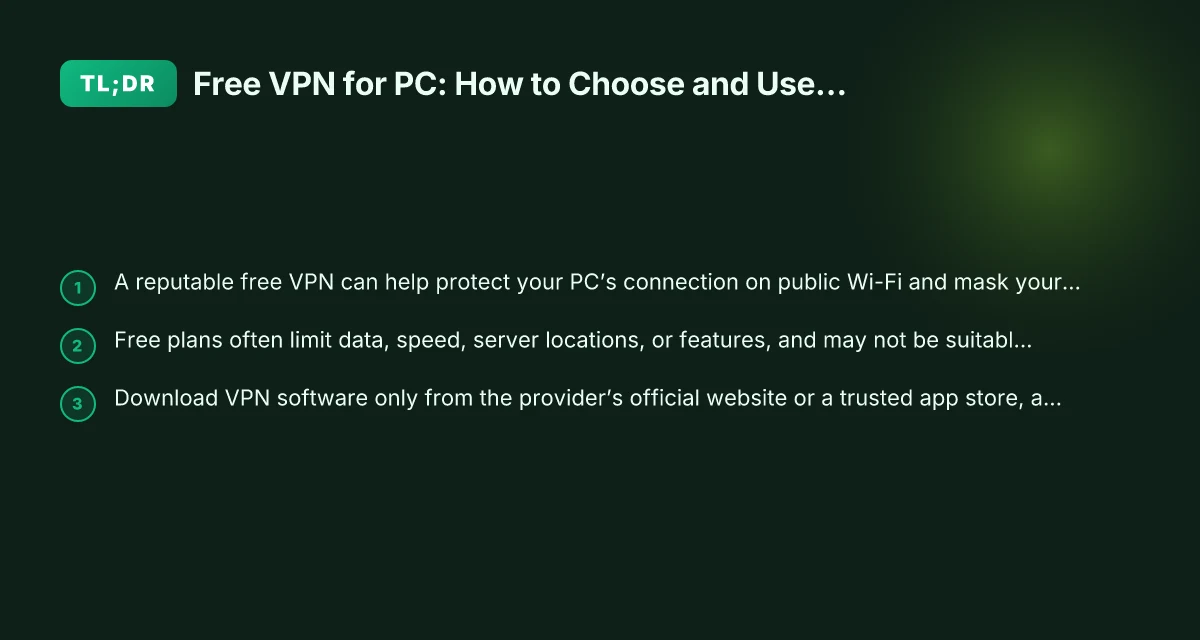
A free VPN for PC can add a layer of privacy by routing your internet traffic through a VPN server instead of directly through your internet provider. It can be useful on public Wi-Fi or for occasional browsing, but free plans usually come with limits. Choose a provider with clear privacy practices, install its Windows app from an official source, and understand what the free plan does before relying on it.

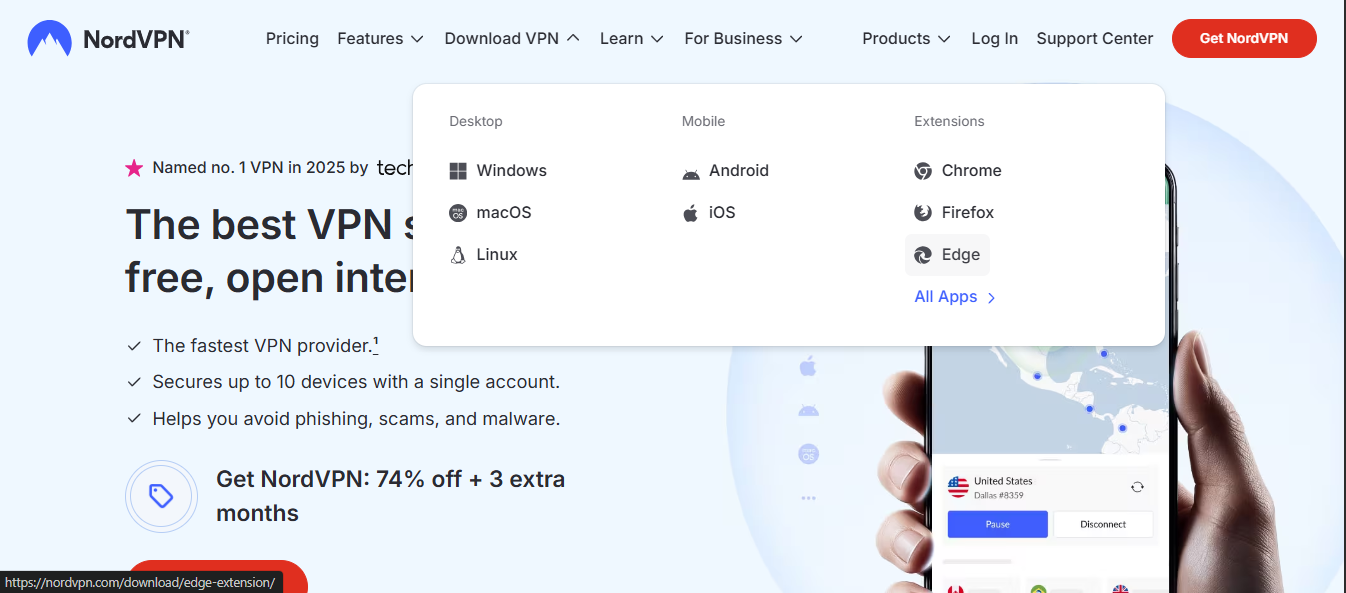
Editor's pick: NordVPN — fast, secure VPN — Strong encryption, a no-logs policy and apps for every device. 30-day money-back guarantee. Get NordVPN →
Features and privacy checks to compare free VPNs
| Check | What to look for | Why it matters | Caution |
|---|---|---|---|
| Data limits | Clear monthly or daily allowance | Helps avoid unexpected cutoffs | Limits may restrict regular use |
| Server locations | Locations listed before signup | Affects available connection choices | Free plans may offer fewer locations |
| Connection speed | Speed information or a trial test | Helps assess everyday usability | Speeds can vary with congestion |
| Privacy policy | Clear data collection and retention details | Shows how personal data is handled | “Free” does not guarantee privacy |
| Logging practices | Specific explanation of connection logs | Helps assess privacy protections | Vague claims are hard to verify |
| Advertising | Whether the app displays ads | Indicates how the free service is funded | Ads may affect the experience |
| Security features | Supported encryption and leak protection | Helps protect traffic and DNS requests | Check which features work on the free plan |
| Windows support | Compatible Windows version and app | Helps ensure the VPN works on your PC | Confirm support before installing |
Compiled November 2026; check the provider's site for current details.
| VPN | Obfuscation | From / month | Plan | Free plan | Refund | Alipay | UnionPay | Crypto | Website opens in China | Trustpilot | |
|---|---|---|---|---|---|---|---|---|---|---|---|
 ZoogVPN | Turn on manually Shadow | $2.49/mo | 27 months: $59.99 | Yes | 7 days | ✓ | ✓ | ✓ | ✓ | Official site blocked; our special link opens (4.4 s) | 4.2/5 (195 reviews) |
 NordVPN | Turn on manually Obfuscated Servers / NordWhisper | $3.49/mo | 27 months: $94.23 | No | 30 days | ? | ✗ | ✓ | ✓ | ✗ Blocked | 4.2/5 (51,628 reviews) |
 ExpressVPN | ✓ On by default all servers | $3.00/mo | 28 months: $84 | No | 30 days | ✗ | ✗ | ✓ | ✗ | ✗ Blocked | 4.4/5 (29,706 reviews) |
 Surfshark | ✓ On by default Camouflage, with OpenVPN | See site | See site | No | 30 days | ✗ | ✗ | ✗ | ✓ | ✗ Blocked | 4.3/5 (31,823 reviews) |
 Proton VPN | Turn on manually Stealth, free plan too | $2.99/mo | 12 months: $35.88 | Yes | 30 days | ✗ | ✗ | ✗ | ✓ | ✗ Blocked | 2.1/5 (1,040 reviews) |
 Astrill VPN | Turn on manually StealthVPN / OpenWeb | $12.50/mo | 24 months: $300 | No | See site | ✗ | ✗ | ✗ | ✓ | ✗ Blocked | 1.3/5 (110 reviews) |
 Private Internet Access | Turn on manually Shadowsocks, OpenVPN only | $2.03/mo | 40 months: $81.2 | No | 30 days | ✗ | ✗ | ✗ | ✗ | ✗ Blocked | 4.2/5 (11,033 reviews) |
 CyberGhost | Turn on manually selected servers | $2.19/mo | 28 months: $61.32 | No | 45 days | ✗ | ✗ | ✗ | ✓ | ✗ Blocked | 4.0/5 (24,178 reviews) |
 PureVPN | Turn on manually switch to OpenVPN | $1.69/mo | 60 months: $101.55 | No | 31 days | ? | ? | ✗ | ✓ | ✗ Blocked | 4.4/5 (17,994 reviews) |
 AdGuard VPN | ✓ On by default TrustTunnel | $2.99/mo | 24 months: $71.76 | Yes | 30 days | ✓ | ✗ | ✓ | ✓ | Official site blocked; our special link opens (3.7 s) | 4.3/5 (290 reviews) |
 Mullvad | Turn on manually QUIC / Shadowsocks / LWO | $5.61/mo | €5/mo | No | 14 days | ✗ | ✗ | ✗ | ✓ | ✗ Blocked | 3.2/5 (192 reviews) |
 Windscribe | Turn on manually Stealth / WStunnel | $5.75/mo | 12 months: $69 | Yes | See site | ✗ | ✗ | ✗ | ✓ | ✗ Blocked | 4.7/5 (13,355 reviews) |
 StrongVPN | Turn on manually Scramble, OpenVPN TCP | See site | See site | No | 30 days | ✓ | ✗ | ✗ | ✗ | ✗ Blocked | 4.4/5 (2,695 reviews) |
 LightXtreme 闪连 | Not listed | $7.08/mo | 12 months: $84.99 | Yes | 30 days | ✓ | ✓ | ✓ | ✓ | ✓ Yes (3.5 s) | No page |
Prices checked 2026-11-10 on each vendor's pricing page (cheapest long plan, USD). Check the vendor's checkout for the final price.
Obfuscation checked 2026-11-14 on each vendor's site and help center: "on by default" = nothing to set; "turn on manually" = switch protocol or mode in settings; "not listed" = the vendor describes no obfuscation.
Payment methods checked 2026-11-10 on each vendor's payment pages: all 14 take cards and PayPal; ✗ = not listed, ? = the vendor's own pages disagree.
China access: whether the official website opens from mainland China networks (tests the website only, not the VPN connection). Last checked 2026-11-18 01:02 Beijing time.
Trustpilot score and review count checked 2026-11-10.
What a free VPN for PC does
A VPN, or virtual private network, creates an encrypted connection between your computer and a VPN server. Websites and online services generally see the server’s IP address rather than your home IP address. The VPN can also make it harder for someone sharing an unsecured network to inspect your traffic.
A VPN does not make you completely anonymous. The provider may be able to see some connection information, and websites can still identify you through account logins, cookies, or browser fingerprinting. A VPN also does not automatically block every malicious website, virus, or tracking method.
For everyday use, a free VPN may be helpful when you connect to airport, hotel, or café Wi-Fi. It can also provide a different virtual location, although free plans may offer only a small selection of server locations.
What to check before choosing one
The word “free” does not guarantee that a VPN is safe or private. Some services support their free plans through paid subscriptions. Others may rely on advertising or collect more information than you expect. Read the provider’s privacy policy and look for clear details about how it handles user data. Turn Off Microsoft Edge VPN: Disable Secure Network
Check these points before installing:
- Data limits: Some free plans cap monthly usage, while others offer unlimited data with restrictions elsewhere.
- Speed and congestion: Free servers may be busy, making downloads and video calls slower.
- Server locations: A small location list can limit performance and access to location-specific services.
- Privacy policy: Look for plain explanations of what is collected, why it is collected, and whether it is shared.
- Security features: Check for modern encryption, a kill switch, and protection against DNS leaks.
- Business model: Make sure you understand how the service earns revenue and what happens if you upgrade.
- Windows support: Confirm that the provider offers a current, maintained app for your version of Windows.
Be cautious of apps with unclear ownership, exaggerated privacy promises, aggressive pop-ups, or requests for permissions that do not make sense for a VPN.
Free VPN versus paid VPN for PC
| Comparison point | Free VPN | Paid VPN |
|---|---|---|
| Cost | No subscription fee | Subscription or one-time payment |
| Data allowance | May be limited | Often more generous |
| Server choice | May offer fewer locations | Often offers more locations |
| Speed | May vary with congestion | May offer more consistent access |
| Features | Some features may be restricted | More features may be included |
| Support | May be limited | May include broader support |
| Privacy | Depends on the provider and policy | Still depends on the provider and policy |
| Best fit | Occasional, low-data use | Regular use or broader needs |
Compiled November 2026; check the provider's site for current details. Urban VPN for Edge: How to Install and What to Know
Free VPN compared with paid VPN
A free plan can be enough for occasional browsing, but a paid plan is often a better fit for frequent or demanding use. The exact features vary by provider, so compare the plan details rather than relying on broad claims.
| Feature | Free VPN plan | Paid VPN plan |
|---|---|---|
| Cost | No subscription fee for the free tier | Recurring or prepaid fee |
| Data allowance | May be capped or restricted | Often higher or unlimited, depending on the plan |
| Server choice | Commonly limited | Usually offers more locations |
| Speed | May vary with demand and plan limits | Often includes more capacity |
| Streaming and downloads | Performance and access can be inconsistent | More likely to suit regular use, but not guaranteed |
| Support and features | May be limited | May include more support and options |
A paid plan does not automatically provide better privacy. Review its policies and reputation just as carefully as you would for a free service. Also note that VPN use does not guarantee access to a streaming catalogue: services can block VPN connections, and access rules can change.
How to install and use a VPN on Windows
Once you have chosen a provider, download the Windows app from its official website or a trusted app store. Avoid third-party download sites, which may offer outdated or modified installers.
Follow these steps: IPsec Port: Which Ports and Protocols Does IPsec Use?
- Create an account if the provider requires one, and select its free plan.
- Download and install the official Windows application.
- Open the app, sign in, and review the available privacy and connection settings.
- Choose a nearby server for a generally faster connection, or select another location if you have a specific reason.
- Connect and confirm that the app shows the VPN as active.
- Disconnect when you no longer need the VPN, or enable automatic connection on networks you do not trust.
If the app offers a kill switch, learn how it works. A kill switch can block internet access if the VPN connection drops unexpectedly, helping prevent traffic from continuing over your regular connection. It may also interrupt your internet access until the VPN reconnects.
Keep the app and Windows updated. If a connection is slow, try a nearby server, close bandwidth-heavy apps, or reconnect. Avoid installing multiple VPN apps at once, as they can conflict with each other’s network settings.
Windows VPN setup and safe-use checklist
| Step or issue | What to do | Why it helps | Check before continuing |
|---|---|---|---|
| Choose a provider | Review its privacy policy and limits | Helps you understand trade-offs | Confirm the free plan suits your needs |
| Get the installer | Download from the provider’s official site or app store | Reduces the risk of fake software | Check the publisher and app name |
| Install the app | Follow the Windows setup prompts | Adds the VPN client to your PC | Review requested permissions |
| Sign in or register | Use the provider’s stated account process | Enables access to the service | Avoid sharing unnecessary information |
| Connect | Select a server and use the app’s connect control | Routes supported traffic through the VPN | Confirm the app shows a connected state |
| Check coverage | Review whether all apps use the VPN | Helps spot excluded traffic | Check split-tunneling settings |
| Handle disconnections | Use a kill switch if supported | Can reduce exposure if the VPN drops | Confirm the feature is enabled |
| Avoid risky use | Do not assume a VPN makes all activity safe | A VPN does not replace other security steps | Use trusted sites and keep Windows updated |
Compiled November 2026; check the provider's site for current details. FortiGate VPN: How It Works, Setup Options, and What to Know
Common limitations and mistakes
Free VPN users should expect trade-offs. A data cap can run out quickly during video calls or large downloads. Limited servers may become crowded, and some websites may not work reliably through shared VPN addresses.
Remember these practical points:
- A VPN does not replace antivirus software, Windows updates, or strong passwords.
- A VPN does not protect you if you willingly enter sensitive information on a fraudulent site.
- A “no logs” claim is only useful when the provider explains what it means and supports the claim with credible information.
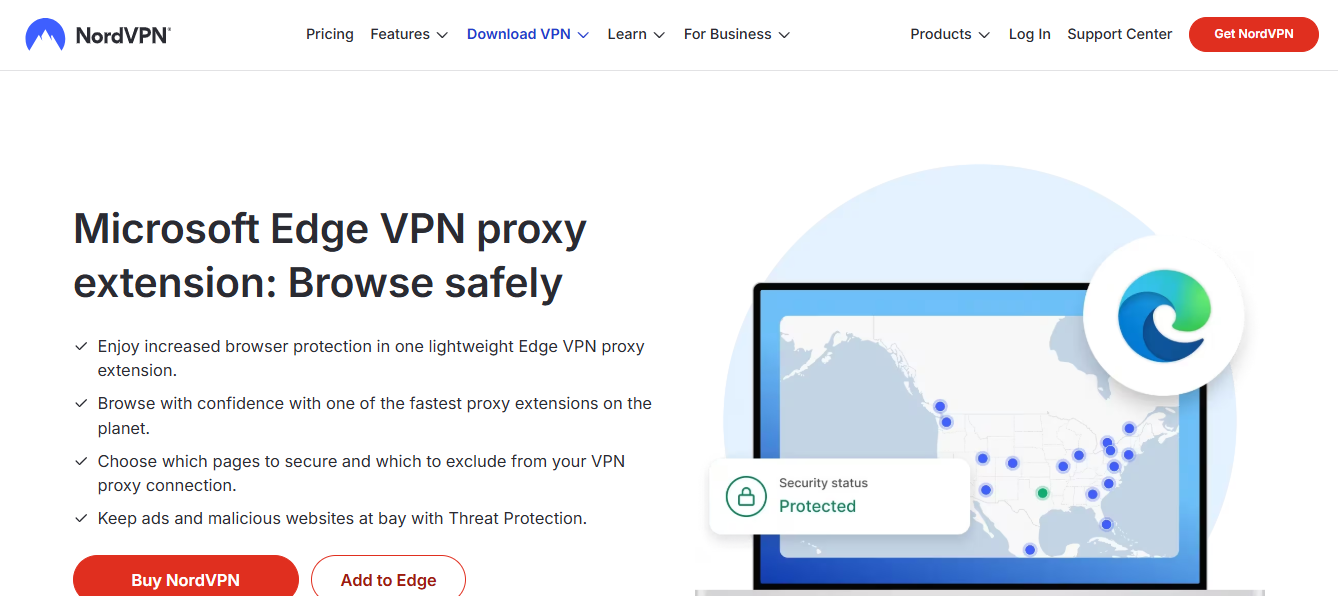
- Free VPN browser extensions are not necessarily full-device VPNs. Check what traffic they cover.
- Do not assume a VPN can bypass workplace, school, or local network rules.
Recommendation
For occasional browsing on public Wi-Fi, a free VPN for PC from a well-established provider may be a reasonable starting point if its privacy policy is clear and its Windows app is maintained. Check the data allowance, available locations, and security settings before connecting. If you need reliable performance for daily use, frequent video calls, large downloads, or a wider choice of servers, compare reputable paid plans instead.