IPVanish Login: How to Sign In and Fix Common Problems
Learn how to log in to IPVanish, access your account dashboard, reset your password, and troubleshoot sign-in issues.
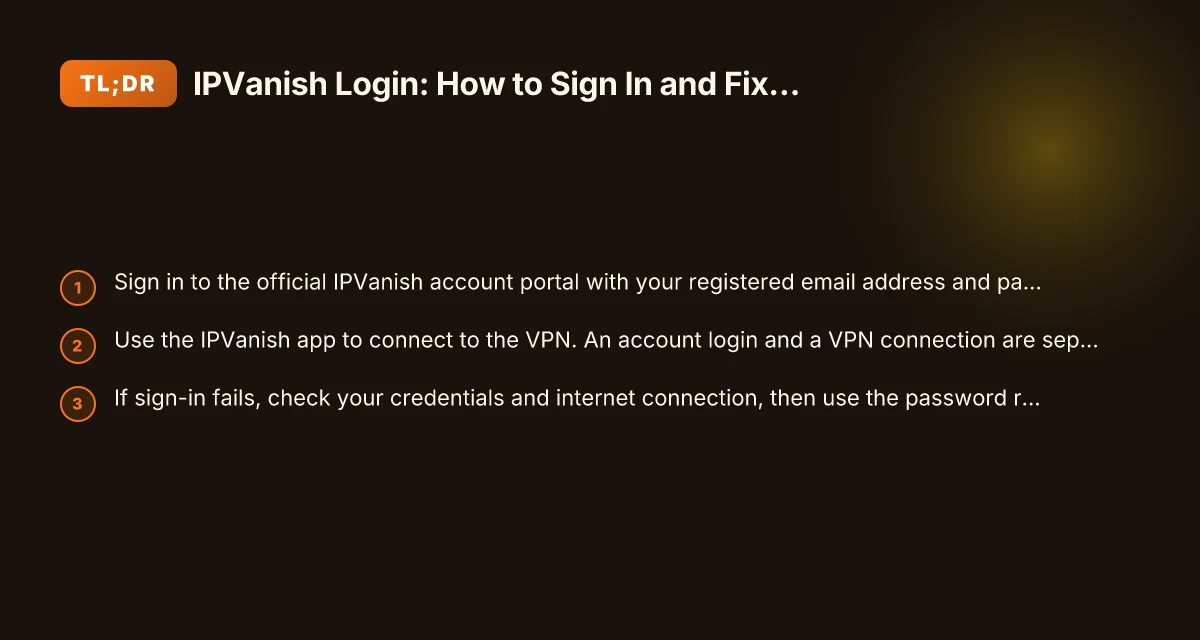
To complete an IPVanish login, go to the official account portal at my.ipvanish.com and enter the email address and password associated with your account. To use the VPN, open the IPVanish app on your device and sign in there as well if prompted. Your account portal is for managing your subscription and account details. The app is where you choose a VPN server and connect.

Editor's pick: NordVPN — fast, secure VPN — Strong encryption, a no-logs policy and apps for every device. 30-day money-back guarantee. Get NordVPN →
Choose where to sign in based on what you need
| Option | Best for | What you need | What you can do | If sign-in fails |
|---|---|---|---|---|
| IPVanish website | Account access | IPVanish account credentials | Manage account details | Check your credentials |
| IPVanish app | Using the VPN | IPVanish account credentials | Sign in and use VPN features | Check your credentials |
| Website on a computer | Browser-based access | A supported browser | Access account options | Try another supported browser |
| Website on a phone | Browser-based access | A supported browser | Access account options | Try the IPVanish app |
| App on a computer | VPN access on a computer | IPVanish app and credentials | Sign in to the app | Check the app and credentials |
| App on a phone | VPN access on a phone | IPVanish app and credentials | Sign in to the app | Check the app and credentials |
Compiled November 2026; check the provider's site for current details.
How to log in to your IPVanish account
Open a browser and visit my.ipvanish.com. Check that the address is spelled correctly and that you are on the official IPVanish site before entering your credentials.
Then:
- Enter the email address linked to your IPVanish account.
- Type your password.
- Select the sign-in option to open your account dashboard.
Your IPVanish username is typically your account email address. If you are unsure which email you used, check your inboxes for IPVanish account or subscription messages. Avoid sharing your password or one-time security details with anyone.
Account portal versus VPN app
Logging in to the website does not automatically connect your device to a VPN server. Likewise, signing in to the app is not the same as opening the account dashboard. Use the portal to review or manage your account, and use the app to connect. Free VPN: What to Know Before You Choose One
| What you want to do | Where to go |
|---|---|
| Manage your IPVanish account | Official account portal at my.ipvanish.com |
| Use the VPN connection | IPVanish app on your device |
| Download the app | Official IPVanish site or your device’s app store |
How to log in to the IPVanish app
Install the IPVanish app from the official IPVanish website or your device’s app store. Open it and enter the account credentials associated with your subscription. Once signed in, follow the app’s prompts to connect.
The app may request permission to set up a VPN connection on your device. Review the prompt and approve it if you want the VPN to work. When connected, the app can help secure internet traffic and change the IP address and location shown to websites and online services.
If you already have the app installed but are signed out, open it and look for its sign-in option. App layouts can vary by device and version, so the labels or location of buttons may differ.
Diagnose common IPVanish login problems Sslvpn poscoenc.com: How to Find and Access POSCO E&C VPN
| Problem | What to check | What to try | Login or connection? | Next step |
|---|---|---|---|---|
| Incorrect password | Password entry | Re-enter it carefully | Login | Try password recovery |
| Incorrect username | Account details | Confirm the username | Login | Check your account details |
| Login details rejected | Username and password | Enter the correct credentials | Login | Use the account recovery option |
| App will not sign in | Credentials and app | Re-enter credentials | Login | Try signing in on the website |
| Website will not sign in | Credentials and browser | Re-enter credentials | Login | Try another supported browser |
| Signed in, but VPN will not connect | VPN connection status | Check the app’s connection controls | Connection | Troubleshoot the connection separately |
Compiled November 2026; check the provider's site for current details.
What to do if IPVanish login is not working
A failed login can result from a mistyped email or password, an outdated saved password, or a temporary connection problem. Try these checks in order:
- Confirm your email address. Use the address registered to your IPVanish account, not necessarily the one currently signed in to your device.
- Check the password carefully. Look for accidental spaces, capitalization differences, or a saved password that may be out of date.
- Reset your password. Use the password recovery option on the official sign-in page and follow the instructions sent to your registered email.
- Check your internet connection. Try loading another website or reconnecting to a stable network.
- Update or restart the app. Close and reopen IPVanish, and check your app store for an available update.
- Try the account portal in a browser. This can help determine whether the issue is limited to the app or affects account access more broadly.
If you do not receive a password reset email, check your spam or junk folder and confirm that you entered the correct account email. If the problem continues, contact IPVanish support through its official website. Do not give your password to someone claiming to fix the issue.
Logging in is different from connecting
You can be signed in to IPVanish without having an active VPN connection. After signing in to the app, select a server or use the app’s connection option. Wait for the app to confirm that the VPN is connected before relying on it to route your traffic. Free VPN Extension Edge: How to Choose and Use One Safely
If you cannot connect after logging in, check that your device has internet access and that the app has permission to create a VPN connection. You can also try another available server or restart the app. A login problem prevents account access. A connection problem occurs when the app cannot establish the VPN tunnel. Treating them as separate issues makes troubleshooting easier.
Choose the right account or VPN action
| Action | Use it when | Requires account sign-in? | What it affects | Not the same as |
|---|---|---|---|---|
| Sign in on the website | You need account access | Yes | Account access | Connecting to VPN |
| Sign in to the app | You want to use the VPN app | Yes | App access | Connecting to VPN |
| Connect to VPN | You want VPN protection | Sign in first | VPN connection | Signing in |
| Manage subscription | You need to review subscription details | Yes | Subscription | VPN connection |
| Update account details | You need to manage account information | Yes | Account information | Signing in to the app |
| Recover account access | You cannot sign in | Account recovery details may be needed | Login access | Fixing a VPN connection |
Compiled November 2026; check the provider's site for current details.
Managing your subscription and account
The account portal is the place to review account details and subscription information. If you are trying to cancel, first sign in to the portal and look for the account or subscription management options. The exact steps can depend on how you purchased the subscription, so follow the instructions shown for your account or contact IPVanish support if you cannot find them. Microsoft Edge Secure Network VPN: How It Works and How to Use It
For account security, use a strong, unique password and keep access to the email address registered to your account. Only sign in through the official IPVanish website or its legitimate app. Be cautious of search ads, unofficial login pages, and links in unexpected messages.
Recommendation
For a secure IPVanish login, start at my.ipvanish.com and use your registered email address and password. Sign in to the app separately to connect to a VPN server. If you cannot access your account, verify your email, reset your password through the official page, and contact IPVanish support if the issue remains.