Microsoft Edge Menu > Settings > Show Advanced Settings > Change Proxy Settings > LAN Settings: A Current Guide
Learn where Edge’s proxy and LAN settings are now, how to change them, and what to check if the option is missing.
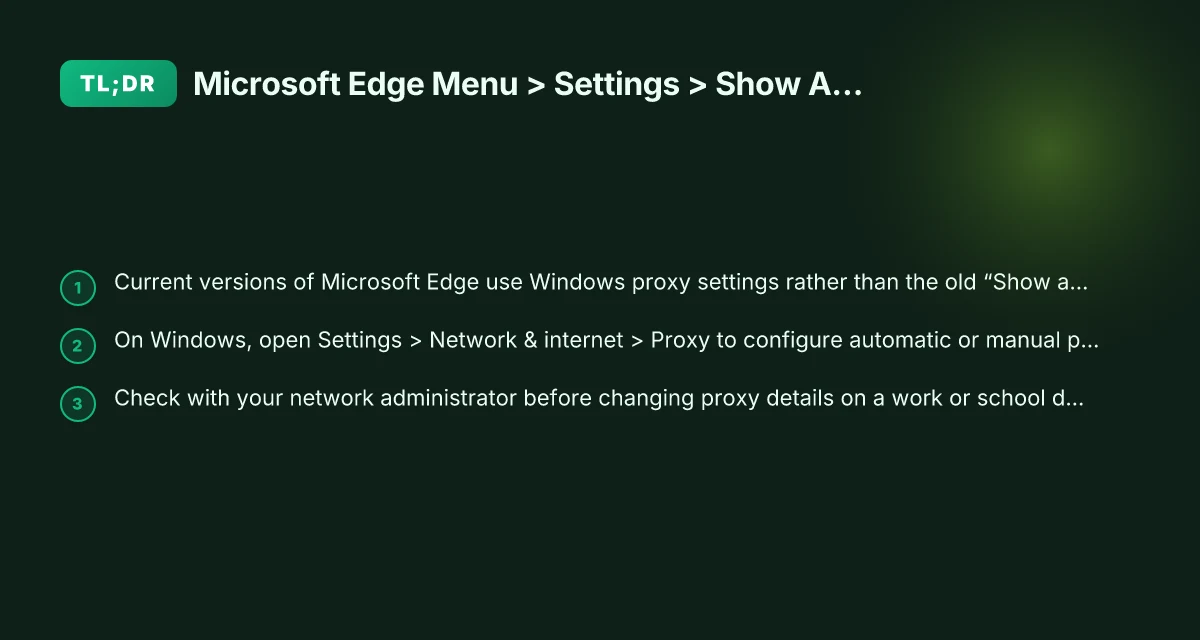
If you’re searching for “microsoft edge menu > settings > show advanced settings > change proxy settings > lan settings,” you’re looking for the older route to proxy configuration. That menu path is no longer available in current versions of Microsoft Edge. Edge now relies on your device’s operating-system proxy settings, so on Windows you can manage the equivalent options through Settings > Network & internet > Proxy. The labels may vary slightly by Windows version.

Editor's pick: NordVPN — fast, secure VPN — Strong encryption, a no-logs policy and apps for every device. 30-day money-back guarantee. Get NordVPN →
Where to open proxy settings in Microsoft Edge
| Option | How to open it | What it opens | Best for |
|---|---|---|---|
| Edge Settings | Menu > Settings | Edge settings | Starting from the browser |
| Edge search | Search Settings for “proxy” | Matching settings or links | Finding the setting quickly |
| Windows Settings | Open Windows Settings | Windows configuration | Managing system-wide options |
| Network & Internet | Windows Settings > Network & Internet | Network settings | Browsing to proxy controls |
| Proxy page | Network & Internet > Proxy | Proxy options | Viewing current configuration |
| LAN Settings | Proxy page > LAN settings | Local network options | Configuring a LAN connection |
Compiled November 2026; check the provider's site for current details.
Why the old Edge path is missing
Older Edge versions included a Show advanced settings link and an option to open Windows’ Internet Properties window. From there, users could select Connections > LAN settings to set a proxy or configure automatic detection.
That older Edge interface has changed. Current Edge versions generally send you to your system’s proxy controls instead of providing a separate browser-level LAN settings page. This helps ensure that Edge follows the proxy configuration set for the device.
If you use a different operating system, the location and behavior of proxy settings may differ. The steps below are for Windows.
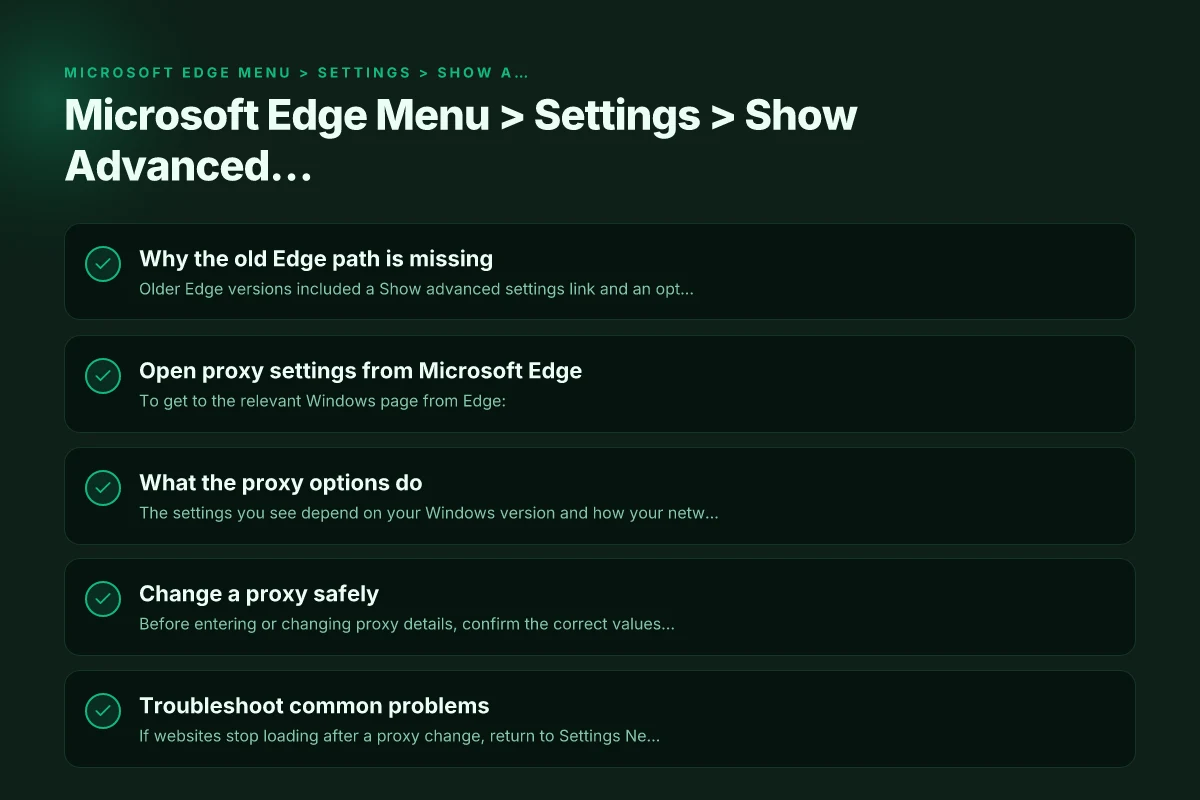
Open proxy settings from Microsoft Edge
To get to the relevant Windows page from Edge: Free VPN That Changes Location: What to Look For and How to Choose
- Open Microsoft Edge.
- Select the three-dot menu in the top-right corner.
- Select Settings.
- In the Settings search box, search for proxy.
- Select the option to open your computer’s proxy settings, if it appears.
You can also open the page directly in Windows:
- Open Start and select Settings.
- Select Network & internet.
- Select Proxy.
On some Windows versions, Edge may open Internet Properties when you follow a proxy link. If so, select the Connections tab and then LAN settings. That window is the familiar location for LAN proxy options, but it is a Windows dialog, not a current Edge settings page.
What the proxy options are for
| Option | What it does | Use when | Caution |
|---|---|---|---|
| Automatically detect settings | Lets Windows detect proxy settings | The network supports automatic detection | Detection may not match your needs |
| Use setup script | Applies settings from a script address | Your organization provides a script | Check the address with your administrator |
| Use a proxy server | Sends eligible traffic through a specified server | You have approved proxy details | Incorrect details can block connections |
| Address | Identifies the proxy server | A proxy server is required | Enter the supplied address carefully |
| Port | Identifies the proxy server port | A proxy server is required | Use the supplied port |
| Bypass list | Excludes specified addresses from the proxy | Some destinations should connect directly | Review exclusions before saving |
Compiled November 2026; check the provider's site for current details. Clash iPhone: How to Play Clash Games on Your iPhone
What the proxy options do
The settings you see depend on your Windows version and how your network is managed. The main options usually include automatic configuration and manual proxy setup.
| Option | What it does | When it may be used |
|---|---|---|
| Automatically detect settings | Lets Windows look for proxy settings on the network | Some managed or business networks |
| Use setup script | Applies configuration from a proxy script URL | Organizations that provide a PAC file |
| Use a proxy server | Routes traffic through a specified proxy address and port | A proxy service or administrator-provided configuration |
| Don’t use proxy for local addresses | Excludes certain local network destinations from the proxy | When instructed by your administrator |
In older LAN settings dialogs, these may appear as checkboxes such as Automatically detect settings, Use automatic configuration script, and Use a proxy server for your LAN. The wording and available controls can vary.
Change a proxy safely
Before entering or changing proxy details, confirm the correct values with your network administrator, internet provider, or proxy service. A manual setup may require a server address and port, and some organizations also provide a setup-script address or specific exceptions.
To configure a manual proxy in Windows: Free VPN Choose Country: How to Pick a Safe VPN With the Right Location
- Go to Settings > Network & internet > Proxy.
- Under Manual proxy setup, select Set up or turn on the option to use a proxy server.
- Enter the proxy address and port supplied to you.
- Add any required exclusions, if instructed.
- Save the changes, then reopen Edge and test a site you are authorized to access.
To use a configuration script, find Use setup script, select Set up, and enter the script address provided by your organization. Don’t guess these details: an incorrect address can prevent websites from loading or send traffic through an unintended server.
If the device belongs to your employer or school, the proxy controls may be set by policy. You might be unable to edit them, or your changes may be reset automatically. Contact the organization’s IT support rather than trying to bypass those controls.
Troubleshoot common problems
If websites stop loading after a proxy change, return to Settings > Network & internet > Proxy and check that the settings match the instructions you were given. If you made a change just to test something, restore the previous values.
Other useful checks include: NordVPN Account Generator: Why Free Login Tools Are Risky
- Confirm that the proxy address and port are entered correctly.
- Check whether your network requires a setup script rather than a manual server.
- Turn off a setting only if you know it was enabled accidentally. It may be required on a managed network.
- Restart Edge after changing settings, and try another browser or app to see whether the issue affects the whole device.
- Check whether a VPN or security application is also controlling network traffic.
If a page reports that the proxy server is refusing connections, the server may be unavailable, the details may be wrong, or your network may require authentication. Contact the service provider or administrator for the correct configuration.
Choose a safe troubleshooting step
| Situation | First check | Next step | Avoid |
|---|---|---|---|
| Old Edge path is missing | Edge version and Settings menu | Open Windows Proxy settings | Searching for retired menus |
| No proxy is required | Current Windows proxy options | Keep proxy settings off | Adding unverified server details |
| Organization requires a proxy | Administrator’s instructions | Enter approved settings | Guessing the address or port |
| A setup script is required | Script address from your organization | Verify it before applying | Using an unknown script |
| Websites stop loading after a change | Proxy address, port, and mode | Restore the previous settings if needed | Making several changes at once |
| Some sites should bypass the proxy | Bypass list requirements | Confirm exclusions with your administrator | Broad or unexplained exclusions |
| Settings are managed by work or school | Organization policy | Contact IT support | Trying to override managed settings |
Compiled November 2026; check the provider's site for current details.
Recommendation
Treat LAN settings as an older route to Windows proxy controls, not as a current Microsoft Edge menu. On Windows, use Settings > Network & internet > Proxy, and only enter proxy details supplied by a trusted provider or your organization. Forticlientvpnsetup_7.4.3.4726_x64.exe: Download and Setup Guide