Proton VPN Download: How to Get and Install the Official App
Learn how to download Proton VPN safely, choose the right app for your device, and complete setup.
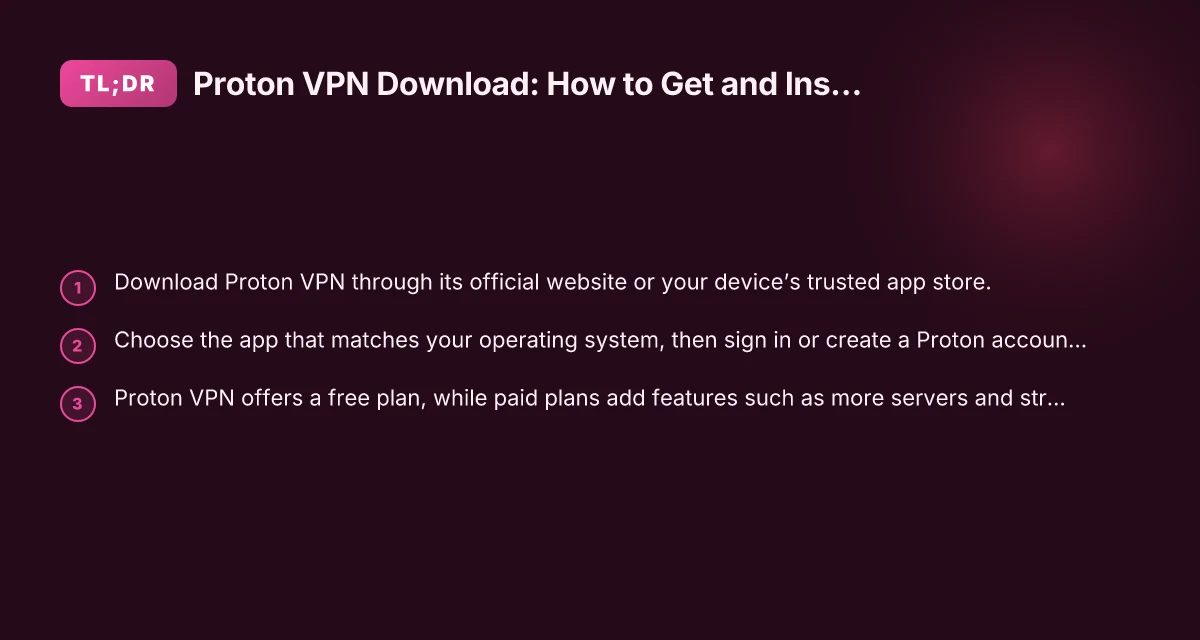
If you’re looking for a Proton VPN download, get the app from the official Proton VPN website or your device’s official app store. Choose the version for Windows, macOS, Linux, Android, or iPhone and iPad, install it, then sign in to connect. Using an official source helps you avoid counterfeit or modified installers.

Editor's pick: NordVPN — fast, secure VPN — Strong encryption, a no-logs policy and apps for every device. 30-day money-back guarantee. Get NordVPN →
Official download sources by platform
| Platform | Official source | Available as | What to check | Avoid |
|---|---|---|---|---|
| Windows | Proton VPN website | Desktop app | Confirm the Proton VPN name | Unofficial download sites |
| macOS | Proton VPN website | Desktop app | Confirm the Proton VPN name | Unofficial download sites |
| Android | Google Play Store or Proton VPN website | Mobile app | Check the publisher is Proton AG | Unfamiliar app listings |
| iPhone and iPad | Apple App Store | Mobile app | Check the publisher is Proton AG | Unfamiliar app listings |
| Linux | Proton VPN website | Linux app or setup package | Follow instructions for your distribution | Packages from unknown sources |
| Any platform | Proton VPN website | Download and setup guidance | Use the current platform-specific instructions | Links from unsolicited messages |
Compiled November 2026; check the provider's site for current details.
| VPN | Obfuscation | From / month | Plan | Free plan | Refund | Alipay | UnionPay | Crypto | Website opens in China | Trustpilot | |
|---|---|---|---|---|---|---|---|---|---|---|---|
 Proton VPN | Turn on manually Stealth, free plan too | $2.99/mo | 12 months: $35.88 | Yes | 30 days | ✗ | ✗ | ✗ | ✓ | ✗ Blocked | 2.1/5 (1,040 reviews) |
 ZoogVPN | Turn on manually Shadow | $2.49/mo | 27 months: $59.99 | Yes | 7 days | ✓ | ✓ | ✓ | ✓ | Official site blocked; our special link opens (4.4 s) | 4.2/5 (195 reviews) |
 NordVPN | Turn on manually Obfuscated Servers / NordWhisper | $3.49/mo | 27 months: $94.23 | No | 30 days | ? | ✗ | ✓ | ✓ | ✗ Blocked | 4.2/5 (51,628 reviews) |
 ExpressVPN | ✓ On by default all servers | $3.00/mo | 28 months: $84 | No | 30 days | ✗ | ✗ | ✓ | ✗ | ✗ Blocked | 4.4/5 (29,706 reviews) |
 Surfshark | ✓ On by default Camouflage, with OpenVPN | See site | See site | No | 30 days | ✗ | ✗ | ✗ | ✓ | ✗ Blocked | 4.3/5 (31,823 reviews) |
 Astrill VPN | Turn on manually StealthVPN / OpenWeb | $12.50/mo | 24 months: $300 | No | See site | ✗ | ✗ | ✗ | ✓ | ✗ Blocked | 1.3/5 (110 reviews) |
 Private Internet Access | Turn on manually Shadowsocks, OpenVPN only | $2.03/mo | 40 months: $81.2 | No | 30 days | ✗ | ✗ | ✗ | ✗ | ✗ Blocked | 4.2/5 (11,033 reviews) |
 CyberGhost | Turn on manually selected servers | $2.19/mo | 28 months: $61.32 | No | 45 days | ✗ | ✗ | ✗ | ✓ | ✗ Blocked | 4.0/5 (24,178 reviews) |
 PureVPN | Turn on manually switch to OpenVPN | $1.69/mo | 60 months: $101.55 | No | 31 days | ? | ? | ✗ | ✓ | ✗ Blocked | 4.4/5 (17,994 reviews) |
 AdGuard VPN | ✓ On by default TrustTunnel | $2.99/mo | 24 months: $71.76 | Yes | 30 days | ✓ | ✗ | ✓ | ✓ | Official site blocked; our special link opens (3.7 s) | 4.3/5 (290 reviews) |
 Mullvad | Turn on manually QUIC / Shadowsocks / LWO | $5.61/mo | €5/mo | No | 14 days | ✗ | ✗ | ✗ | ✓ | ✗ Blocked | 3.2/5 (192 reviews) |
 Windscribe | Turn on manually Stealth / WStunnel | $5.75/mo | 12 months: $69 | Yes | See site | ✗ | ✗ | ✗ | ✓ | ✗ Blocked | 4.7/5 (13,355 reviews) |
 StrongVPN | Turn on manually Scramble, OpenVPN TCP | See site | See site | No | 30 days | ✓ | ✗ | ✗ | ✗ | ✗ Blocked | 4.4/5 (2,695 reviews) |
 LightXtreme 闪连 | Not listed | $7.08/mo | 12 months: $84.99 | Yes | 30 days | ✓ | ✓ | ✓ | ✓ | ✓ Yes (3.5 s) | No page |
Prices checked 2026-11-10 on each vendor's pricing page (cheapest long plan, USD). Check the vendor's checkout for the final price.
Obfuscation checked 2026-11-14 on each vendor's site and help center: "on by default" = nothing to set; "turn on manually" = switch protocol or mode in settings; "not listed" = the vendor describes no obfuscation.
Payment methods checked 2026-11-10 on each vendor's payment pages: all 14 take cards and PayPal; ✗ = not listed, ? = the vendor's own pages disagree.
China access: whether the official website opens from mainland China networks (tests the website only, not the VPN connection). Last checked 2026-11-18 01:02 Beijing time.
Trustpilot score and review count checked 2026-11-10.
Where to download Proton VPN
Start at the Proton VPN website and open its download page. Select your operating system and follow the instructions shown for that version. On mobile, you can also search for Proton VPN in the Apple App Store or Google Play Store and check that the publisher is Proton AG.
The available download route depends on your device:
| Device | Recommended source | What to expect |
|---|---|---|
| Windows PC | Proton VPN website | Download and run the Windows installer |
| Mac | Proton VPN website or Mac App Store, if available in your region | Install the app, then sign in |
| Linux computer | Proton VPN website | Follow the distribution-specific installation instructions |
| Android phone or tablet | Google Play Store or Proton VPN website | Install the app and approve requested permissions |
| iPhone or iPad | Apple App Store | Install the app and allow VPN configuration |
Avoid third-party download sites, unofficial app stores, and links in unsolicited messages. They may host outdated files or apps that imitate the real service. If you’re unsure whether a download page is genuine, navigate to Proton’s website directly rather than following a link.
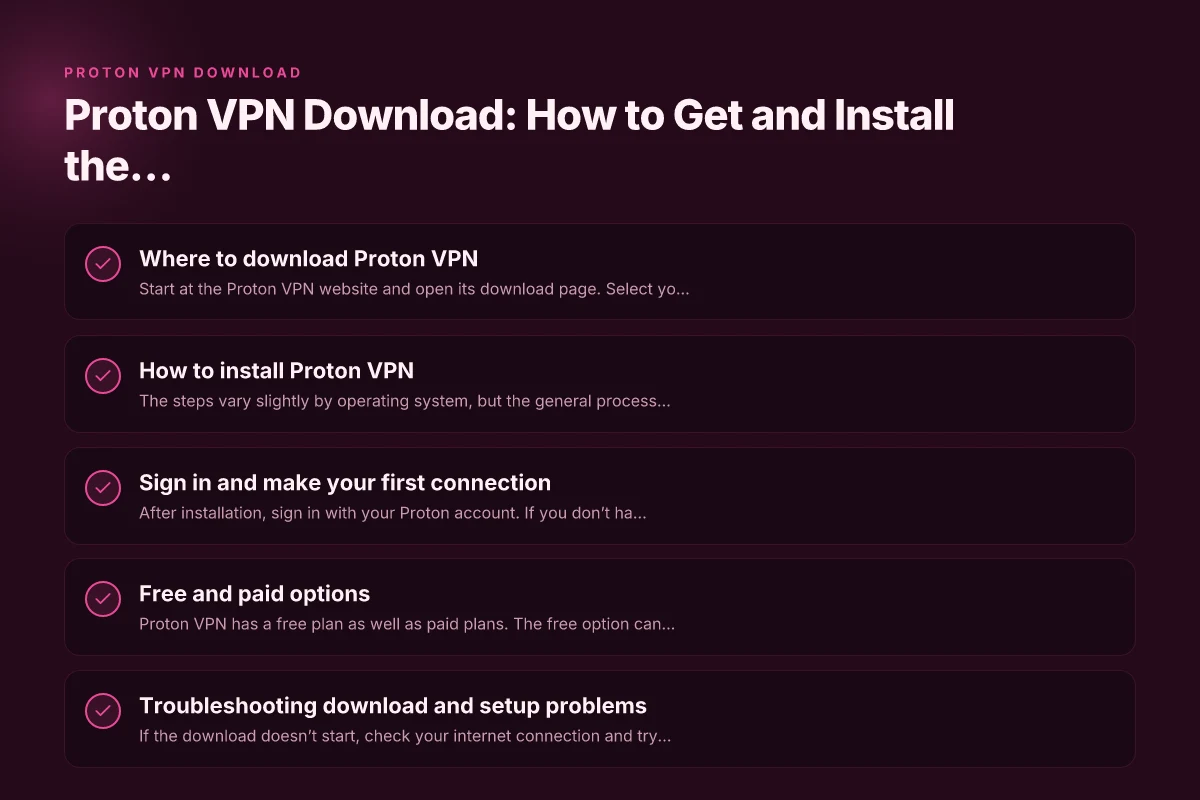
How to install Proton VPN
The steps vary slightly by operating system, but the general process is straightforward. Free VPN Extension for Edge Browser: How to Choose One Safely
- Open the official download page or your device’s app store.
- Select the Proton VPN app for your device.
- Download the installer or tap the store’s install button.
- Open the downloaded file or app and follow the on-screen instructions.
- Launch Proton VPN and sign in, or create a Proton account.
- Review the app’s permissions and connect to a server.
On desktop, your operating system may ask you to confirm that you want to install the app or allow it to make changes. On mobile, the app may request permission to add VPN settings. This is needed for the VPN connection to work. Approve the request only when you’re using the official Proton VPN app.
For Linux, use the instructions listed for your specific distribution. Package managers and installation commands differ between systems, so don’t copy commands from an unrelated guide. Check Proton’s current documentation if you’re uncertain.
Installation and first-connection checklist
| Step | What to do | Check for | If it does not work |
|---|---|---|---|
| Download | Choose your platform’s official source | App matches your device | Recheck the source and platform |
| Install | Open the downloaded app or package | Installation finishes successfully | Follow the platform-specific guidance |
| Launch | Open Proton VPN | Sign-in screen or app home appears | Restart the app and check for updates |
| Sign in | Enter your Proton account details | Account is accepted | Check the details and account access |
| Choose a server | Select an available location | Server selection is available on your plan | Review free and paid options |
| Connect | Start the VPN connection | App shows a connected state | Try another available server |
| Verify | Check the app’s connection status | Connection remains active | Disconnect, reconnect, or consult troubleshooting guidance |
Compiled November 2026; check the provider's site for current details. FortiClient VPN Only: What It Is and How to Set It Up
Sign in and make your first connection
After installation, sign in with your Proton account. If you don’t have one, you can create an account through Proton’s website or the app. The features and server access available depend on the plan you choose.
To connect, open the app and select a server or use its quick-connect option. The app will show when a VPN connection is active. To check that it’s working, look for the connected status in Proton VPN and, if desired, use a reputable IP-checking website to see whether your public IP address has changed.
A VPN routes your internet traffic through a VPN server, which can help protect it from observation on the local network and change the IP address websites see. It does not make you completely anonymous or protect against every online threat. Keep your operating system and apps updated, use strong account security, and be cautious with suspicious links and downloads.
Free and paid options
Proton VPN has a free plan as well as paid plans. The free option can be a useful way to try the app, though availability, server choices, and features may be more limited than on paid plans. Paid plans may include access to more servers and additional features, depending on the current offering. How to Add or Change a VPN Connection in Windows 10
Before choosing a plan, check Proton VPN’s official pricing page for the latest details. Features and availability can change, and they may vary by platform or location.
Which option should you choose?
- Free plan: Consider it if you want to try the service or need basic VPN access.
- Paid plan: Consider it if you need broader server selection or features included with a subscription.
- Not sure yet: Install the official app and review the current plans before paying.
A download does not necessarily require a paid subscription. Check the plan details in the app or on Proton’s website so you know what is included before upgrading.
Troubleshooting download and setup problems
If the download doesn’t start, check your internet connection and try the official download page again. On mobile, confirm that you’re using the correct app store for your device and that your operating system meets the app’s current requirements.
If installation fails, try these steps: Microsoft Edge Free VPN: What It Offers and What It Doesn’t
- Make sure you downloaded the version intended for your operating system.
- Check that your device has enough free storage.
- Restart the device and try the installation again.
- Update your operating system if an update is available.
- Remove an older, conflicting installation only if you’re comfortable doing so.
- Consult Proton VPN’s official support documentation for platform-specific guidance.
If the app installs but won’t connect, check whether another VPN or network security app is interfering. Try a different server or network, and verify that your device’s date and time are correct. For account or payment questions, use Proton’s official support channels rather than sharing your password or recovery details with anyone.
Free and paid options at a glance
| Decision point | Free option | Paid option | What to consider |
|---|---|---|---|
| Cost | No subscription payment | Requires a paid plan | Choose within your budget |
| Getting started | Sign in and use the free option | Select a plan and sign in | Both require a Proton account |
| Server choice | Free locations are available | More locations may be available | Check current plan details |
| Features | Includes free-plan features | May include additional features | Compare what you actually need |
| Upgrade | Can remain on the free option | Choose a paid plan when needed | Review the plan before subscribing |
| App installation | Use the official app for your platform | Use the same official app | Plan choice does not change the download source |
Compiled November 2026; check the provider's site for current details.
Recommendation
For a safe Proton VPN download, use Proton’s official website or the Apple App Store or Google Play Store, install the version made for your device, and verify the publisher before opening it. Start with the free option if it meets your needs. Compare the current plans on Proton’s website if you need additional features or server access. Edge VPN Extension Free: What to Know Before You Install One