Total VPN on Fire Stick: How to Install and Use It
Learn how to install Total VPN on a Fire TV Stick, connect securely, and troubleshoot common problems.
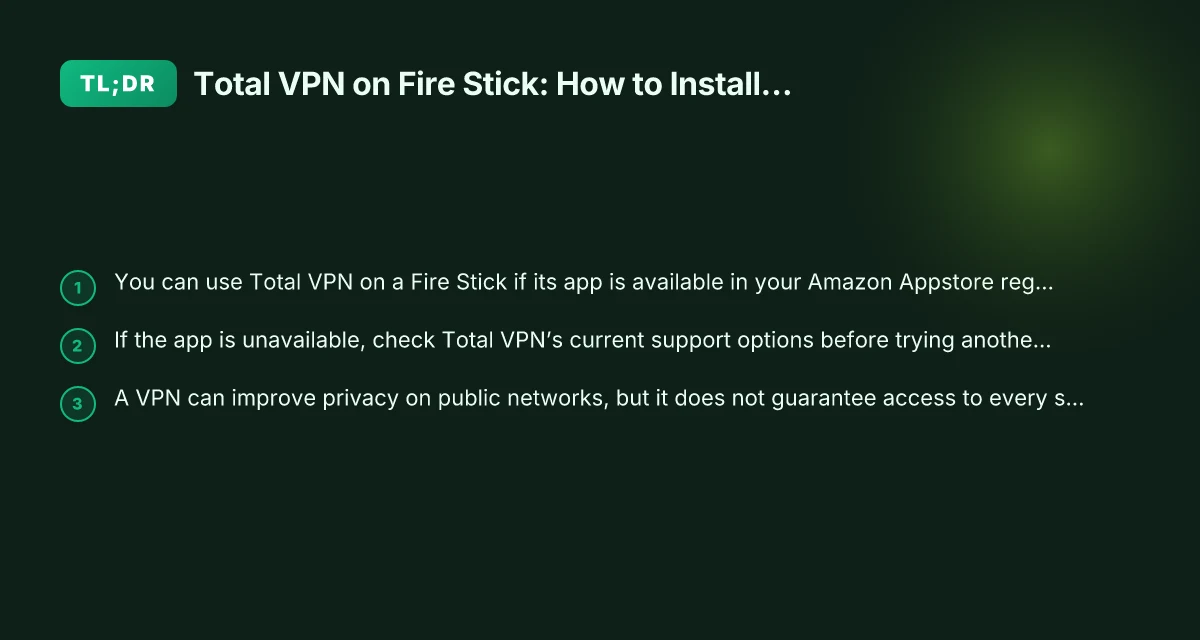
If you’re looking for Total VPN on Fire Stick, first check whether the Total VPN app is listed in the Amazon Appstore on your device. If it is, you can install it directly, sign in, and connect to a server before opening your streaming apps. If it isn’t listed, availability may depend on your region or device, so confirm compatibility with Total VPN before using a workaround.

Editor's pick: NordVPN — fast, secure VPN — Strong encryption, a no-logs policy and apps for every device. 30-day money-back guarantee. Get NordVPN →
Compare the ways to get Total VPN on a Fire Stick
| Option | When to use it | What to check | Main trade-off |
|---|---|---|---|
| Search the Amazon Appstore | First step | Whether Total VPN appears | Availability varies |
| Install from the Appstore | App is listed | App name and publisher | Simplest route |
| Check device compatibility | Before installing | Fire Stick model and software | Older devices may differ |
| Use the provider’s instructions | App is not listed | Whether Fire Stick installation is supported | Steps may vary |
| Contact Total VPN support | Availability is unclear | Current Fire Stick guidance | Requires assistance |
| Use another compatible device | Fire Stick support is unavailable | Whether the service supports that device | Not a direct Fire Stick install |
Compiled November 2026; check the provider's site for current details.
| VPN | Obfuscation | From / month | Plan | Free plan | Refund | Alipay | UnionPay | Crypto | Website opens in China | Trustpilot | |
|---|---|---|---|---|---|---|---|---|---|---|---|
 ZoogVPN | Turn on manually Shadow | $2.49/mo | 27 months: $59.99 | Yes | 7 days | ✓ | ✓ | ✓ | ✓ | Official site blocked; our special link opens (4.4 s) | 4.2/5 (195 reviews) |
 NordVPN | Turn on manually Obfuscated Servers / NordWhisper | $3.49/mo | 27 months: $94.23 | No | 30 days | ? | ✗ | ✓ | ✓ | ✗ Blocked | 4.2/5 (51,628 reviews) |
 ExpressVPN | ✓ On by default all servers | $3.00/mo | 28 months: $84 | No | 30 days | ✗ | ✗ | ✓ | ✗ | ✗ Blocked | 4.4/5 (29,706 reviews) |
 Surfshark | ✓ On by default Camouflage, with OpenVPN | See site | See site | No | 30 days | ✗ | ✗ | ✗ | ✓ | ✗ Blocked | 4.3/5 (31,823 reviews) |
 Proton VPN | Turn on manually Stealth, free plan too | $2.99/mo | 12 months: $35.88 | Yes | 30 days | ✗ | ✗ | ✗ | ✓ | ✗ Blocked | 2.1/5 (1,040 reviews) |
 Astrill VPN | Turn on manually StealthVPN / OpenWeb | $12.50/mo | 24 months: $300 | No | See site | ✗ | ✗ | ✗ | ✓ | ✗ Blocked | 1.3/5 (110 reviews) |
 Private Internet Access | Turn on manually Shadowsocks, OpenVPN only | $2.03/mo | 40 months: $81.2 | No | 30 days | ✗ | ✗ | ✗ | ✗ | ✗ Blocked | 4.2/5 (11,033 reviews) |
 CyberGhost | Turn on manually selected servers | $2.19/mo | 28 months: $61.32 | No | 45 days | ✗ | ✗ | ✗ | ✓ | ✗ Blocked | 4.0/5 (24,178 reviews) |
 PureVPN | Turn on manually switch to OpenVPN | $1.69/mo | 60 months: $101.55 | No | 31 days | ? | ? | ✗ | ✓ | ✗ Blocked | 4.4/5 (17,994 reviews) |
 AdGuard VPN | ✓ On by default TrustTunnel | $2.99/mo | 24 months: $71.76 | Yes | 30 days | ✓ | ✗ | ✓ | ✓ | Official site blocked; our special link opens (3.7 s) | 4.3/5 (290 reviews) |
 Mullvad | Turn on manually QUIC / Shadowsocks / LWO | $5.61/mo | €5/mo | No | 14 days | ✗ | ✗ | ✗ | ✓ | ✗ Blocked | 3.2/5 (192 reviews) |
 Windscribe | Turn on manually Stealth / WStunnel | $5.75/mo | 12 months: $69 | Yes | See site | ✗ | ✗ | ✗ | ✓ | ✗ Blocked | 4.7/5 (13,355 reviews) |
 StrongVPN | Turn on manually Scramble, OpenVPN TCP | See site | See site | No | 30 days | ✓ | ✗ | ✗ | ✗ | ✗ Blocked | 4.4/5 (2,695 reviews) |
 LightXtreme 闪连 | Not listed | $7.08/mo | 12 months: $84.99 | Yes | 30 days | ✓ | ✓ | ✓ | ✓ | ✓ Yes (3.5 s) | No page |
Prices checked 2026-11-10 on each vendor's pricing page (cheapest long plan, USD). Check the vendor's checkout for the final price.
Obfuscation checked 2026-11-14 on each vendor's site and help center: "on by default" = nothing to set; "turn on manually" = switch protocol or mode in settings; "not listed" = the vendor describes no obfuscation.
Payment methods checked 2026-11-10 on each vendor's payment pages: all 14 take cards and PayPal; ✗ = not listed, ? = the vendor's own pages disagree.
China access: whether the official website opens from mainland China networks (tests the website only, not the VPN connection). Last checked 2026-11-18 01:02 Beijing time.
Trustpilot score and review count checked 2026-11-10.
Check whether Total VPN is available
Fire TV Stick apps are normally installed through the Amazon Appstore. Search the store on your device or use Amazon’s website while signed in to the account linked to your Fire Stick. Make sure the app listing is the official one from Total VPN, not a similarly named app.
Availability can vary by country, Fire TV model, and software version. If you cannot find the app:
- Check that your Fire Stick and Amazon account are set to the correct country or region.
- Search for the app in the Amazon Appstore on the web as well as on the device.
- Check Total VPN’s official website or contact its support team for current Fire TV compatibility information.
- Install available Fire TV software updates and search again.
Avoid assuming that an app for Android phones will work properly on a Fire Stick. Fire TV devices use a version of Android, but mobile apps may not have a remote-friendly interface or may not be supported.
Install and connect to Total VPN
If the official app is available, the standard installation process is straightforward: Axgate VPN Client Download: Safe Setup and Troubleshooting Guide
- From the Fire Stick home screen, open Find or Search.
- Search for Total VPN and select its official listing.
- Choose Get or Download and wait for installation to finish.
- Open the app and sign in with your Total VPN account.
- Select a server or location and tap Connect.
- Approve the Fire TV VPN connection request if prompted.
Once connected, the app should show a connection status. You can then open your streaming app. If Total VPN offers a setting to connect automatically, consider enabling it if you want the VPN active whenever you use the device.
Menu labels can differ between Fire TV models and software versions. If the app requests permissions, read the prompt and allow the VPN connection only if you are using the official Total VPN app and intended to connect.
Choose an installation route if Total VPN is not in the Appstore
| Route | What it involves | Check first | Consideration |
|---|---|---|---|
| Recheck the Appstore | Search for the app again | Correct app name | Listing may vary by region |
| Check Total VPN support | Ask about Fire Stick availability | Current official guidance | Avoid relying on outdated steps |
| Follow provider instructions | Use the provider’s recommended method | Device and software compatibility | Instructions may change |
| Use a supported device | Stream through another compatible device | Device support and setup | Fire Stick may not be protected directly |
| Choose a compatible VPN | Compare services with Fire Stick apps | App availability and features | Requires switching services |
| Avoid unofficial downloads | Skip unverified installation files | Source legitimacy | Reduces security risk |
Compiled November 2026; check the provider's site for current details. Best Free VPN for Edge: Top Picks and What to Know
If the app is not in the Appstore
The safest next step is to ask Total VPN whether it provides an official Fire TV installation method for your device and region. Some VPN providers support Fire TV through a dedicated app, while others may offer setup instructions for a compatible router. Features and support can change, so rely on current guidance from the provider.
You may see instructions online for sideloading an Android app. Sideloading means installing an app from outside the Amazon Appstore. It can involve changing device settings and downloading an installation file, so it carries extra risks:
- A file from an unofficial site could be altered or contain malware.
- The app may not work with the Fire Stick remote or display correctly.
- Updates and account support may be less reliable.
- The app may not be supported by Total VPN.
Only use an installation file and instructions that Total VPN itself confirms as genuine and compatible. Do not enter your VPN password into an unofficial app or website. If the provider does not support Fire TV sideloading, a compatible router may be a more dependable option, though router setup varies and can affect every device on that network.
What to expect when streaming
A VPN creates an encrypted connection between your device and a VPN server. This can help protect traffic on shared networks and can make your connection appear to come from the server’s location. It does not make you completely anonymous, and it cannot guarantee that a streaming service will accept the connection. Microsoft Edge VPN Extension: What It Does and How to Choose One
| Option | Advantages | Limitations |
|---|---|---|
| Total VPN app from the Amazon Appstore | Simple setup and a remote-friendly experience, if available | Availability and features may vary |
| Provider-confirmed installation method | May work when the app is not listed | Requires extra steps and official support |
| VPN configured on a compatible router | Can cover devices that do not have a VPN app | More complex to set up; may affect all connected devices |
Streaming platforms may block VPN connections or limit content based on account, region, or licensing rules. Follow the terms of the services you use. A VPN can also reduce speed, especially if the selected server is far away or busy. If video buffers, try a nearby server, disconnect and reconnect, or test the Fire Stick’s internet connection without the VPN.
Troubleshooting common problems
If Total VPN will not connect or streaming is unreliable, work through these checks:
- Restart the Fire Stick: Unplug it briefly, reconnect it, and try again.
- Check your internet: Confirm that other apps can connect and that your Wi-Fi is stable.
- Update the app and device: Install available app and Fire TV software updates.
- Try another server: A different nearby server may be faster or more reliable.
- Sign out and back in: This can help if the app is not recognizing your account.
- Check your subscription: Make sure it is active and supports the device or number of connections you need.
- Contact support: Share your Fire TV model, app version, and the exact error message with Total VPN.
If the VPN connects but a streaming app still shows an error, the service may be restricting VPN traffic. Changing servers might help, but it is not guaranteed. Avoid repeatedly changing account or device region settings just to bypass restrictions. Those settings can affect purchases, app availability, and billing.
Troubleshoot common Total VPN problems on Fire Stick Urban VPN Extension for Chrome: Setup, Features, and Safety
| Problem | First check | Next step | When to seek help |
|---|---|---|---|
| App is missing | Search the Appstore | Check official availability guidance | Listing remains unavailable |
| App will not install | Device compatibility and storage | Restart and try again | Installation still fails |
| App will not open | App and device updates | Restart the Fire Stick | App keeps crashing |
| Sign-in fails | Account details and subscription | Reset password if needed | Credentials are correct |
| VPN will not connect | Internet connection | Retry using provider guidance | Connection still fails |
| Streaming buffers | Connection stability | Try another supported server | Buffering continues |
| Streaming service blocks access | VPN connection status | Check provider recommendations | Access remains blocked |
Compiled November 2026; check the provider's site for current details.
Recommendation
Use Total VPN on Fire Stick through its official Amazon Appstore app whenever it is available. If you cannot find it, confirm supported devices and installation options directly with Total VPN before sideloading anything. This approach is safer, easier to maintain, and less likely to leave you with an app that does not work properly.