Urban VPN Extension Edge Download: A Safe Installation Guide
Learn how to find, install, and check the Urban VPN extension for Microsoft Edge safely.
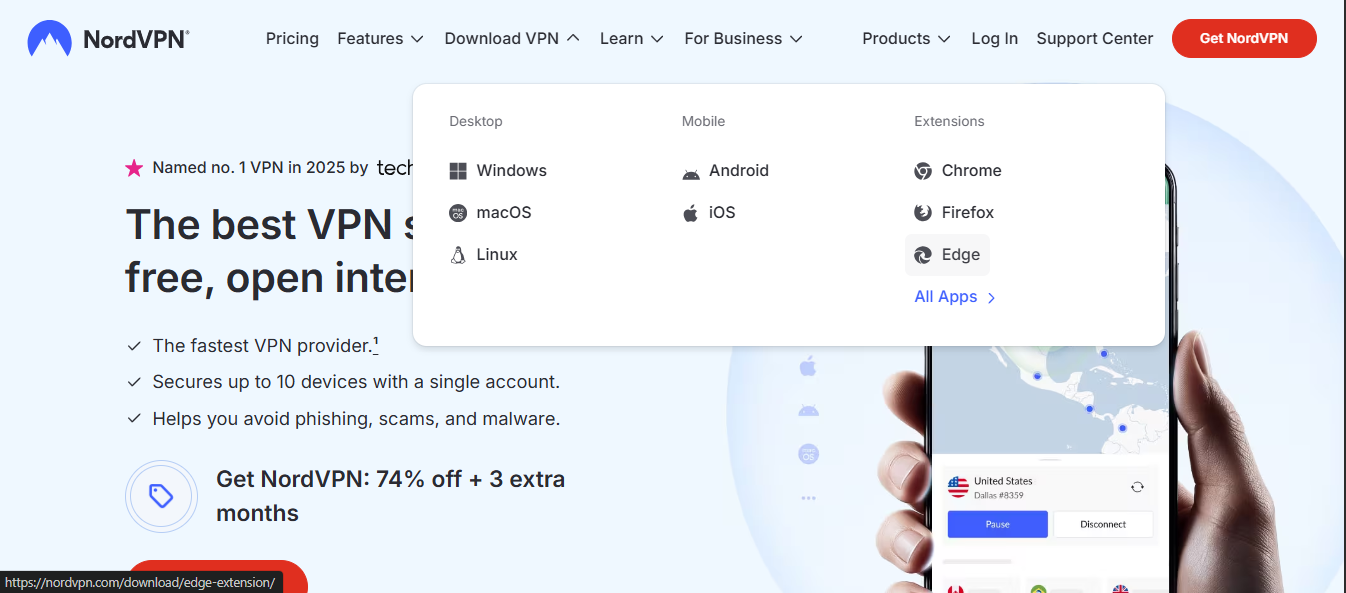
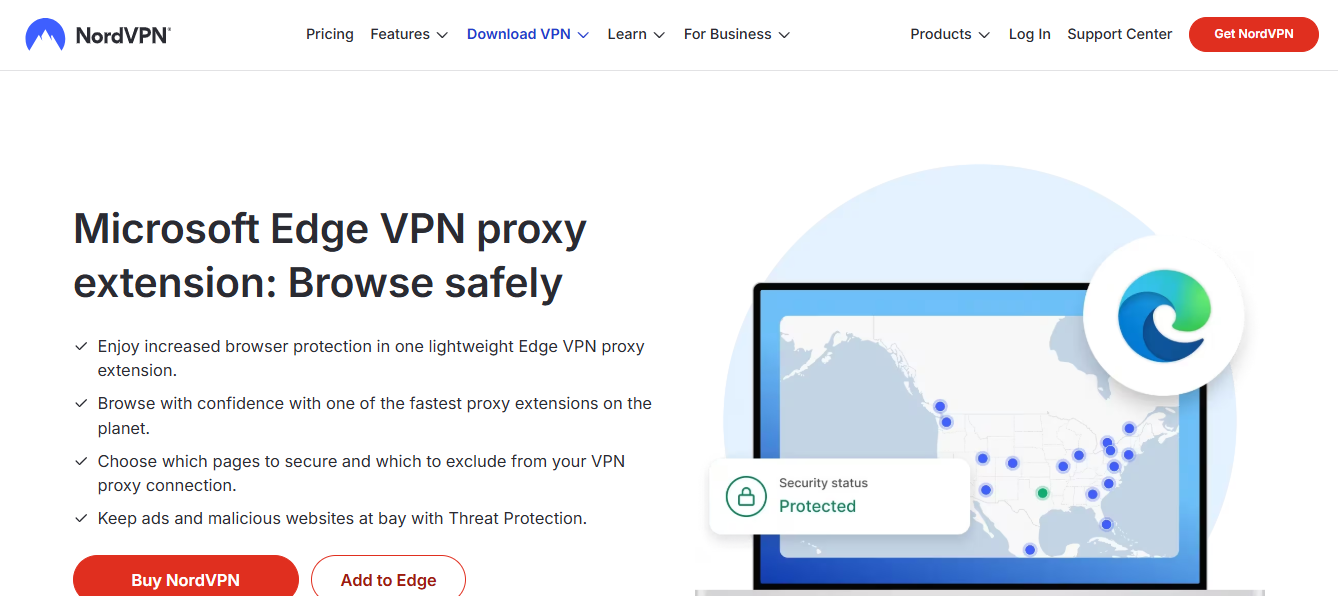
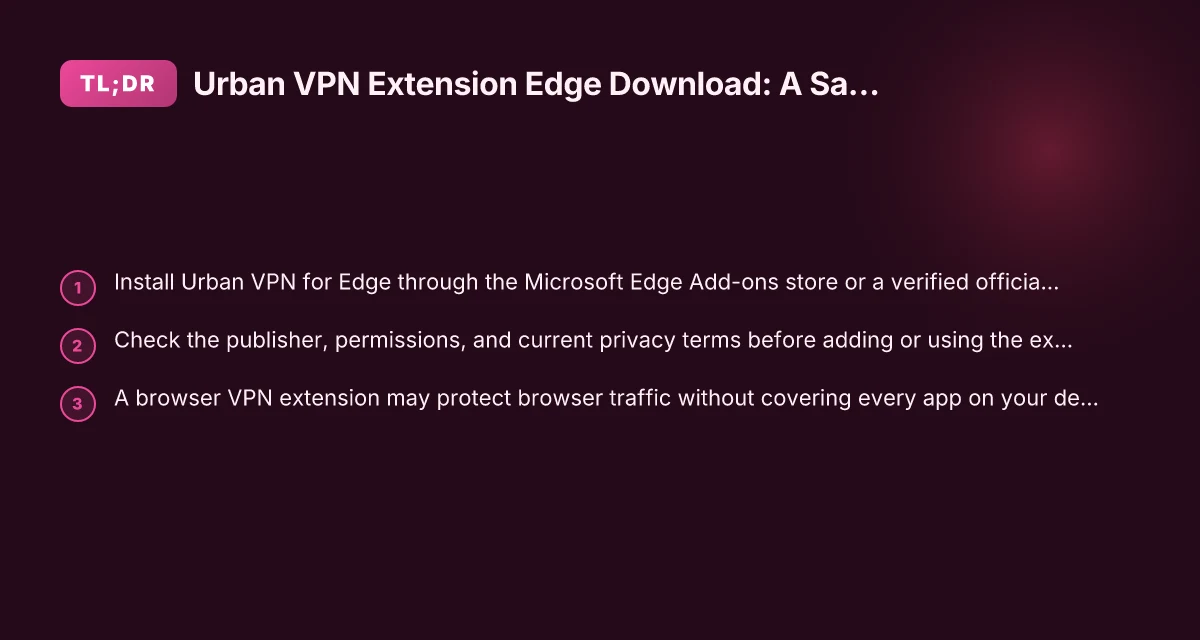
If you’re looking for an Urban VPN extension Edge download, get it from the Microsoft Edge Add-ons store or follow a download link from Urban VPN’s official website. Check that the listing is genuine before installing, then review its permissions and privacy information. The steps below explain how to find the extension, add it to Edge, connect, and troubleshoot common issues.

Editor's pick: NordVPN — fast, secure VPN — Strong encryption, a no-logs policy and apps for every device. 30-day money-back guarantee. Get NordVPN →
Compare Urban VPN installation options for Microsoft Edge
| Option | Where to get it | Setup effort | Update path | Best for |
|---|---|---|---|---|
| Edge Add-ons listing | Microsoft Edge Add-ons | Low | Store updates | Most Edge users |
| Chrome Web Store | Chrome Web Store | Medium | Store updates | If the Edge listing is unavailable |
| Developer-mode install | Extension files | High | Manual updates | Testing or development |
| Unverified download site | Third-party website | Unknown | Unknown | Not recommended |
| Search-result download button | Varies by result | Unknown | Unknown | Avoid unless it leads to an official store |
| Existing extension install | Edge extensions page | Low | Depends on source | Checking or managing a current install |
Compiled November 2026; check the provider's site for current details.
| VPN | Obfuscation | From / month | Plan | Free plan | Refund | Alipay | UnionPay | Crypto | Website opens in China | Trustpilot | |
|---|---|---|---|---|---|---|---|---|---|---|---|
 ZoogVPN | Turn on manually Shadow | $2.49/mo | 27 months: $59.99 | Yes | 7 days | ✓ | ✓ | ✓ | ✓ | Official site blocked; our special link opens (4.4 s) | 4.2/5 (195 reviews) |
 NordVPN | Turn on manually Obfuscated Servers / NordWhisper | $3.49/mo | 27 months: $94.23 | No | 30 days | ? | ✗ | ✓ | ✓ | ✗ Blocked | 4.2/5 (51,628 reviews) |
 ExpressVPN | ✓ On by default all servers | $3.00/mo | 28 months: $84 | No | 30 days | ✗ | ✗ | ✓ | ✗ | ✗ Blocked | 4.4/5 (29,706 reviews) |
 Surfshark | ✓ On by default Camouflage, with OpenVPN | See site | See site | No | 30 days | ✗ | ✗ | ✗ | ✓ | ✗ Blocked | 4.3/5 (31,823 reviews) |
 Proton VPN | Turn on manually Stealth, free plan too | $2.99/mo | 12 months: $35.88 | Yes | 30 days | ✗ | ✗ | ✗ | ✓ | ✗ Blocked | 2.1/5 (1,040 reviews) |
 Astrill VPN | Turn on manually StealthVPN / OpenWeb | $12.50/mo | 24 months: $300 | No | See site | ✗ | ✗ | ✗ | ✓ | ✗ Blocked | 1.3/5 (110 reviews) |
 Private Internet Access | Turn on manually Shadowsocks, OpenVPN only | $2.03/mo | 40 months: $81.2 | No | 30 days | ✗ | ✗ | ✗ | ✗ | ✗ Blocked | 4.2/5 (11,033 reviews) |
 CyberGhost | Turn on manually selected servers | $2.19/mo | 28 months: $61.32 | No | 45 days | ✗ | ✗ | ✗ | ✓ | ✗ Blocked | 4.0/5 (24,178 reviews) |
 PureVPN | Turn on manually switch to OpenVPN | $1.69/mo | 60 months: $101.55 | No | 31 days | ? | ? | ✗ | ✓ | ✗ Blocked | 4.4/5 (17,994 reviews) |
 AdGuard VPN | ✓ On by default TrustTunnel | $2.99/mo | 24 months: $71.76 | Yes | 30 days | ✓ | ✗ | ✓ | ✓ | Official site blocked; our special link opens (3.7 s) | 4.3/5 (290 reviews) |
 Mullvad | Turn on manually QUIC / Shadowsocks / LWO | $5.61/mo | €5/mo | No | 14 days | ✗ | ✗ | ✗ | ✓ | ✗ Blocked | 3.2/5 (192 reviews) |
 Windscribe | Turn on manually Stealth / WStunnel | $5.75/mo | 12 months: $69 | Yes | See site | ✗ | ✗ | ✗ | ✓ | ✗ Blocked | 4.7/5 (13,355 reviews) |
 StrongVPN | Turn on manually Scramble, OpenVPN TCP | See site | See site | No | 30 days | ✓ | ✗ | ✗ | ✗ | ✗ Blocked | 4.4/5 (2,695 reviews) |
 LightXtreme 闪连 | Not listed | $7.08/mo | 12 months: $84.99 | Yes | 30 days | ✓ | ✓ | ✓ | ✓ | ✓ Yes (3.5 s) | No page |
Prices checked 2026-11-10 on each vendor's pricing page (cheapest long plan, USD). Check the vendor's checkout for the final price.
Obfuscation checked 2026-11-14 on each vendor's site and help center: "on by default" = nothing to set; "turn on manually" = switch protocol or mode in settings; "not listed" = the vendor describes no obfuscation.
Payment methods checked 2026-11-10 on each vendor's payment pages: all 14 take cards and PayPal; ✗ = not listed, ? = the vendor's own pages disagree.
China access: whether the official website opens from mainland China networks (tests the website only, not the VPN connection). Last checked 2026-11-18 01:02 Beijing time.
Trustpilot score and review count checked 2026-11-10.
Find the Urban VPN extension for Edge
Open Microsoft Edge and visit the Microsoft Edge Add-ons store. Search for “Urban VPN” and inspect the results before choosing a listing. You can also begin on Urban VPN’s official website and follow its link to the Edge store, which helps you avoid look-alike pages and unofficial download sites.
Before you install, check the listing details:
- Publisher: Confirm that the developer name matches the provider identified by Urban VPN.
- Reviews and update history: Look for recent activity and read reviews critically. Ratings alone do not prove that an extension is safe.
- Description and permissions: Make sure the features and requested access make sense for a VPN extension.
- Privacy information: Review the provider’s current explanation of data collection, use, and retention.
Avoid downloading browser extensions from third-party download sites or installing files supplied by unfamiliar sources. If a store listing is missing, unavailable in your region, or appears inconsistent with the provider’s official site, don’t use a random alternative. Check Urban VPN’s support information for the current status.
Install it in Microsoft Edge
Once you’ve confirmed the listing, adding the extension is straightforward: iPhone VPN Keeps Turning On: Causes and Fixes
- Open the Urban VPN listing in the Microsoft Edge Add-ons store.
- Select Get or Add to Edge.
- Read the permissions prompt and choose Add extension only if you’re comfortable with the access requested.
- Wait for Edge to confirm the installation.
- Open the Extensions menu in Edge, find Urban VPN, and pin it to the toolbar if you want quick access.
The exact button labels can change as Edge updates. If Edge asks whether to allow an extension from another browser’s store, don’t enable that option for an Edge Add-ons installation. Only consider cross-store installation if Urban VPN explicitly directs you to a verified source and you understand the additional risks.
Browser VPN extension coverage and privacy checks
| Check | Covered by extension? | What to expect | What to verify |
|---|---|---|---|
| Browser traffic | Yes, when connected | Routed through the VPN service | Confirm the extension shows connected |
| Other apps on the device | No | They may use the normal connection | Use a device-wide VPN if needed |
| IP address shown by browser | Usually changes | Depends on connection and service | Check with an IP lookup page |
| DNS handling | Depends on the service | May vary by extension and setup | Review the provider’s documentation |
| Location access | Not inherently required for VPN routing | Permission may support location features | Allow only if the feature is needed |
| Website access | May be requested | Can enable proxying or site controls | Review the extension’s permission details |
| Browser data | Depends on permissions and policy | Handling varies by provider | Read the privacy policy |
| Protection while disconnected | No | Traffic may use the regular connection | Check connection status before browsing |
Compiled November 2026; check the provider's site for current details.
Connect and check that it works
Select the Urban VPN icon in the Edge toolbar or Extensions menu. Follow the extension’s prompts to sign in, create an account, or continue with the options it provides. Choose an available location and select the connect control. When connected, the extension should display a status or other indication that the VPN session is active. IPsec VPN FortiGate: Setup, Configuration, and Troubleshooting
You can then visit a reputable IP-checking website to see whether your browser’s public IP address appears to have changed. This is a basic check, not a complete privacy audit. A VPN does not make you anonymous: websites can still recognize accounts, cookies, browser settings, and other identifying details.
If you don’t see the icon, open Extensions and check whether Urban VPN is installed and enabled. You can pin it to make it easier to find. If a site still shows your usual location, disconnect and reconnect, try another available server, and reload the page. Also check whether another VPN, proxy, or network setting is affecting the connection.
What a browser VPN extension covers
A browser extension typically applies to traffic routed through the browser, rather than automatically protecting every connection on your computer. The precise coverage depends on how the extension is designed, so check Urban VPN’s documentation for details.
| Option | Typical coverage | Useful when |
|---|---|---|
| VPN browser extension | Browser traffic covered by the extension | You want a quick browser-level connection |
| VPN desktop app | Often covers traffic from multiple apps | You want protection beyond the browser |
| Proxy or location-changing tool | Varies; may not encrypt traffic | You need a specific routing feature |
Don’t assume that installing the Edge extension protects other browsers, games, email clients, or desktop applications. If you need device-wide coverage, check whether Urban VPN offers a desktop app and compare its features, terms, and system requirements with those of the extension. FortiClient VPN for Windows 11: Download, Install, and Connect
A VPN also does not replace HTTPS, antivirus protection, careful account security, or good judgment about links and downloads. Avoid entering sensitive information on unfamiliar sites just because the VPN is connected.
Troubleshooting Urban VPN in Edge
| Problem | First check | Try next | Working sign |
|---|---|---|---|
| Extension not listed | Open Edge Add-ons | Search for Urban VPN again | Official listing appears |
| Install button unavailable | Check Edge version and settings | Restart Edge and retry | Install completes |
| Extension missing after install | Open `edge://extensions` | Enable the extension | Icon appears in the toolbar |
| Cannot connect | Check internet access | Choose another available server | Status changes to connected |
| Websites do not load | Disconnect and retry the site | Reconnect or choose another server | Site loads normally |
| IP does not appear to change | Confirm connected status | Recheck with an IP lookup page | Reported IP changes |
| Extension behaves unexpectedly | Review its permissions | Disable and re-enable it | Controls respond normally |
| Still not working | Check the provider’s support information | Reinstall from an official listing | Extension connects successfully |
Compiled November 2026; check the provider's site for current details.
Privacy, permissions, and troubleshooting
A VPN provider may be able to handle or observe some information about the traffic routed through its service. Before relying on any VPN, read its current privacy policy and terms. Look for clear explanations of what information is collected, whether connection or activity data is retained, and how the service handles requests or sharing. Is Cato a VPN? How Cato Networks Secure Remote Access
Treat extension permissions as part of that review. An extension may need access to browser traffic to perform its stated function, but you should understand what that access allows. Keep Edge and the extension updated, and remove the extension if you no longer use it.
If installation or connection fails, try these steps:
- Confirm that Edge is up to date and that your internet connection works.
- Check that the extension is enabled in Edge’s Extensions settings.
- Restart Edge, then try connecting again.
- Temporarily disable conflicting VPN or proxy tools.
- Remove and reinstall the extension from the verified store listing if problems continue.
- Contact Urban VPN support if the listing or connection status remains unclear.
Recommendation
For an Urban VPN extension Edge download, use the Microsoft Edge Add-ons store or a link from Urban VPN’s official website, verify the publisher, and review permissions and privacy terms before installation. Use the extension only for the coverage it provides, and choose a desktop VPN app if you need protection for traffic outside Edge.