V2Ray for iOS: How to Choose and Set Up a Client
Learn how V2Ray works on iPhone and iPad, which iOS clients to consider, and how to configure a connection safely.
V2Ray for iOS means using an iPhone or iPad app that supports V2Ray-compatible proxy protocols to connect to a server. V2Ray itself is not a single iOS app, and installing a client alone will not provide a working connection: you also need configuration details from a server provider or from a server you manage. The steps are generally straightforward, install a compatible client, import a configuration, connect, and check that traffic is routed as expected.

Compare iOS V2Ray client options
| Option | Setup method | Protocol support | Best for | Trade-off |
|---|---|---|---|---|
| App Store client | Install from App Store | Depends on app | Straightforward setup | Availability may vary |
| TestFlight client | Install through TestFlight | Depends on app | Testing newer builds | Builds may expire |
| Manual configuration | Enter settings in the app | Depends on client | Custom setups | More steps |
| QR code import | Scan a supplied code | Depends on profile | Quick profile entry | Verify the source |
| Subscription link | Import a provider link | Depends on app | Updating multiple profiles | Trust the provider |
Compiled November 2026; check the provider's site for current details.
What V2Ray means on iPhone and iPad
V2Ray is commonly used to describe software in the V2Ray ecosystem, including Xray-core, that can handle proxy protocols such as VMess and VLESS. On iOS, a client app provides the interface for importing server information and managing the connection. Some clients use Apple’s network extension capabilities to route selected or all device traffic through a proxy.
Compatibility varies. An app may support VMess but not VLESS, or may support different transport options depending on its version. Support can also change as apps are updated, so check the app’s current feature list rather than relying on an old tutorial.
A typical setup requires one of the following:
- A configuration file, often in JSON format
- A subscription URL from a provider
- A share link or QR code containing connection details
- Manually supplied server settings
A configuration may include a server address, port, protocol, user ID or password, transport, encryption or security options, and TLS settings. These fields must match the server. A small mismatch can prevent the connection from working. Clash Verge on iPhone: What Works and What to Use Instead
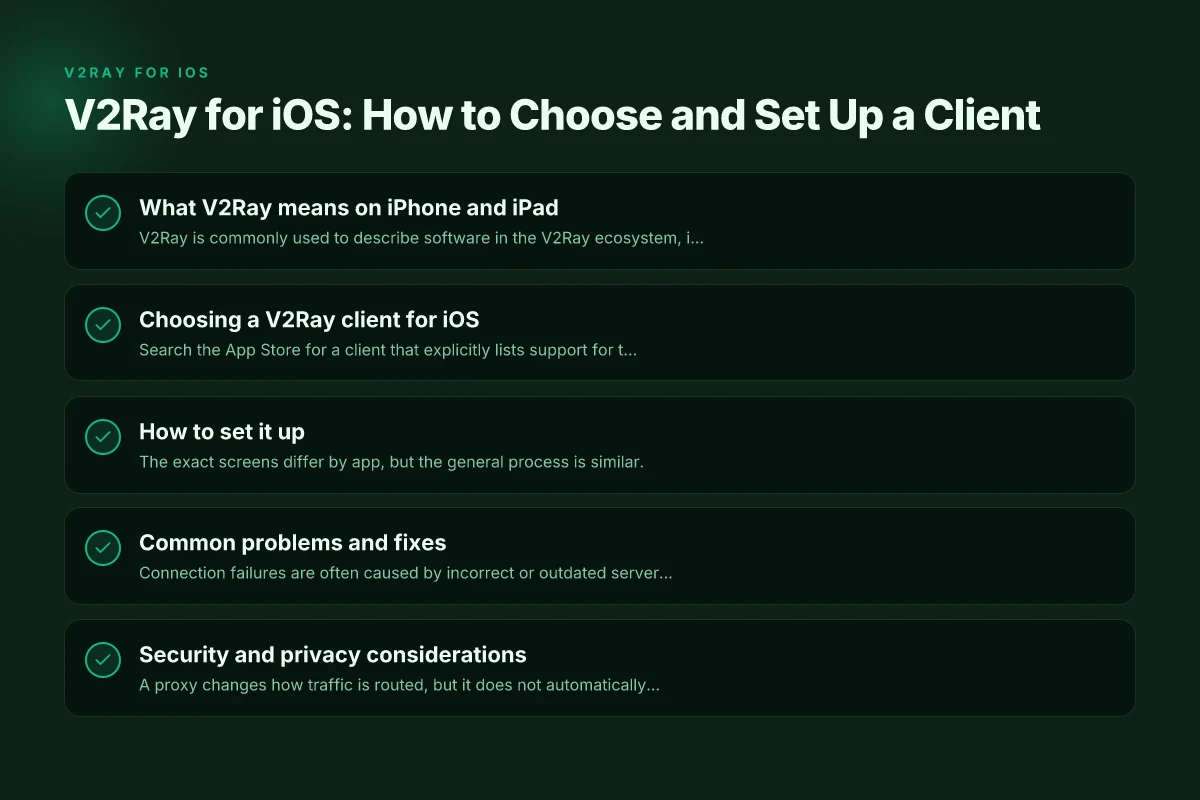
Choosing a V2Ray client for iOS
Search the App Store for a client that explicitly lists support for the protocol and configuration format you need. App names, availability, pricing, and features can change, so verify the current listing and recent update history before installing.
| What to compare | Why it matters |
|---|---|
| Protocol support | The app must support the protocol used by your server, such as VMess or VLESS. |
| Import options | QR codes, subscription links, and file imports make setup easier. |
| Update history | Regular maintenance can improve compatibility and address security issues. |
| Privacy information | Review the developer’s disclosures and the app’s stated data practices. |
| Connection controls | Per-app routing, DNS options, and automatic reconnection may be useful. |
| Cost and limits | Check whether features require a purchase or subscription. |
Use the official App Store listing or the developer’s verified website to find an app. Be cautious with unofficial download links, configuration profiles, and apps that request unrelated permissions. A VPN-style network permission may be necessary for routing traffic, but an app should still explain why it needs access and what it does with data.
Choose a setup method
| Method | What you need | Setup effort | Updates | Main check |
|---|---|---|---|---|
| QR code | A trusted configuration code | Low | May require rescanning | Confirm its source |
| Subscription link | A trusted provider URL | Low | May update profiles | Review imported settings |
| Manual entry | Server and protocol details | High | Usually manual | Check each field |
| Configuration file | A compatible file from a trusted source | Medium | Depends on file | Inspect before importing |
| App transfer | Existing profile or device backup | Medium | May need revalidation | Test after transfer |
Compiled November 2026; check the provider's site for current details. Clash Verge for iOS: What iPhone Users Need to Know
How to set it up
The exact screens differ by app, but the general process is similar.
- Get a valid configuration. Obtain it from a provider you trust or create it for a server you administer. Confirm which protocol and client format it supports.
- Install a compatible client. Check that the app supports your protocol and iOS version.
- Import the settings. Scan the provider’s QR code, paste a subscription link, open a configuration file, or enter the details manually. Only use links and files from a source you trust.
- Review the profile. Check the server address and protocol, along with transport and TLS settings. Avoid editing fields unless you know what the server requires.
- Allow the network connection. iOS may ask you to approve adding a VPN configuration or enabling a network extension. Read the prompt and approve it only for the client you intend to use.
- Connect and test. Turn on the profile and check that the app reports a connection. Open a few websites or services to confirm that the connection works.
A successful connection indicator does not necessarily mean every app or destination is using the proxy. Review the client’s routing mode, DNS settings, and any per-app rules. If you use a subscription, refresh it when the provider changes its server list or configuration.
Common problems and fixes
Connection failures are often caused by incorrect or outdated server details rather than by iOS itself. Start with basic checks before changing advanced settings.
- The client cannot connect: Check your internet access, server address, port, credentials, and protocol. Confirm with the provider that the server is available.
- The profile imports but does not work: The configuration may use a feature the app does not support. Check the app’s protocol and transport compatibility.
- Some sites do not load: Review routing rules and DNS settings. Try a different permitted server profile if your provider offers one.
- The connection drops: Update the client, check the network, and look for an automatic-reconnect option. Mobile networks can change between Wi-Fi and cellular data.
- The subscription fails to update: Confirm that the URL is current and accessible. Do not share it publicly. It may grant access to your account or servers.
- The app asks for a system permission: A network extension is commonly required for proxy or VPN-style routing. If the request appears unrelated or unclear, stop and check the app’s documentation.
If you manage the server, inspect its logs and configuration as well. The client and server must agree on protocol, authentication, transport, and security settings. Sites Blocked When Using VPN: Causes and Fixes
Troubleshoot and assess privacy
| Situation | First check | Possible fix | Privacy consideration | When to seek help |
|---|---|---|---|---|
| App cannot connect | Server details and network | Recheck profile; try another network | Avoid sharing credentials | If details are correct |
| Profile import fails | Link, code, or file format | Request a fresh profile | Treat links as sensitive | If repeated imports fail |
| Connection is slow | Network quality and server load | Try another server | Provider can see connection metadata | If slowdown persists |
| App asks for permissions | Permission purpose | Deny unnecessary access | Limit access to needed data | If the request is unclear |
| App is unavailable | App Store or TestFlight status | Check official developer channels | Avoid untrusted downloads | If no verified option exists |
Compiled November 2026; check the provider's site for current details.
Security and privacy considerations
A proxy changes how traffic is routed, but it does not automatically make every activity private or secure. The server operator may be able to observe connection metadata, and the protection of traffic depends on the protocols, encryption, websites, and apps involved. HTTPS remains important for protecting data between your device and websites.
Treat configuration links, QR codes, and profile files like credentials. A subscription URL may contain a token that allows someone else to use your service. Do not post it in public chats or upload it to an unknown configuration converter. Axgate VPN Download: How to Find and Install the Official Client
For safer use:
- Choose a provider whose ownership, policies, and support information you can assess.
- Keep iOS and the client app updated.
- Avoid installing configuration profiles from unverified sources.
- Use a strong account password and enable additional account protection when available.
- Disconnect and remove profiles you no longer use.
- Check local laws, workplace policies, and school or network rules before connecting.
Recommendation
For most people looking for V2Ray for iOS, the best approach is to choose a well-maintained App Store client that supports the exact protocol used by a trusted provider, then import that provider’s configuration and test the connection. If you manage your own server, confirm that its settings match the client’s documented capabilities. Avoid unknown apps and configuration links, and remember that a proxy is a routing tool, not a guarantee of anonymity or complete security.