WatchGuard SSLVPN: Setup, Troubleshooting, and Security Best Practices
Learn how WatchGuard SSLVPN works, how to connect and configure it, and what to check when a connection fails.
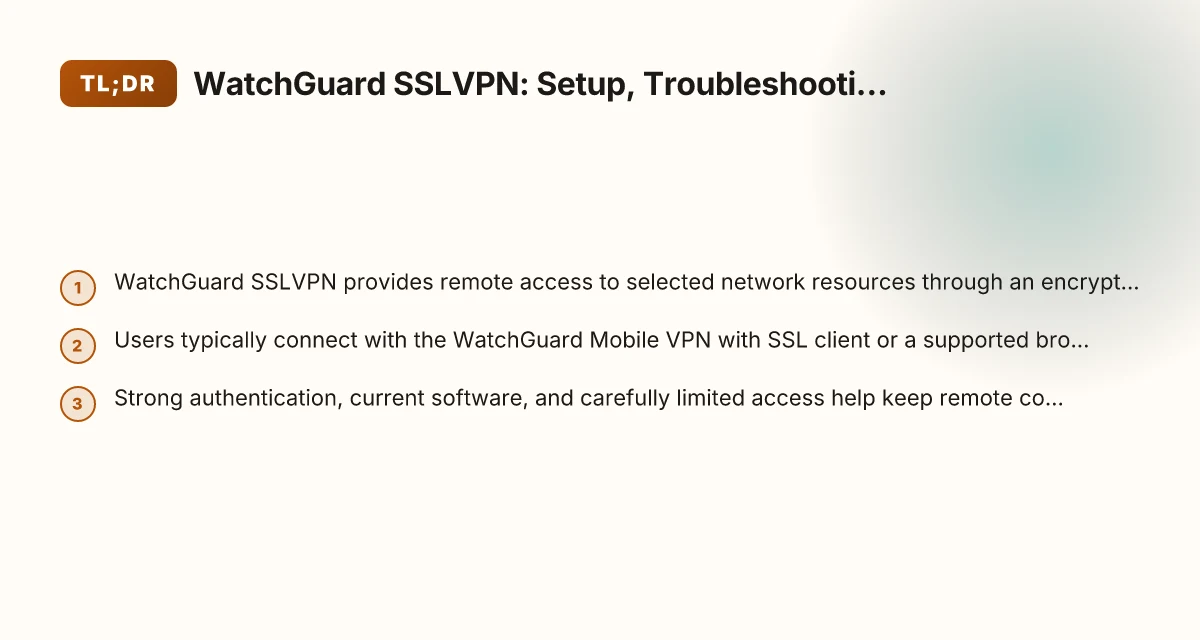
WatchGuard SSLVPN is a remote-access VPN service on a WatchGuard Firebox that lets authorized users connect securely to resources on a private network over the internet. To use it, an administrator must enable and configure the service, and users need the correct server address, credentials, and connection method. Exact setup steps and client options vary by Fireware version and organization policy.

Editor's pick: NordVPN — fast, secure VPN — Strong encryption, a no-logs policy and apps for every device. 30-day money-back guarantee. Get NordVPN →
Compare remote-access options
| Option | User experience | Traffic coverage | Administration | Best fit |
|---|---|---|---|---|
| WatchGuard SSLVPN | Client-based connection | Routed access to permitted resources | Configure users and policies | Secure access for remote users |
| IPsec VPN | VPN client or built-in OS support | Routed access to permitted networks | Configure VPN peers and policies | Site-to-site or remote access |
| WireGuard | Lightweight VPN client | Routed access to configured networks | Manage keys and routes | Simple, modern VPN deployments |
| OpenVPN | Client-based connection | Routed access to permitted resources | Manage server, certificates, and policies | Flexible VPN deployments |
| Web portal | Browser-based access | Selected web applications | Publish and control applications | Access to browser-ready services |
| Remote desktop gateway | Remote desktop client | Hosted desktop or applications | Manage gateways and user permissions | Centralized desktop access |
Compiled November 2026; check the provider's site for current details.
| VPN | Obfuscation | From / month | Plan | Free plan | Refund | Alipay | UnionPay | Crypto | Website opens in China | Trustpilot | |
|---|---|---|---|---|---|---|---|---|---|---|---|
 ZoogVPN | Turn on manually Shadow | $2.49/mo | 27 months: $59.99 | Yes | 7 days | ✓ | ✓ | ✓ | ✓ | Official site blocked; our special link opens (4.4 s) | 4.2/5 (195 reviews) |
 NordVPN | Turn on manually Obfuscated Servers / NordWhisper | $3.49/mo | 27 months: $94.23 | No | 30 days | ? | ✗ | ✓ | ✓ | ✗ Blocked | 4.2/5 (51,628 reviews) |
 ExpressVPN | ✓ On by default all servers | $3.00/mo | 28 months: $84 | No | 30 days | ✗ | ✗ | ✓ | ✗ | ✗ Blocked | 4.4/5 (29,706 reviews) |
 Surfshark | ✓ On by default Camouflage, with OpenVPN | See site | See site | No | 30 days | ✗ | ✗ | ✗ | ✓ | ✗ Blocked | 4.3/5 (31,823 reviews) |
 Proton VPN | Turn on manually Stealth, free plan too | $2.99/mo | 12 months: $35.88 | Yes | 30 days | ✗ | ✗ | ✗ | ✓ | ✗ Blocked | 2.1/5 (1,040 reviews) |
 Astrill VPN | Turn on manually StealthVPN / OpenWeb | $12.50/mo | 24 months: $300 | No | See site | ✗ | ✗ | ✗ | ✓ | ✗ Blocked | 1.3/5 (110 reviews) |
 Private Internet Access | Turn on manually Shadowsocks, OpenVPN only | $2.03/mo | 40 months: $81.2 | No | 30 days | ✗ | ✗ | ✗ | ✗ | ✗ Blocked | 4.2/5 (11,033 reviews) |
 CyberGhost | Turn on manually selected servers | $2.19/mo | 28 months: $61.32 | No | 45 days | ✗ | ✗ | ✗ | ✓ | ✗ Blocked | 4.0/5 (24,178 reviews) |
 PureVPN | Turn on manually switch to OpenVPN | $1.69/mo | 60 months: $101.55 | No | 31 days | ? | ? | ✗ | ✓ | ✗ Blocked | 4.4/5 (17,994 reviews) |
 AdGuard VPN | ✓ On by default TrustTunnel | $2.99/mo | 24 months: $71.76 | Yes | 30 days | ✓ | ✗ | ✓ | ✓ | Official site blocked; our special link opens (3.7 s) | 4.3/5 (290 reviews) |
 Mullvad | Turn on manually QUIC / Shadowsocks / LWO | $5.61/mo | €5/mo | No | 14 days | ✗ | ✗ | ✗ | ✓ | ✗ Blocked | 3.2/5 (192 reviews) |
 Windscribe | Turn on manually Stealth / WStunnel | $5.75/mo | 12 months: $69 | Yes | See site | ✗ | ✗ | ✗ | ✓ | ✗ Blocked | 4.7/5 (13,355 reviews) |
 StrongVPN | Turn on manually Scramble, OpenVPN TCP | See site | See site | No | 30 days | ✓ | ✗ | ✗ | ✗ | ✗ Blocked | 4.4/5 (2,695 reviews) |
 LightXtreme 闪连 | Not listed | $7.08/mo | 12 months: $84.99 | Yes | 30 days | ✓ | ✓ | ✓ | ✓ | ✓ Yes (3.5 s) | No page |
Prices checked 2026-11-10 on each vendor's pricing page (cheapest long plan, USD). Check the vendor's checkout for the final price.
Obfuscation checked 2026-11-14 on each vendor's site and help center: "on by default" = nothing to set; "turn on manually" = switch protocol or mode in settings; "not listed" = the vendor describes no obfuscation.
Payment methods checked 2026-11-10 on each vendor's payment pages: all 14 take cards and PayPal; ✗ = not listed, ? = the vendor's own pages disagree.
China access: whether the official website opens from mainland China networks (tests the website only, not the VPN connection). Last checked 2026-11-18 01:02 Beijing time.
Trustpilot score and review count checked 2026-11-10.
What WatchGuard SSLVPN does
SSLVPN creates an encrypted connection between a remote device and a Firebox. After authentication, a user can access the internal services their account and network permissions allow, such as file servers, business applications, or remote desktops.
The “SSL” in SSLVPN refers to the TLS-based security used to protect the connection. It does not mean that every internal service becomes secure automatically. The VPN protects traffic traveling between the client and the Firebox. Administrators should also secure internal services and restrict access to only what remote users need.
WatchGuard commonly refers to its client as Mobile VPN with SSL. Organizations may distribute a configured client package or direct users to an approved download and setup process. Always use the client and instructions supplied by your IT administrator rather than an installer or configuration file from an unverified source.
How to connect
Before connecting, confirm that you have: NordVPN Windows VPN: Setup, Features, and How to Choose
- Permission to use the organization’s VPN.
- The Firebox hostname or IP address and port, if your organization requires them.
- Your username and password, plus any multifactor authentication method.
- The approved WatchGuard client and any organization-provided configuration.
A typical connection process is:
- Install the client using the organization’s instructions.
- Enter the supplied server address and connection details.
- Sign in with your assigned account and complete any additional authentication prompt.
- Confirm that the client reports a successful connection.
- Open only the internal resources you are authorized to use.
Some configurations send all internet traffic through the VPN, while others route only traffic for the organization’s network through it. This is known as full-tunnel or split-tunnel routing. Users generally should not change routing or certificate settings unless their administrator instructs them to do so.
Administrator setup and access control
On the Firebox, an administrator configures Mobile VPN with SSL in the Fireware management interface. The precise menu names and options can differ by software version, so consult the documentation for the installed Fireware release.
At a high level, configuration involves enabling the service, setting authentication and address options, selecting which users or groups can connect, and defining access to internal networks. Administrators also need to review firewall policies and routing so that approved VPN clients can reach the required resources without receiving unnecessary access. My VPN Location: How to Check and Fix What Others Can See
Before deployment, administrators should check:
- Authentication: Use individual accounts and multifactor authentication where supported and appropriate.
- Least privilege: Permit access only to the networks and services required for each user or group.
- Certificates and identity: Use a valid server certificate and communicate the expected server identity to users.
- Client and firmware updates: Keep Fireware and VPN client software supported and current.
- Logging and review: Monitor connection activity, investigate unusual access, and remove access when it is no longer needed.
- Capacity: Check that the Firebox model and configuration can handle the expected number of remote users.
Exact licensing, capacity, supported operating systems, and authentication options can change. Verify them against current WatchGuard documentation for your appliance and software version.
Administrator access-control checklist
| Control | Purpose | Recommended practice | Common concern |
|---|---|---|---|
| User authentication | Verify user identity | Use strong authentication | Weak or shared credentials |
| Multi-factor authentication | Add an identity check | Require it where available | Password-only access |
| Group membership | Define who can connect | Grant access by role | Overly broad groups |
| Network policies | Limit reachable resources | Allow only required networks | Excessive network access |
| Client configuration | Set connection parameters | Distribute approved settings | Stale or incorrect profiles |
| Account lifecycle | Remove unneeded access | Disable accounts promptly | Former users retaining access |
| Logging and review | Support oversight and diagnosis | Review connection activity | Unnoticed suspicious access |
Compiled November 2026; check the provider's site for current details. VPN Free for Edge: Safe and Practical Options for Microsoft Edge
WatchGuard SSLVPN compared with other remote-access options
SSLVPN is one approach to remote access, not a universal replacement for every VPN or access-control design. The right option depends on the devices being supported, the applications users need, and the organization’s security requirements.
| Option | Typical use | What to consider |
|---|---|---|
| WatchGuard Mobile VPN with SSL | Remote users connecting through a Firebox | Requires a compatible client or supported workflow, correct Firebox configuration, and user authentication |
| Mobile VPN with IKEv2 | Remote access using an IPsec-based VPN | Client support, network compatibility, and configuration differ from SSLVPN |
| Site-to-site VPN | Connecting two networks, such as branch offices | Connects networks rather than serving as an individual user’s remote-access client |
| Zero-trust or application-specific access | Providing access to selected apps or services | May reduce broad network access but requires a separate design and supporting services |
Choose based on current product support and your organization’s architecture, not on protocol labels alone. A VPN can provide a protected path, but it does not replace endpoint security, access reviews, or application-level controls.
Troubleshooting common connection problems
If WatchGuard SSLVPN does not connect, start with basic checks before changing network or security settings.
- Incorrect server address or port: Compare the details in the client with the current instructions from IT.
- Authentication failure: Check the username format, password, account status, and multifactor prompt. Repeated attempts may trigger account lockout.
- Certificate warning: Do not bypass an unexpected warning. Confirm the server name and certificate details with the administrator.
- Client or Fireware mismatch: Confirm that the client version is supported for the Firebox’s Fireware version and operating system.
- Network blocks: Public Wi-Fi, local firewalls, or upstream network rules may prevent the VPN from reaching the Firebox. Ask IT whether the required connection is reachable.
- Connection succeeds but resources do not open: The VPN may be connected while DNS, routing, firewall policy, or permissions prevent access to a particular service.
- Intermittent disconnections: Check the local internet connection and note when the problem occurs. Administrators can review Firebox logs and relevant client diagnostics.
When contacting support, provide the operating system, client version, approximate time of the failure, and the exact error message. Do not send passwords, private keys, or unredacted configuration files through an insecure channel. VPN IPsec: How It Works, Benefits, and When to Use It
Troubleshoot common WatchGuard SSLVPN problems
| Symptom | Likely area to check | Useful action | Escalate when |
|---|---|---|---|
| Cannot reach VPN gateway | Network or gateway address | Confirm address and internet connectivity | Gateway remains unreachable |
| Authentication fails | Credentials or account status | Check credentials and account enablement | Valid credentials still fail |
| MFA prompt fails | MFA enrollment or time sync | Verify enrollment and device time | Codes remain rejected |
| Client will not connect | Client version or configuration | Update client and verify profile | Errors persist after correction |
| Connection drops | Network stability or timeout | Test another network and review logs | Drops recur on stable networks |
| Connected but resources fail | Routes, policies, or DNS | Check permitted networks and name resolution | Access remains blocked |
| Slow performance | Network quality or traffic path | Compare performance across networks | Degradation persists |
Compiled November 2026; check the provider's site for current details.
Recommendation
Use WatchGuard SSLVPN when your organization has configured it for your Firebox and the required access is appropriate for a remote-access VPN. Follow the organization’s installation instructions, protect your sign-in credentials, and report unexpected certificate prompts or connection errors. Administrators should keep the Firebox and client supported, enforce strong authentication, and grant only the access users need.