Cisco VPN Client: What It Is, What Replaced It, and How to Choose
Learn what the Cisco VPN Client does, why it is retired, and which Cisco VPN option to use today.
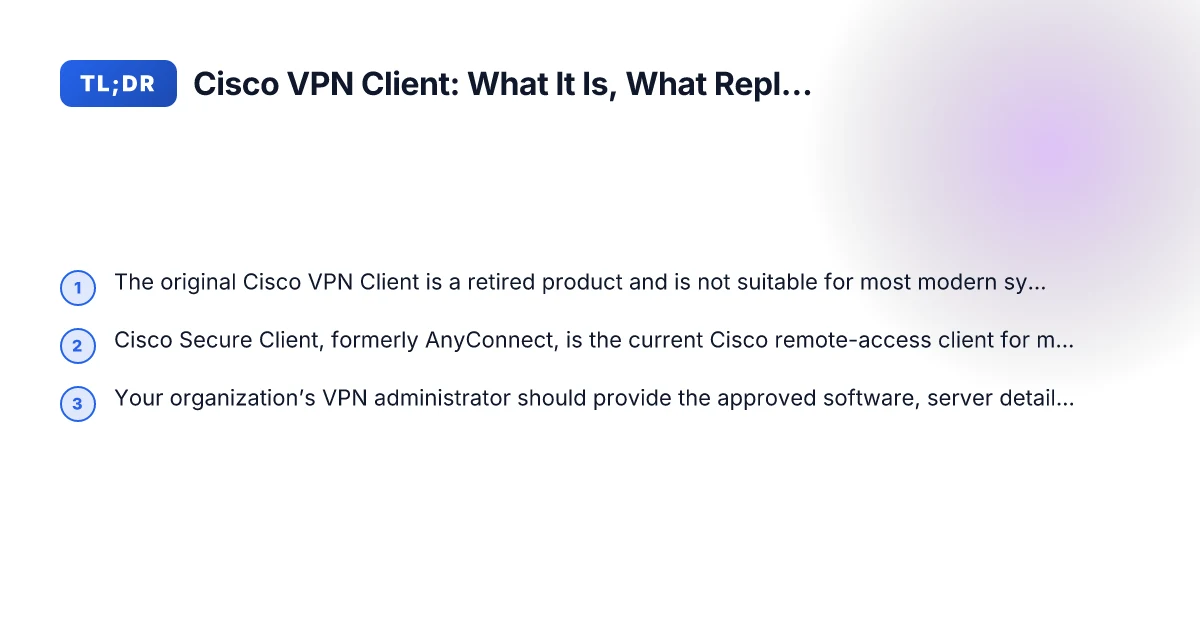
The Cisco VPN Client was software that let users connect securely to a company network over the internet. Cisco discontinued the original client, so people searching for “cisco vpn client” today usually need Cisco Secure Client, the product formerly known as Cisco AnyConnect, or another VPN app specified by their organization. The right choice depends on the company’s VPN equipment, configuration, and security policy.

Editor's pick: NordVPN — fast, secure VPN — Strong encryption, a no-logs policy and apps for every device. 30-day money-back guarantee. Get NordVPN →
Compare Cisco VPN client options and their roles
| Option | What it is | Typical use | Current status | Best next step |
|---|---|---|---|---|
| Cisco VPN Client | Legacy IPsec client | Older Cisco VPN gateways | Discontinued | Check for a supported replacement |
| Cisco AnyConnect | Cisco remote-access client | Cisco VPN and secure access | Superseded by Cisco Secure Client | Use the organization’s approved version |
| Cisco Secure Client | Current Cisco client platform | Cisco remote access and related security services | Current product line | Get it from Cisco or the organization |
| Built-in operating-system VPN | VPN features included with an OS | Compatible VPN configurations | Available on many devices | Confirm protocol and settings with IT |
| Third-party VPN client | Client from another vendor | VPN services that support its protocols | Depends on vendor | Use only if the VPN administrator approves |
| Browser-based access | Web access to selected resources | Services enabled for browser access | Depends on organization | Check whether the required apps are supported |
Compiled November 2026; check the provider's site for current details.
| VPN | Obfuscation | From / month | Plan | Free plan | Refund | Alipay | UnionPay | Crypto | Website opens in China | Trustpilot | |
|---|---|---|---|---|---|---|---|---|---|---|---|
 ZoogVPN | Turn on manually Shadow | $2.49/mo | 27 months: $59.99 | Yes | 7 days | ✓ | ✓ | ✓ | ✓ | Official site blocked; our special link opens (4.4 s) | 4.2/5 (195 reviews) |
 NordVPN | Turn on manually Obfuscated Servers / NordWhisper | $3.49/mo | 27 months: $94.23 | No | 30 days | ? | ✗ | ✓ | ✓ | ✗ Blocked | 4.2/5 (51,628 reviews) |
 ExpressVPN | ✓ On by default all servers | $3.00/mo | 28 months: $84 | No | 30 days | ✗ | ✗ | ✓ | ✗ | ✗ Blocked | 4.4/5 (29,706 reviews) |
 Surfshark | ✓ On by default Camouflage, with OpenVPN | See site | See site | No | 30 days | ✗ | ✗ | ✗ | ✓ | ✗ Blocked | 4.3/5 (31,823 reviews) |
 Proton VPN | Turn on manually Stealth, free plan too | $2.99/mo | 12 months: $35.88 | Yes | 30 days | ✗ | ✗ | ✗ | ✓ | ✗ Blocked | 2.1/5 (1,040 reviews) |
 Astrill VPN | Turn on manually StealthVPN / OpenWeb | $12.50/mo | 24 months: $300 | No | See site | ✗ | ✗ | ✗ | ✓ | ✗ Blocked | 1.3/5 (110 reviews) |
 Private Internet Access | Turn on manually Shadowsocks, OpenVPN only | $2.03/mo | 40 months: $81.2 | No | 30 days | ✗ | ✗ | ✗ | ✗ | ✗ Blocked | 4.2/5 (11,033 reviews) |
 CyberGhost | Turn on manually selected servers | $2.19/mo | 28 months: $61.32 | No | 45 days | ✗ | ✗ | ✗ | ✓ | ✗ Blocked | 4.0/5 (24,178 reviews) |
 PureVPN | Turn on manually switch to OpenVPN | $1.69/mo | 60 months: $101.55 | No | 31 days | ? | ? | ✗ | ✓ | ✗ Blocked | 4.4/5 (17,994 reviews) |
 AdGuard VPN | ✓ On by default TrustTunnel | $2.99/mo | 24 months: $71.76 | Yes | 30 days | ✓ | ✗ | ✓ | ✓ | Official site blocked; our special link opens (3.7 s) | 4.3/5 (290 reviews) |
 Mullvad | Turn on manually QUIC / Shadowsocks / LWO | $5.61/mo | €5/mo | No | 14 days | ✗ | ✗ | ✗ | ✓ | ✗ Blocked | 3.2/5 (192 reviews) |
 Windscribe | Turn on manually Stealth / WStunnel | $5.75/mo | 12 months: $69 | Yes | See site | ✗ | ✗ | ✗ | ✓ | ✗ Blocked | 4.7/5 (13,355 reviews) |
 StrongVPN | Turn on manually Scramble, OpenVPN TCP | See site | See site | No | 30 days | ✓ | ✗ | ✗ | ✗ | ✗ Blocked | 4.4/5 (2,695 reviews) |
 LightXtreme 闪连 | Not listed | $7.08/mo | 12 months: $84.99 | Yes | 30 days | ✓ | ✓ | ✓ | ✓ | ✓ Yes (3.5 s) | No page |
Prices checked 2026-11-10 on each vendor's pricing page (cheapest long plan, USD). Check the vendor's checkout for the final price.
Obfuscation checked 2026-11-14 on each vendor's site and help center: "on by default" = nothing to set; "turn on manually" = switch protocol or mode in settings; "not listed" = the vendor describes no obfuscation.
Payment methods checked 2026-11-10 on each vendor's payment pages: all 14 take cards and PayPal; ✗ = not listed, ? = the vendor's own pages disagree.
China access: whether the official website opens from mainland China networks (tests the website only, not the VPN connection). Last checked 2026-11-18 01:02 Beijing time.
Trustpilot score and review count checked 2026-11-10.
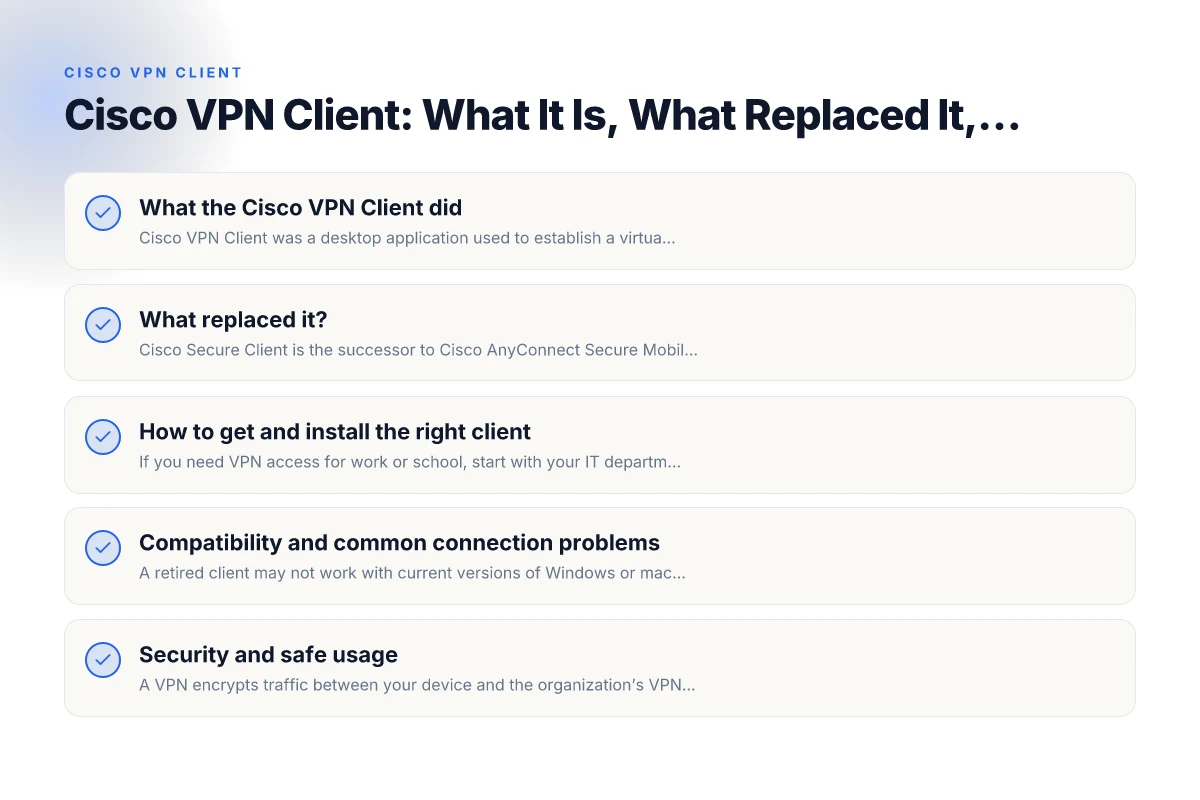
What the Cisco VPN Client did
Cisco VPN Client was a desktop application used to establish a virtual private network (VPN) connection to compatible Cisco systems. A VPN creates an encrypted connection between a user’s device and a network, allowing authorized users to access internal resources remotely.
The original client was designed for older systems and VPN technologies. It is retired and does not receive current support or security updates. Although old installers and setup guides may still be available online, using them can create security and compatibility problems.
The name can also cause confusion: people may use “Cisco VPN Client” to refer to any Cisco VPN app. In current Cisco documentation, the modern remote-access app is generally called Cisco Secure Client.
What replaced it?
Cisco Secure Client is the successor to Cisco AnyConnect Secure Mobility Client. It provides VPN connectivity and may include additional security features, depending on the organization’s licenses and deployment. Cisco Secure Client VPN: Setup, Features, and Troubleshooting
An organization typically configures the client to connect to its VPN gateway, such as a Cisco Secure Firewall or compatible Cisco networking product. The user may sign in with a password, multifactor authentication, a certificate, or a combination of methods.
| Product | Status | Typical use |
|---|---|---|
| Cisco VPN Client | Retired | Legacy environments; not recommended for new setups |
| Cisco AnyConnect | Previous product name | Older documentation and existing deployments |
| Cisco Secure Client | Current product name | Remote access to an organization’s Cisco VPN |
Cisco Secure Client is not necessarily a self-service VPN that connects you to any network. In most cases, you need an organization that provides VPN access and has configured its gateway to accept your connection.
How to get and install the right client
If you need VPN access for work or school, start with your IT department or service desk. They can confirm which version is supported and provide the organization’s approved download and setup instructions.
A typical setup involves: VPN for Microsoft Edge: What It Does and How to Choose One
- Downloading the client through your organization’s software portal or an official Cisco source.
- Installing the version and components your administrator specifies.
- Entering the VPN server address or selecting a preconfigured connection.
- Signing in and completing any required multifactor authentication.
- Checking that the client reports a successful connection before accessing internal resources.
Some deployments install the client automatically through device management. Others require an administrator to provide a profile or configure settings. Do not guess the server address or import configuration files from an untrusted website.
Availability, licensing, and download methods can vary by organization and product configuration. The safest approach is to follow your organization’s instructions rather than relying on a generic download page or an old tutorial.
Choose and install a client safely
| Situation | Recommended action | Where to get it | What to confirm | Avoid |
|---|---|---|---|---|
| Employer or school VPN | Follow the administrator’s instructions | Organization’s software portal or linked source | Client version and VPN profile | Choosing a client by name alone |
| Cisco remote access | Use the organization-approved Cisco client | Cisco or an organization-approved source | Secure Client or specified AnyConnect release | Unofficial downloads |
| Legacy VPN setup | Ask the VPN administrator for migration guidance | Administrator-approved source | Gateway and authentication compatibility | Assuming the old client still works |
| Personal VPN service | Use the provider’s official app or supported setup | Provider’s official site or app store | Supported devices and protocols | Repacks and download mirrors |
| Managed computer | Let IT install or configure the client | Managed software catalog | Device policy and permissions | Changing security settings yourself |
| Manual VPN configuration | Use only documented settings | VPN administrator or provider | Server, protocol, credentials, and certificates | Guessing connection details |
Compiled November 2026; check the provider's site for current details. Where Is My VPN? Find It, Check Its Status, and Fix Connection Issues
Compatibility and common connection problems
A retired client may not work with current versions of Windows or macOS, and it may be incompatible with modern VPN gateways. Even if an old installer appears to run, that does not mean the software is safe or supported. Avoid disabling security protections or changing system settings just to make a legacy client connect.
With Cisco Secure Client, connection issues can have several causes:
- Incorrect server address: Confirm the address with your VPN administrator.
- Authentication problems: Check your account, password, multifactor prompt, and any certificate requirements.
- Outdated software: Ask whether your organization requires a newer client release.
- Network restrictions: A local firewall, captive Wi-Fi portal, or network policy may prevent the connection.
- Gateway or account issues: The VPN service may be unavailable, or your account may lack remote-access permission.
If you see an error message, note its exact wording and when it appears. Share those details with your IT team. Avoid posting screenshots that reveal server names, usernames, access tokens, or other private information.
Security and safe usage
A VPN encrypts traffic between your device and the organization’s VPN gateway, but it does not make every online activity anonymous or guarantee that a device is secure. Your organization may apply security checks or route some or all internet traffic through its network. iPhone Clash: What It Means and How to Fix Common iPhone Conflicts
Use only software and connection profiles provided by a trusted source. Keep your operating system and VPN client updated, protect your account with multifactor authentication when available, and disconnect when you no longer need remote access, unless your organization requires a persistent connection.
Be cautious of third-party sites offering “Cisco VPN Client” downloads. Legacy installers can be modified, bundled with unwanted software, or simply unsuitable for your system. If you are unsure whether an installer is legitimate, ask your IT administrator before opening it.
Diagnose common VPN connection problems
| Symptom | Possible cause | Check first | Safer response | Avoid |
|---|---|---|---|---|
| Client will not install | Unsupported OS or insufficient permissions | OS requirements and install rights | Ask IT or use an approved installer | Disabling protections |
| VPN will not connect | Wrong profile or server details | Organization-provided settings | Recheck the approved profile | Guessing server addresses |
| Authentication fails | Expired credentials or authentication issue | Account status and sign-in method | Contact the administrator | Sharing credentials |
| Connection drops | Network instability or policy limits | Local network and client status | Try an approved network or contact IT | Using untrusted workarounds |
| VPN connects but apps fail | Access or routing configuration | Whether the app is covered by VPN access | Report the app and error to IT | Changing routes without approval |
| Certificate warning appears | Certificate mismatch or trust problem | Warning details and official guidance | Stop and verify with IT | Ignoring the warning |
| Old Cisco client is required | Legacy software or gateway dependency | Whether migration is available | Request a supported plan | Downloading the client from unofficial sites |
Compiled November 2026; check the provider's site for current details. VPN Extension for Edge Browser: How to Choose and Use One
Recommendation
For a new or current Cisco VPN connection, do not install the retired Cisco VPN Client. Ask your organization whether it uses Cisco Secure Client, formerly AnyConnect, and follow its official installation and connection instructions. That gives you the best chance of using a supported, correctly configured client.