VPN Extension for Edge Browser: How to Choose and Use One
Learn what an Edge VPN extension protects, how to install one, and how to choose a trustworthy provider.
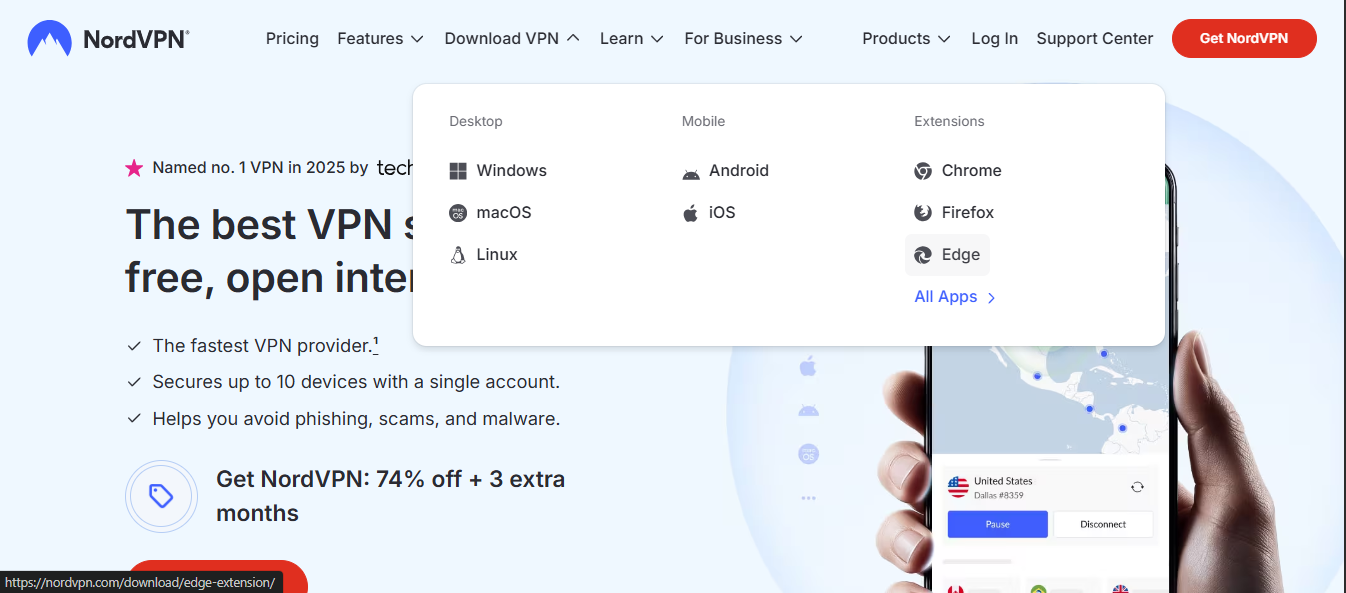
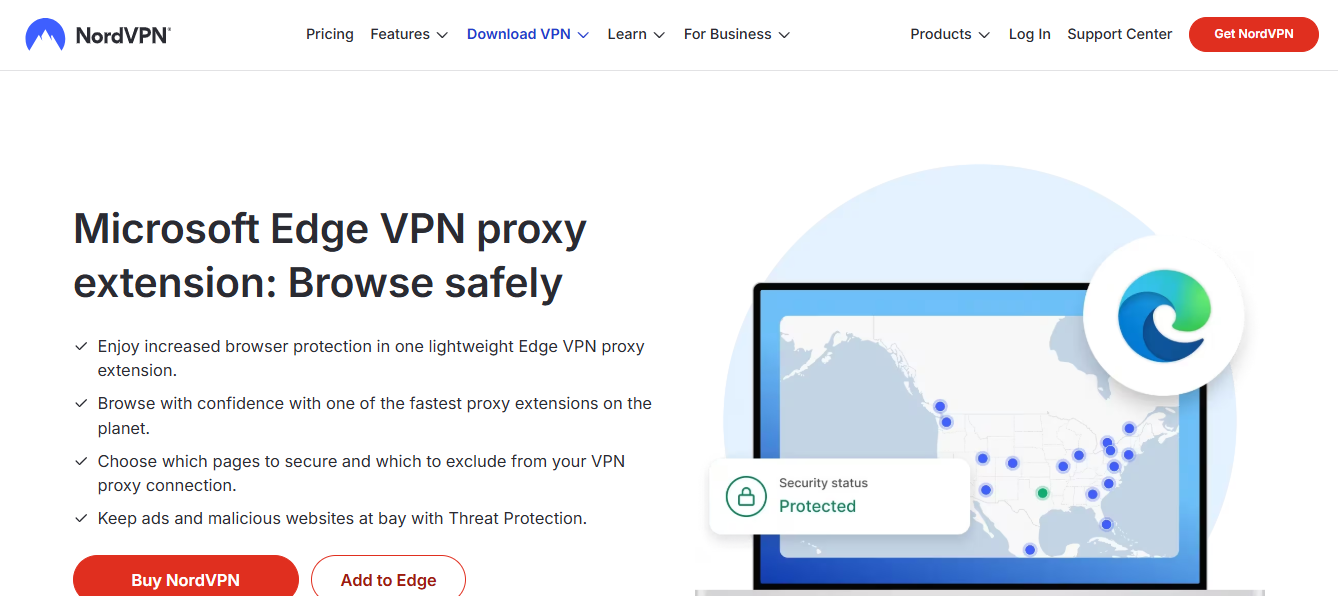
A VPN extension for Edge browser can route your browser traffic through a VPN provider’s servers, helping protect your connection on public Wi-Fi and changing the IP address websites see. To use one, choose a reputable provider, install its extension from the official Microsoft Edge Add-ons store or the provider’s verified website, then sign in and connect to a server. Before you install anything, check whether the extension protects only browser traffic or works alongside a full VPN app.

Editor's pick: NordVPN — fast, secure VPN — Strong encryption, a no-logs policy and apps for every device. 30-day money-back guarantee. Get NordVPN →
Quick comparison of Edge VPN extension options
| Option | Best for | Edge setup | Server choice | Core trade-off |
|---|---|---|---|---|
| Browser-only extension | Protecting browser traffic | Add from Edge Add-ons or provider site | Varies by provider | Other apps may remain unprotected |
| Full VPN app with Edge extension | Browser and device coverage | Install app, then extension if needed | Often managed in app | More setup |
| Free extension | Trying basic features | Usually quick to install | May be limited | Check data, speed, and privacy terms |
| Paid extension | Regular use and broader features | Provider account may be required | Often more locations | Subscription cost |
| Proxy-style extension | Changing browser connection route | Connect through extension | Varies | May not encrypt traffic like a VPN |
| Extension with auto-connect | Connecting on browser launch | Enable in settings | Varies | May affect browsing speed |
| Extension with site controls | Choosing where to use the VPN | Configure site rules | Varies | Rules need review |
| Extension with a kill switch | Reducing exposure if connection drops | Enable in settings or app | Varies | Feature may cover only some traffic |
Compiled November 2026; check the provider's site for current details.
| VPN | Obfuscation | From / month | Plan | Free plan | Refund | Alipay | UnionPay | Crypto | Website opens in China | Trustpilot | |
|---|---|---|---|---|---|---|---|---|---|---|---|
 ZoogVPN | Turn on manually Shadow | $2.49/mo | 27 months: $59.99 | Yes | 7 days | ✓ | ✓ | ✓ | ✓ | Official site blocked; our special link opens (4.4 s) | 4.2/5 (195 reviews) |
 NordVPN | Turn on manually Obfuscated Servers / NordWhisper | $3.49/mo | 27 months: $94.23 | No | 30 days | ? | ✗ | ✓ | ✓ | ✗ Blocked | 4.2/5 (51,628 reviews) |
 ExpressVPN | ✓ On by default all servers | $3.00/mo | 28 months: $84 | No | 30 days | ✗ | ✗ | ✓ | ✗ | ✗ Blocked | 4.4/5 (29,706 reviews) |
 Surfshark | ✓ On by default Camouflage, with OpenVPN | See site | See site | No | 30 days | ✗ | ✗ | ✗ | ✓ | ✗ Blocked | 4.3/5 (31,823 reviews) |
 Proton VPN | Turn on manually Stealth, free plan too | $2.99/mo | 12 months: $35.88 | Yes | 30 days | ✗ | ✗ | ✗ | ✓ | ✗ Blocked | 2.1/5 (1,040 reviews) |
 Astrill VPN | Turn on manually StealthVPN / OpenWeb | $12.50/mo | 24 months: $300 | No | See site | ✗ | ✗ | ✗ | ✓ | ✗ Blocked | 1.3/5 (110 reviews) |
 Private Internet Access | Turn on manually Shadowsocks, OpenVPN only | $2.03/mo | 40 months: $81.2 | No | 30 days | ✗ | ✗ | ✗ | ✗ | ✗ Blocked | 4.2/5 (11,033 reviews) |
 CyberGhost | Turn on manually selected servers | $2.19/mo | 28 months: $61.32 | No | 45 days | ✗ | ✗ | ✗ | ✓ | ✗ Blocked | 4.0/5 (24,178 reviews) |
 PureVPN | Turn on manually switch to OpenVPN | $1.69/mo | 60 months: $101.55 | No | 31 days | ? | ? | ✗ | ✓ | ✗ Blocked | 4.4/5 (17,994 reviews) |
 AdGuard VPN | ✓ On by default TrustTunnel | $2.99/mo | 24 months: $71.76 | Yes | 30 days | ✓ | ✗ | ✓ | ✓ | Official site blocked; our special link opens (3.7 s) | 4.3/5 (290 reviews) |
 Mullvad | Turn on manually QUIC / Shadowsocks / LWO | $5.61/mo | €5/mo | No | 14 days | ✗ | ✗ | ✗ | ✓ | ✗ Blocked | 3.2/5 (192 reviews) |
 Windscribe | Turn on manually Stealth / WStunnel | $5.75/mo | 12 months: $69 | Yes | See site | ✗ | ✗ | ✗ | ✓ | ✗ Blocked | 4.7/5 (13,355 reviews) |
 StrongVPN | Turn on manually Scramble, OpenVPN TCP | See site | See site | No | 30 days | ✓ | ✗ | ✗ | ✗ | ✗ Blocked | 4.4/5 (2,695 reviews) |
 LightXtreme 闪连 | Not listed | $7.08/mo | 12 months: $84.99 | Yes | 30 days | ✓ | ✓ | ✓ | ✓ | ✓ Yes (3.5 s) | No page |
Prices checked 2026-11-10 on each vendor's pricing page (cheapest long plan, USD). Check the vendor's checkout for the final price.
Obfuscation checked 2026-11-14 on each vendor's site and help center: "on by default" = nothing to set; "turn on manually" = switch protocol or mode in settings; "not listed" = the vendor describes no obfuscation.
Payment methods checked 2026-11-10 on each vendor's payment pages: all 14 take cards and PayPal; ✗ = not listed, ? = the vendor's own pages disagree.
China access: whether the official website opens from mainland China networks (tests the website only, not the VPN connection). Last checked 2026-11-18 01:02 Beijing time.
Trustpilot score and review count checked 2026-11-10.
What an Edge VPN extension does
A browser VPN extension adds a control to Microsoft Edge for connecting to a provider’s network. When connected, websites generally see the VPN server’s IP address rather than your usual public IP address. The connection can also encrypt browser traffic between Edge and the VPN server, which is useful when you use an untrusted network.
The word “VPN” can describe different products, however. Some Edge extensions are full VPN clients that establish an encrypted tunnel. Others are proxy extensions that route selected browser requests through a remote server but may offer different protections. Read the provider’s documentation to find out which type you’re installing.
A browser extension also usually has a narrower scope than a device-wide VPN app. Depending on how it works, it may not protect traffic from other browsers, messaging apps, games, or background services. A full VPN application is generally the better choice when you want protection for the entire device.
How to choose a VPN extension
A large server list or a free download does not, by itself, make an extension trustworthy. Review the provider’s security practices and terms before granting it access to your browsing activity. Urban VPN Add On: What It Does and How to Use It
Look for:
- A clear privacy policy: It should explain what data is collected, how long it is retained, and whether it is shared.
- Reputable ownership: Check who operates the service and whether its claims are supported by independent audits or other credible evidence.
- Strong security: Look for an encrypted connection and a clear explanation of how the extension handles DNS requests and WebRTC.
- Useful controls: Server selection, connection status, and a way to disconnect should be easy to find.
- A sensible business model: Free services still have operating costs. Find out how the provider funds the product and whether free-plan limits are clearly stated.
- Recent maintenance: Check the extension’s update history, support information, and user reviews. Reviews are useful context, not proof of security.
| Option | What it usually protects | Best suited to |
|---|---|---|
| Edge VPN extension | Browser traffic handled by the extension | Quick browser-based use |
| Full VPN app | Traffic across the device, subject to app and network settings | Broader device protection |
| Free VPN extension | Varies by provider; may include limits | Occasional use after careful review |
VPN extension checklist for choosing an Edge option
| Check | What to look for | Why it matters | Decision signal |
|---|---|---|---|
| Publisher | Recognized provider and clear ownership | Helps assess trust | Avoid unclear publishers |
| Privacy policy | Data collected, stored, and shared | Shows how browsing data is handled | Prefer specific terms |
| Encryption | Clear description of protection | Helps distinguish a VPN from a basic proxy | Verify claims |
| Coverage | Browser-only or device-wide traffic | Defines what is protected | Match your needs |
| Server locations | Locations listed before connecting | Helps with access and routing choices | Compare available regions |
| Data limits | Stated monthly or session limits | Affects ongoing use | Check before choosing free |
| Speed and stability | Performance details or trial access | Connection quality varies | Test your usual sites |
| Safety controls | Kill switch, auto-connect, site rules | Helps manage drops and exceptions | Confirm settings exist |
| Support | Help pages and contact options | Useful when setup fails | Prefer clear support |
Compiled November 2026; check the provider's site for current details.
How to install and connect
The exact labels may differ between providers, but the basic setup is straightforward: FortiClient IPsec Over TCP: What It Supports and How to Connect
- Search for the provider in the official Microsoft Edge Add-ons store, or follow the download link on the provider’s verified website.
- Check the publisher name, permissions, privacy policy, and recent reviews before installing.
- Select Get or Add to Edge, then review the permission prompt. Be cautious if requested access seems unrelated to the service.
- Open the extension, create an account or sign in, and choose a server location.
- Connect and confirm that the extension shows an active connection.
- Visit a reputable IP-checking service to see whether your public IP address appears to have changed.
Avoid installing an extension from an unfamiliar download site or a link in an unsolicited message. A convincing name or logo does not guarantee that an extension is made by the provider it claims to represent.
Limitations and safety checks
A VPN does not make you anonymous or protect you from every online threat. Websites may still identify you through account logins, cookies, browser fingerprinting, or information you share. A VPN also does not replace antivirus software, secure passwords, or careful browsing.
Check these details before relying on an extension:
- Coverage: Confirm whether it protects all Edge traffic or only selected connections.
- DNS and WebRTC leaks: These technologies can sometimes reveal identifying network information. Look for provider guidance and use reputable leak-testing tools.
- Connection drops: Find out whether the extension includes a kill switch or another safeguard if the VPN disconnects unexpectedly.
- Location accuracy: A server’s listed country does not guarantee that every website will treat the connection as being there.
- Performance: VPN routing can slow browsing or increase latency. Try nearby servers if pages load slowly.
If you need protection for other apps, want consistent coverage outside Edge, or need device-level controls, install a reputable full VPN app instead of relying on a browser extension alone. You may be able to use an extension and desktop app from the same provider, but check how they interact to avoid confusing connection settings. V2Ray for iOS: How to Choose and Set Up a Client
Free versus paid extensions
Free extensions can be convenient for occasional browsing, but they may impose data limits, restrict server choices, or offer fewer support options. More importantly, confirm how the provider pays for the service and handles user data. Do not assume that a free product is private simply because it does not charge a subscription fee.
Paid plans may offer more servers, faster connections, broader device coverage, or customer support. Those features vary by provider, so compare the actual plan terms rather than relying on general claims. Check renewal pricing, cancellation rules, and any money-back guarantee before subscribing.
Edge VPN installation and safety decision guide
| Step or check | What to do | Good sign | Caution |
|---|---|---|---|
| Choose a source | Use Edge Add-ons or the provider’s official site | Publisher matches the provider | Avoid unknown download links |
| Review permissions | Read requested access before adding | Permissions fit the stated features | Broad access needs explanation |
| Install | Select Add to Edge and confirm | Extension appears in Edge | Don’t install duplicate tools |
| Sign in | Use the provider’s official account flow | Connection status is clear | Don’t enter credentials on unfamiliar pages |
| Connect | Choose a location and connect | Extension shows an active connection | A changed location alone doesn’t prove protection |
| Test coverage | Check whether only browser traffic is routed | Provider explains what is covered | Other apps may use the normal connection |
| Check for leaks | Use reputable testing tools while connected | Results match the provider’s claims | One test cannot guarantee privacy |
| Review free terms | Check data limits, ads, and logging policy | Limits and practices are stated | “Free” does not guarantee privacy |
| Update or remove | Keep the extension current or uninstall if unused | Updates come through trusted channels | Remove extensions you no longer trust |
Compiled November 2026; check the provider's site for current details. Clash Verge on iPhone: What Works and What to Use Instead
Recommendation
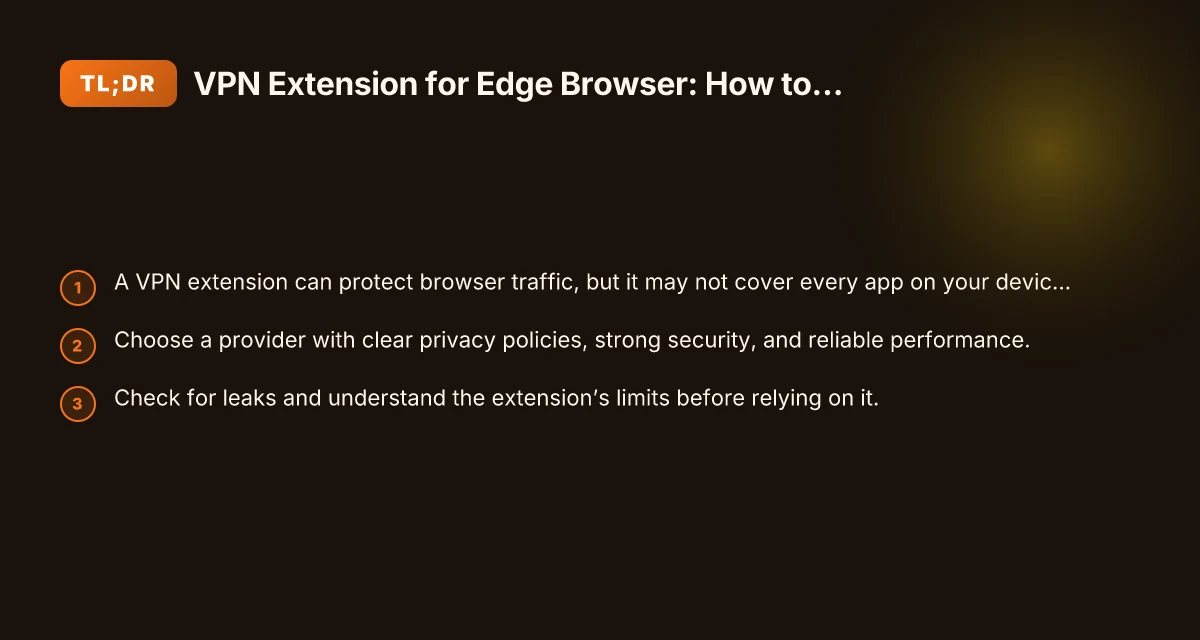
For a VPN extension for Edge browser, choose a provider with a transparent privacy policy, a credible security record, and a clearly maintained extension. Install it only from an official source, check its coverage, and test for IP or DNS leaks. If you want to protect traffic beyond Edge, use a full VPN app. An extension is best treated as a browser-focused convenience, not complete device protection.