How to Open an OVPN File on Windows, Mac, Linux, Android, and iPhone
Learn what an OVPN file is, how to import it into OpenVPN Connect, and what to check if it will not connect.
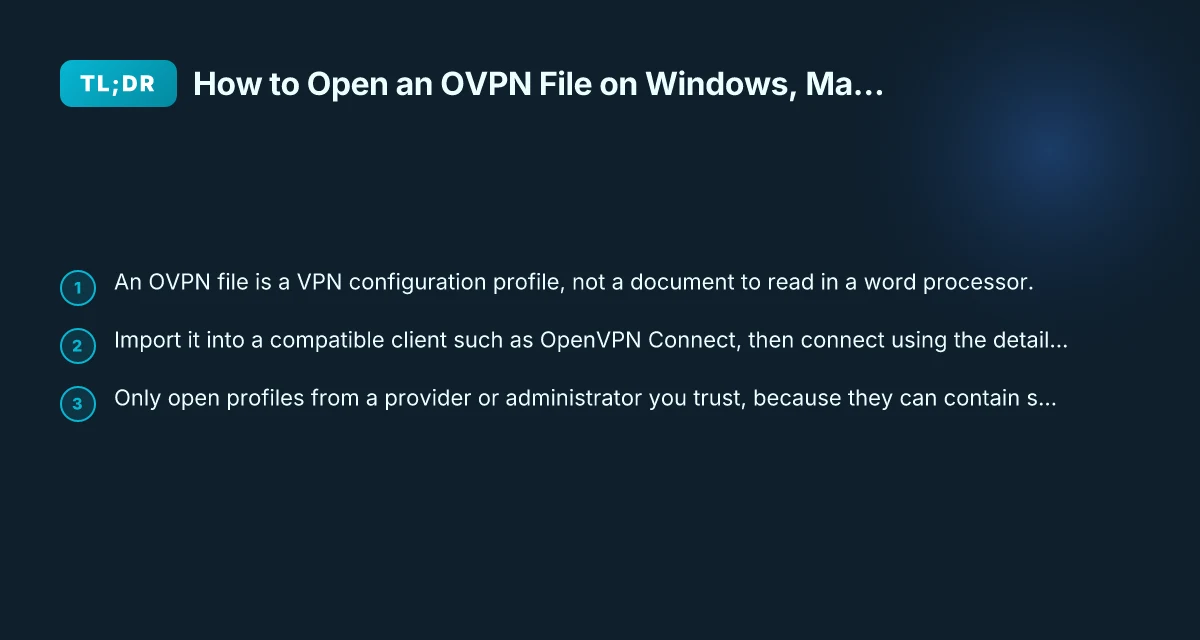
To open an OVPN file, install a compatible VPN app, such as OpenVPN Connect, and import the file into the app. Then select the profile and connect, entering your VPN username, password, or other credentials if prompted. An OVPN file is a configuration file, so you generally do not open it like a PDF or Word document.

Editor's pick: NordVPN — fast, secure VPN — Strong encryption, a no-logs policy and apps for every device. 30-day money-back guarantee. Get NordVPN →
Which OVPN file workflow fits your task?
| Goal | Best approach | What you need | What happens | Keep in mind |
|---|---|---|---|---|
| Connect on Windows | Import into a compatible VPN client | OVPN profile and client | Client creates a connection entry | Menu names vary by client |
| Connect on Mac | Import into a compatible VPN client | OVPN profile and client | Client creates a connection entry | Use a client that supports OpenVPN |
| Connect on Linux | Use a compatible VPN client or OpenVPN tools | OVPN profile and installed software | Client loads the profile | Setup varies by distribution |
| Connect on Android | Import into an OpenVPN-compatible app | OVPN profile and app | App adds a VPN profile | Approve the requested VPN connection |
| Connect on iPhone | Import into an OpenVPN-compatible app | OVPN profile and app | App adds a VPN profile | Approve the requested VPN connection |
| Inspect settings | Open as text | Text editor | Shows configuration directives | Reading it does not connect |
| Change a setting | Edit as text, then import | Text editor and compatible client | Client uses the updated profile | Avoid changing unfamiliar directives |
| Troubleshoot connection | Review profile and client messages | Profile and client logs | Helps identify configuration issues | Do not share credentials or private keys |
Compiled November 2026; check the provider's site for current details.
| VPN | Obfuscation | From / month | Plan | Free plan | Refund | Alipay | UnionPay | Crypto | Website opens in China | Trustpilot | |
|---|---|---|---|---|---|---|---|---|---|---|---|
 ZoogVPN | Turn on manually Shadow | $2.49/mo | 27 months: $59.99 | Yes | 7 days | ✓ | ✓ | ✓ | ✓ | Official site blocked; our special link opens (4.4 s) | 4.2/5 (195 reviews) |
 NordVPN | Turn on manually Obfuscated Servers / NordWhisper | $3.49/mo | 27 months: $94.23 | No | 30 days | ? | ✗ | ✓ | ✓ | ✗ Blocked | 4.2/5 (51,628 reviews) |
 ExpressVPN | ✓ On by default all servers | $3.00/mo | 28 months: $84 | No | 30 days | ✗ | ✗ | ✓ | ✗ | ✗ Blocked | 4.4/5 (29,706 reviews) |
 Surfshark | ✓ On by default Camouflage, with OpenVPN | See site | See site | No | 30 days | ✗ | ✗ | ✗ | ✓ | ✗ Blocked | 4.3/5 (31,823 reviews) |
 Proton VPN | Turn on manually Stealth, free plan too | $2.99/mo | 12 months: $35.88 | Yes | 30 days | ✗ | ✗ | ✗ | ✓ | ✗ Blocked | 2.1/5 (1,040 reviews) |
 Astrill VPN | Turn on manually StealthVPN / OpenWeb | $12.50/mo | 24 months: $300 | No | See site | ✗ | ✗ | ✗ | ✓ | ✗ Blocked | 1.3/5 (110 reviews) |
 Private Internet Access | Turn on manually Shadowsocks, OpenVPN only | $2.03/mo | 40 months: $81.2 | No | 30 days | ✗ | ✗ | ✗ | ✗ | ✗ Blocked | 4.2/5 (11,033 reviews) |
 CyberGhost | Turn on manually selected servers | $2.19/mo | 28 months: $61.32 | No | 45 days | ✗ | ✗ | ✗ | ✓ | ✗ Blocked | 4.0/5 (24,178 reviews) |
 PureVPN | Turn on manually switch to OpenVPN | $1.69/mo | 60 months: $101.55 | No | 31 days | ? | ? | ✗ | ✓ | ✗ Blocked | 4.4/5 (17,994 reviews) |
 AdGuard VPN | ✓ On by default TrustTunnel | $2.99/mo | 24 months: $71.76 | Yes | 30 days | ✓ | ✗ | ✓ | ✓ | Official site blocked; our special link opens (3.7 s) | 4.3/5 (290 reviews) |
 Mullvad | Turn on manually QUIC / Shadowsocks / LWO | $5.61/mo | €5/mo | No | 14 days | ✗ | ✗ | ✗ | ✓ | ✗ Blocked | 3.2/5 (192 reviews) |
 Windscribe | Turn on manually Stealth / WStunnel | $5.75/mo | 12 months: $69 | Yes | See site | ✗ | ✗ | ✗ | ✓ | ✗ Blocked | 4.7/5 (13,355 reviews) |
 StrongVPN | Turn on manually Scramble, OpenVPN TCP | See site | See site | No | 30 days | ✓ | ✗ | ✗ | ✗ | ✗ Blocked | 4.4/5 (2,695 reviews) |
 LightXtreme 闪连 | Not listed | $7.08/mo | 12 months: $84.99 | Yes | 30 days | ✓ | ✓ | ✓ | ✓ | ✓ Yes (3.5 s) | No page |
Prices checked 2026-11-10 on each vendor's pricing page (cheapest long plan, USD). Check the vendor's checkout for the final price.
Obfuscation checked 2026-11-14 on each vendor's site and help center: "on by default" = nothing to set; "turn on manually" = switch protocol or mode in settings; "not listed" = the vendor describes no obfuscation.
Payment methods checked 2026-11-10 on each vendor's payment pages: all 14 take cards and PayPal; ✗ = not listed, ? = the vendor's own pages disagree.
China access: whether the official website opens from mainland China networks (tests the website only, not the VPN connection). Last checked 2026-11-18 01:02 Beijing time.
Trustpilot score and review count checked 2026-11-10.
What an OVPN file does
An OVPN file contains settings that tell an OpenVPN-compatible app how to connect to a VPN server. Depending on how the provider created it, the profile may include the server address, connection protocol, security options, and certificate or key information.
You may receive one from a VPN provider, a workplace or school administrator, or someone who manages a private VPN server. Some providers supply a single .ovpn file. Others provide a ZIP archive containing several profiles or additional certificate files.
The file does not necessarily include your account credentials. You may need a separate username and password, an activation code, or multifactor authentication to connect.
Open an OVPN file on your device
The general process is the same on most devices: install a compatible client, import the profile, and connect. Download the client from its official website or your device’s app store. Forticlientvpninstaller.exe: How to Download and Install FortiClient VPN
| Device | Typical way to import an OVPN file |
|---|---|
| Windows | Import the file in OpenVPN Connect |
| Mac | Import the file in OpenVPN Connect |
| Linux | Use an OpenVPN client or NetworkManager |
| Android | Import the file in OpenVPN Connect |
| iPhone or iPad | Import the file in OpenVPN Connect |
Windows and Mac
- Install OpenVPN Connect from the official OpenVPN website.
- Open the app and choose the option to import a profile, usually by selecting a file.
- Find and select the
.ovpnfile. If it came in a ZIP archive, extract the archive first. - Enter a profile name and any credentials the app requests.
- Select the profile and click or tap Connect.
On macOS, you can also import the file from a compatible VPN app if your provider recommends a different client. Follow the provider’s instructions if they specify a particular application.
Android and iPhone
- Install OpenVPN Connect from Google Play or the Apple App Store.
- Save the OVPN file to your device or cloud storage.
- Open the file using the app’s sharing or “Open with” option, or import it from within OpenVPN Connect.
- Confirm the profile details and enter any required credentials.
- Tap Connect and approve the device’s VPN connection request.
The names of menus can vary by app version. If the file is in an email or browser download, you may need to save it to the Files app or your device’s downloads folder before importing it.
Linux
Linux users can connect through an OpenVPN client in the terminal or through a desktop network manager. On systems that support NetworkManager, you can often import an OpenVPN profile from the network settings interface. Otherwise, install an OpenVPN package using your distribution’s supported software tools and follow its instructions for loading a profile.
Linux commands and package names vary by distribution. Use documentation for your version, and avoid running commands copied from an untrusted source. Best Free Edge VPN Extension for UK Users: What to Choose
Importing a profile versus reading its contents
If you want to connect, import the file into a VPN client. Opening it in a text editor is usually not necessary.
If you need to inspect the settings, a plain-text editor can show the file’s contents. You may see directives such as remote, which identifies a server, or certificate-related sections. Do not change unfamiliar lines: editing a profile incorrectly can prevent the connection from working or weaken its security.
An OVPN file may contain embedded certificates or cryptographic keys. Treat it like sensitive configuration data. Do not post it publicly, send it to strangers, or upload it to an unknown online viewer.
Importing an OVPN profile versus reading its contents Best VPN for Edge Free: Top Free Options and What to Know
| Comparison | Import into a VPN client | Open in a text editor |
|---|---|---|
| Main purpose | Set up a VPN connection | Inspect configuration text |
| Connects to a VPN | Yes, when configured and connected | No |
| Creates a usable profile | Supported by compatible clients | No |
| Shows directives | Some clients expose settings | Yes |
| Requires VPN software | Yes | No |
| Suitable for routine use | Yes | No |
| Suitable for troubleshooting | Yes | Yes |
| Risk when editing | Incorrect changes can break connection | Accidental changes can alter the profile |
| Best next step | Connect using the imported entry | Save carefully, then import into a client |
Compiled November 2026; check the provider's site for current details.
If the OVPN file will not open or connect
Check these common causes:
- The app cannot find the file: Save it locally, then import it from the app. On a phone, use the system share menu to send the file to the VPN app.
- The file is still compressed: Extract the ZIP archive first. If the provider supplied multiple files, keep them together and follow its import instructions.
- The app reports a missing certificate or key: The profile may rely on separate files that were not included, or it may have been moved away from them. Download the complete configuration package again.
- Authentication fails: Check that you are using the correct VPN credentials. Some services use VPN-specific credentials rather than the password for your main account.
- The server cannot be reached: Check your internet connection, try another profile or server supplied by the provider, and confirm that the service has not changed its configuration.
- The profile is rejected: It may be outdated or designed for another client. Ask the provider or administrator for a current OpenVPN-compatible profile.
- Your device blocks the connection: Approve the VPN permission prompt and check whether another VPN app, firewall, or network policy is interfering.
Do not disable security protections just to force an unfamiliar profile to work. If the file came from an employer or school, contact the organization’s IT support before changing settings.
Security and compatibility tips
Use an OVPN file only when you trust its source. A profile controls how your device connects and may include sensitive certificates or keys. If you are unsure whether it is legitimate, confirm with the provider through its official website or support channel. VPN to Change Location Free: What Works and What to Check
Also check that the profile matches the VPN service and client you intend to use. Not every app supports every configuration, and a profile for a private server may not work with a commercial VPN subscription. Keep the original file unchanged in case you need to import it again.
OVPN file checks when import or connection fails
| Check | What to look for | Possible issue | What to try |
|---|---|---|---|
| File selection | Correct `.ovpn` profile | Wrong file selected | Choose the profile supplied for your service |
| Client support | OpenVPN profile support | App may not support the format | Use a compatible OpenVPN client |
| File contents | Readable configuration text | File may be incomplete or damaged | Request a fresh profile |
| Certificates and keys | Referenced files or embedded data | Required credentials may be missing | Obtain the complete profile package |
| Credentials | Correct login details, if requested | Authentication can fail | Verify details with the VPN provider |
| Network access | Internet connection is available | Network may block or interrupt VPN traffic | Try a trusted alternate network |
| Profile edits | Recent changes are intentional | A changed directive may prevent connection | Restore the original profile and retry |
| Privacy | Profile and logs contain sensitive data | Sharing can expose credentials or connection details | Redact secrets before asking for help |
Compiled November 2026; check the provider's site for current details.
Recommendation
For most users, the simplest way to open an OVPN file is to install OpenVPN Connect from an official source, import the profile, and connect with the credentials supplied by the VPN provider or administrator. If the import fails, get a fresh profile and instructions from that trusted source rather than editing the configuration yourself. Best Free VPN for Microsoft Edge: Top Options and What to Know