Urban VPN Extension for Edge Browser: How to Install and Use It
Learn how to add Urban VPN to Microsoft Edge, use its features, and check important privacy and security limits.
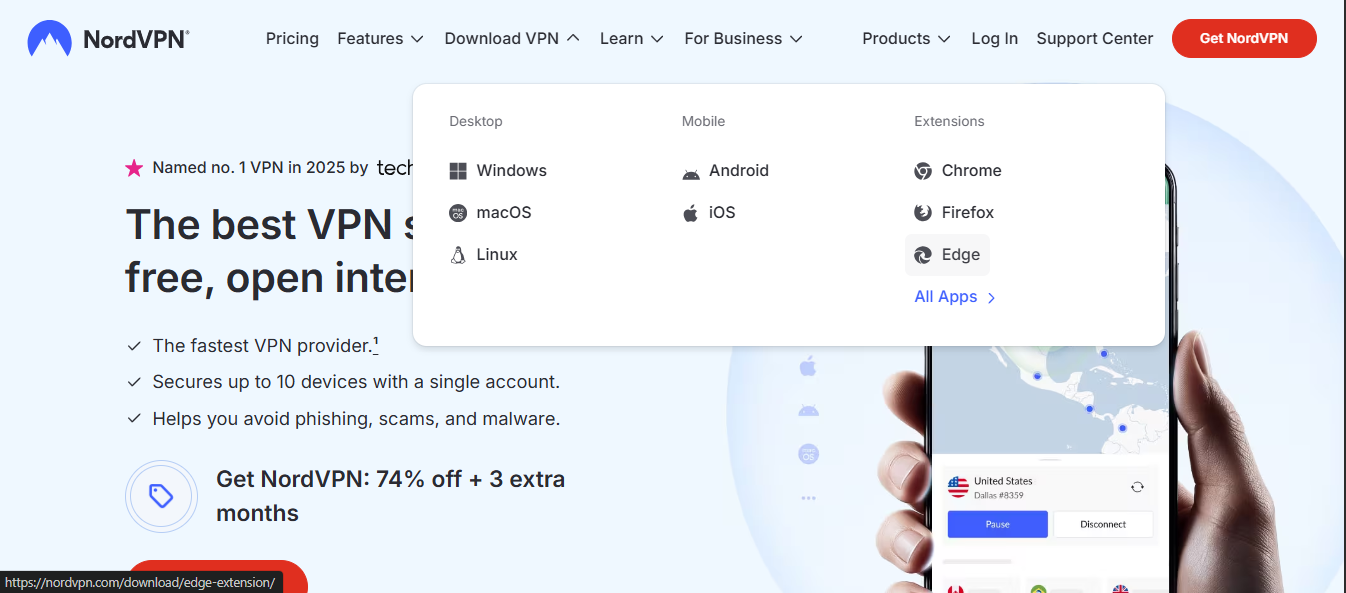
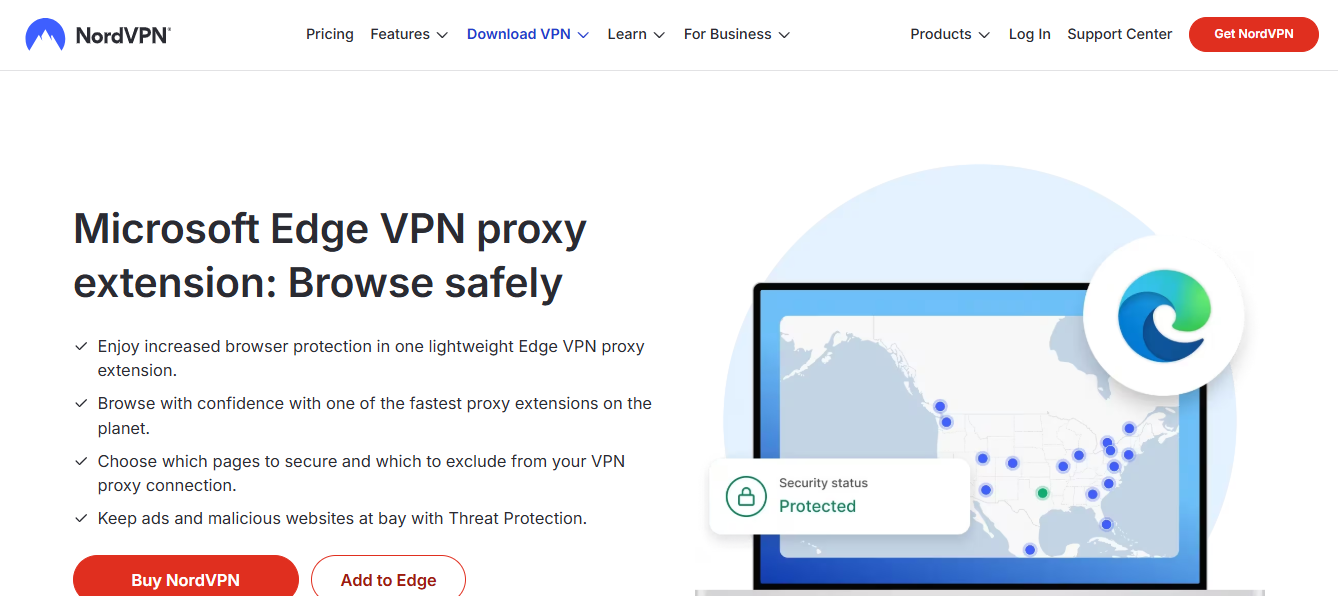
If you’re looking for the Urban VPN extension for Edge browser, you can add it through Microsoft Edge Add-ons, then connect to a location from the extension’s toolbar menu. The extension is designed to route browser traffic through a VPN service, which can help mask your IP address from websites. Before using it, check that you’ve selected the official listing and understand what the browser extension does, and what it does not protect.

Editor's pick: NordVPN — fast, secure VPN — Strong encryption, a no-logs policy and apps for every device. 30-day money-back guarantee. Get NordVPN →
Urban VPN in Edge: Setup and Connection Checklist
| Stage | What to do | What to look for | If it does not work |
|---|---|---|---|
| Find the extension | Open Microsoft Edge Add-ons | Urban VPN listing | Check the listing name |
| Install | Select the install option | Edge installation prompt | Confirm the prompt |
| Confirm access | Review requested permissions | Permission details | Stop if they seem unsuitable |
| Open extension | Select Urban VPN in Edge | Extension panel | Check the extensions menu |
| Choose location | Select an available location | Location shown in the panel | Try another location |
| Connect | Use the connection control | Connected status | Disconnect and reconnect |
| Test access | Open the site or service you need | Page loads as expected | Try a different location |
| Finish session | Disconnect when done | Disconnected status | Reopen the panel |
Compiled November 2026; check the provider's site for current details.
| VPN | Obfuscation | From / month | Plan | Free plan | Refund | Alipay | UnionPay | Crypto | Website opens in China | Trustpilot | |
|---|---|---|---|---|---|---|---|---|---|---|---|
 ZoogVPN | Turn on manually Shadow | $2.49/mo | 27 months: $59.99 | Yes | 7 days | ✓ | ✓ | ✓ | ✓ | Official site blocked; our special link opens (4.4 s) | 4.2/5 (195 reviews) |
 NordVPN | Turn on manually Obfuscated Servers / NordWhisper | $3.49/mo | 27 months: $94.23 | No | 30 days | ? | ✗ | ✓ | ✓ | ✗ Blocked | 4.2/5 (51,628 reviews) |
 ExpressVPN | ✓ On by default all servers | $3.00/mo | 28 months: $84 | No | 30 days | ✗ | ✗ | ✓ | ✗ | ✗ Blocked | 4.4/5 (29,706 reviews) |
 Surfshark | ✓ On by default Camouflage, with OpenVPN | See site | See site | No | 30 days | ✗ | ✗ | ✗ | ✓ | ✗ Blocked | 4.3/5 (31,823 reviews) |
 Proton VPN | Turn on manually Stealth, free plan too | $2.99/mo | 12 months: $35.88 | Yes | 30 days | ✗ | ✗ | ✗ | ✓ | ✗ Blocked | 2.1/5 (1,040 reviews) |
 Astrill VPN | Turn on manually StealthVPN / OpenWeb | $12.50/mo | 24 months: $300 | No | See site | ✗ | ✗ | ✗ | ✓ | ✗ Blocked | 1.3/5 (110 reviews) |
 Private Internet Access | Turn on manually Shadowsocks, OpenVPN only | $2.03/mo | 40 months: $81.2 | No | 30 days | ✗ | ✗ | ✗ | ✗ | ✗ Blocked | 4.2/5 (11,033 reviews) |
 CyberGhost | Turn on manually selected servers | $2.19/mo | 28 months: $61.32 | No | 45 days | ✗ | ✗ | ✗ | ✓ | ✗ Blocked | 4.0/5 (24,178 reviews) |
 PureVPN | Turn on manually switch to OpenVPN | $1.69/mo | 60 months: $101.55 | No | 31 days | ? | ? | ✗ | ✓ | ✗ Blocked | 4.4/5 (17,994 reviews) |
 AdGuard VPN | ✓ On by default TrustTunnel | $2.99/mo | 24 months: $71.76 | Yes | 30 days | ✓ | ✗ | ✓ | ✓ | Official site blocked; our special link opens (3.7 s) | 4.3/5 (290 reviews) |
 Mullvad | Turn on manually QUIC / Shadowsocks / LWO | $5.61/mo | €5/mo | No | 14 days | ✗ | ✗ | ✗ | ✓ | ✗ Blocked | 3.2/5 (192 reviews) |
 Windscribe | Turn on manually Stealth / WStunnel | $5.75/mo | 12 months: $69 | Yes | See site | ✗ | ✗ | ✗ | ✓ | ✗ Blocked | 4.7/5 (13,355 reviews) |
 StrongVPN | Turn on manually Scramble, OpenVPN TCP | See site | See site | No | 30 days | ✓ | ✗ | ✗ | ✗ | ✗ Blocked | 4.4/5 (2,695 reviews) |
 LightXtreme 闪连 | Not listed | $7.08/mo | 12 months: $84.99 | Yes | 30 days | ✓ | ✓ | ✓ | ✓ | ✓ Yes (3.5 s) | No page |
Prices checked 2026-11-10 on each vendor's pricing page (cheapest long plan, USD). Check the vendor's checkout for the final price.
Obfuscation checked 2026-11-14 on each vendor's site and help center: "on by default" = nothing to set; "turn on manually" = switch protocol or mode in settings; "not listed" = the vendor describes no obfuscation.
Payment methods checked 2026-11-10 on each vendor's payment pages: all 14 take cards and PayPal; ✗ = not listed, ? = the vendor's own pages disagree.
China access: whether the official website opens from mainland China networks (tests the website only, not the VPN connection). Last checked 2026-11-18 01:02 Beijing time.
Trustpilot score and review count checked 2026-11-10.
How to install Urban VPN in Microsoft Edge
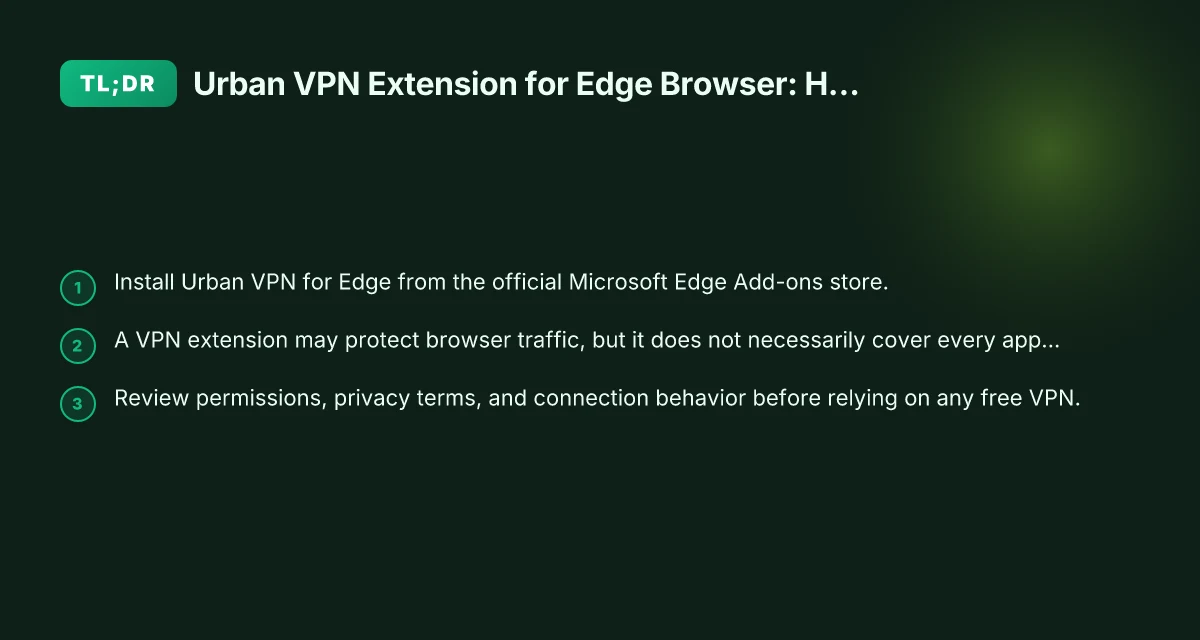
The safest way to install a browser extension is through Edge’s official add-ons store. Avoid download links on unfamiliar sites, since third-party installers can be outdated or altered.
- Open Microsoft Edge.
- Visit the Microsoft Edge Add-ons store.
- Search for “Urban VPN.”
- Check the publisher, listing details, permissions, and recent reviews.
- Select the official Urban VPN listing and choose Get or Add to Edge.
- Review the permission prompt before confirming.
- Pin the extension to the toolbar if you want quick access.
Store listings and interface labels can change. If you cannot find the extension, check Urban VPN’s official website for a link to its current Edge listing rather than installing a similarly named add-on.
After installation, open the extension and follow its instructions to connect. Depending on the version, you may be asked to choose a server location, create an account, or accept the service’s terms.
Connecting and changing locations
Once added, Urban VPN should appear in Edge’s extensions menu. You can pin it to the toolbar using the puzzle-piece icon, making it easier to open. Show crypto IPsec sa: How to Check Cisco IPsec VPN Security Associations
To connect, select the extension, choose a server location if available, and activate the connection. Wait for the interface to show that it is connected before browsing. To disconnect, reopen the extension and use its disconnect control.
A practical first-use checklist:
- Confirm that the extension shows an active connection.
- Check whether your chosen location is available and responsive.
- Revisit a reputable IP-checking website to see whether your browser appears to use a different public IP address.
- Test the websites and services you need. Some may block VPN traffic or require additional verification.
- Disconnect when you no longer need the VPN, especially if you notice slower browsing.
A location choice can affect speed and access. A nearby server may offer better performance, while a different country may be useful for testing location-specific websites. A VPN does not guarantee access to every service, and using one must still follow the service’s terms and local laws.
What the Edge extension protects
A browser VPN extension generally handles traffic from the browser, but its coverage depends on how the product is built and configured. It may not route traffic from other browsers, desktop applications, games, or system services. Do not assume that installing an extension protects your whole computer. Clash Meta for iOS: What It Is and How to Use It Safely
| Feature or traffic | What to expect |
|---|---|
| Websites opened in Edge | May be routed through the VPN while it is connected |
| Other browsers | Usually not covered by an Edge-only extension |
| Desktop apps and games | May continue using your normal internet connection |
| Local network activity | A VPN does not make your device invisible on a shared network |
| Online accounts | A VPN does not hide your identity when you sign in |
A VPN can change the IP address websites see, but it is not the same as complete anonymity. Websites may still identify you through account logins, cookies, browser fingerprinting, or other information. A VPN also does not replace antivirus software, safe browsing habits, or strong account security.
If you need protection for traffic beyond Edge, check whether Urban VPN offers a separate desktop application for your operating system. Compare its coverage and privacy terms with the extension before deciding which option suits your needs.
What to Check Before Relying on the Edge Extension
| Check | What the extension may cover | What it does not establish | Reader action |
|---|---|---|---|
| Browser traffic | Traffic routed through the extension | Protection for other apps | Use a device-wide VPN if needed |
| Connection status | Whether the extension shows connected | Whether every site uses the route | Check status and test a site |
| Location | The selected VPN location | A guaranteed physical location | Review the selected location |
| Permissions | Access listed in Edge’s prompt | A complete privacy assessment | Read permissions before installing |
| Privacy claims | Details stated by the provider | Independent verification | Review the provider’s policy |
| Network security | A VPN connection for browser use | Safety from scams or malware | Keep other security measures |
| Availability | Locations shown in the extension | Access to every blocked service | Test the specific service |
| Session end | Disconnection from the extension | Removal of all browser data | Manage browser data separately |
Compiled November 2026; check the provider's site for current details. Urban VPN Chrome: How to Install, Use, and Choose Safely
Privacy, permissions, and performance
Before connecting, read the extension’s current privacy policy and review the permissions shown by Edge. Permissions describe the access an extension requests. They do not, by themselves, prove whether a service is trustworthy. Look for clear explanations of what data is collected, how it is used, whether it is shared, and how long it is retained.
Pay particular attention to:
- Whether browsing activity or connection data is logged.
- How the service funds its free offering.
- Whether data is shared with partners or used for advertising.
- How to contact support or request account and data changes.
- Whether the listing and privacy policy come from the same publisher.
Free VPN services can have limits, such as slower speeds, fewer locations, usage restrictions, or interruptions. Actual performance depends on your connection, the selected server, and the service’s current capacity. If pages load slowly, try another available location or disconnect to compare.
For sensitive activities, such as banking, work accounts, or handling confidential information, do not rely on a VPN alone. Use trusted websites, keep Edge updated, and follow your employer’s security requirements. A VPN provider may be able to process connection data, so choosing a service involves trusting its policies and technical practices. Urban VPN for Edge Extension: Installation, Features, and Safety
Troubleshooting common problems
If Urban VPN does not connect or websites fail to load, try these steps:
- Check that Edge is up to date and the extension is enabled.
- Disconnect, then reconnect or select another server location.
- Reload the affected page and test a different website.
- Temporarily disable conflicting VPN or proxy extensions.
- Restart Edge and check your internet connection without the extension.
- Review the extension’s permissions and settings if a feature stops working.
- Remove and reinstall the add-on only from the official Edge Add-ons store.
Some websites restrict VPN connections or may interpret a changed location as unusual activity. If a site blocks access, its terms may prohibit VPN use. Do not try to bypass restrictions where that would violate the rules or local law. If a connection problem continues, consult Urban VPN’s official support resources and check for current service notices.
Troubleshooting Urban VPN in Microsoft Edge
| Problem | First check | Try this | If it continues |
|---|---|---|---|
| Extension not listed | Edge Add-ons installation | Search for Urban VPN | Check Edge’s extension settings |
| Extension will not open | Extensions menu | Close and reopen Edge | Remove and reinstall the extension |
| Connection does not start | Connection status | Disconnect, then reconnect | Try another location |
| Site does not load | Whether the VPN is connected | Reload the page | Test without the extension |
| Location seems unavailable | Selected location | Choose another listed location | Retry later |
| Edge feels slower | Whether the extension is connected | Compare with it disconnected | Check the network connection |
| Permission prompt is unclear | Permission descriptions | Review before approving | Do not install if unsuitable |
| Changes have no effect | Current connection status | Restart the browser | Reinstall if needed |
Compiled November 2026; check the provider's site for current details. Urban VPN Extension for Microsoft Edge: How to Install and Use It
Recommendation
The Urban VPN extension for Edge browser can be a convenient way to route browser traffic through a VPN, provided you install the official add-on and verify that it is connected. Review its current privacy policy, permissions, and limitations before use. For broader device coverage or sensitive tasks, compare a reputable full-device VPN and other security measures rather than treating a browser extension as complete protection.