Proton VPN Extension for Edge: How to Install and Use It
Learn how to get Proton VPN working in Microsoft Edge, what the browser extension protects, and when to use the full app.
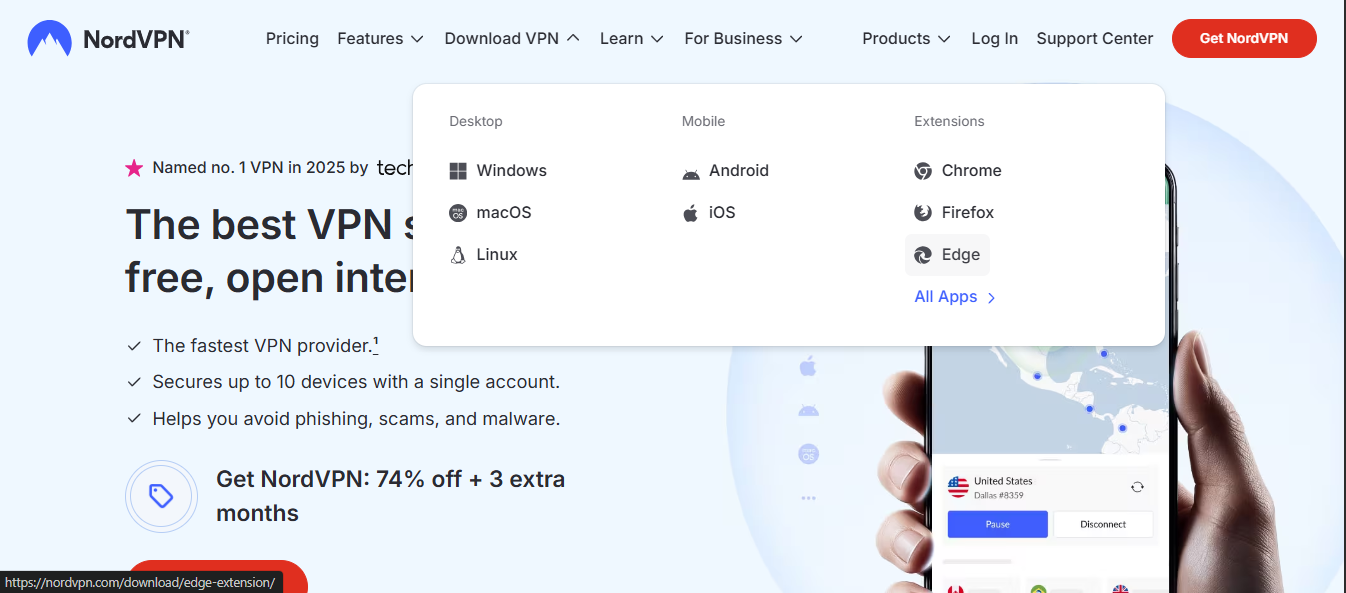
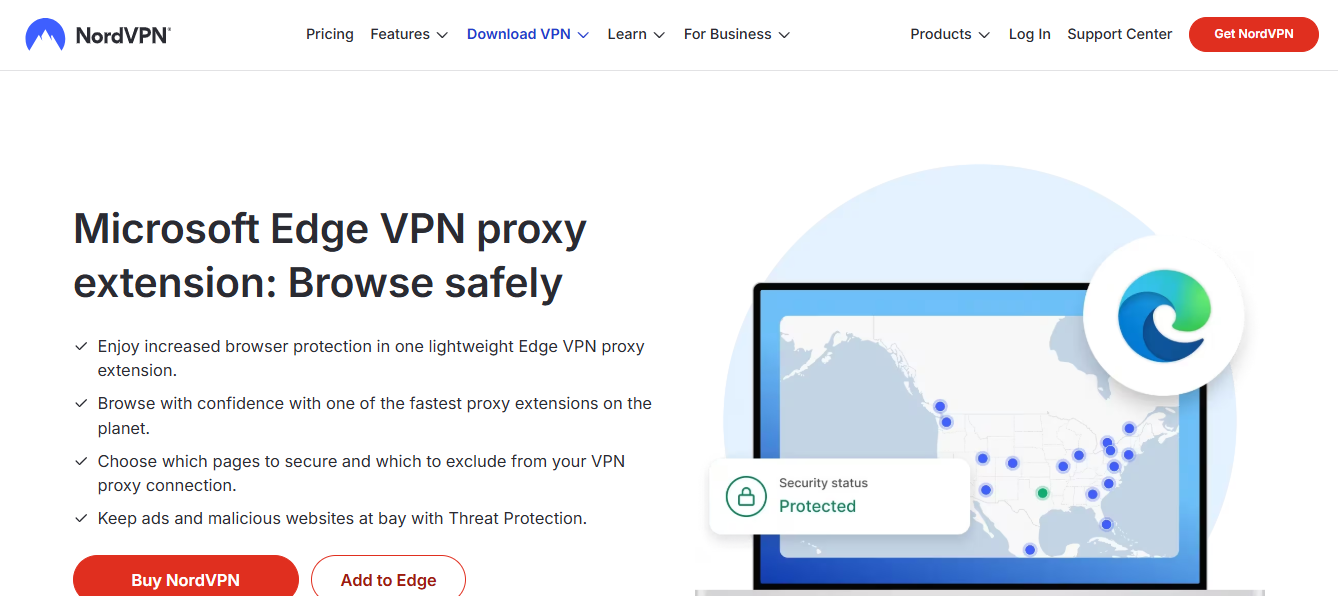
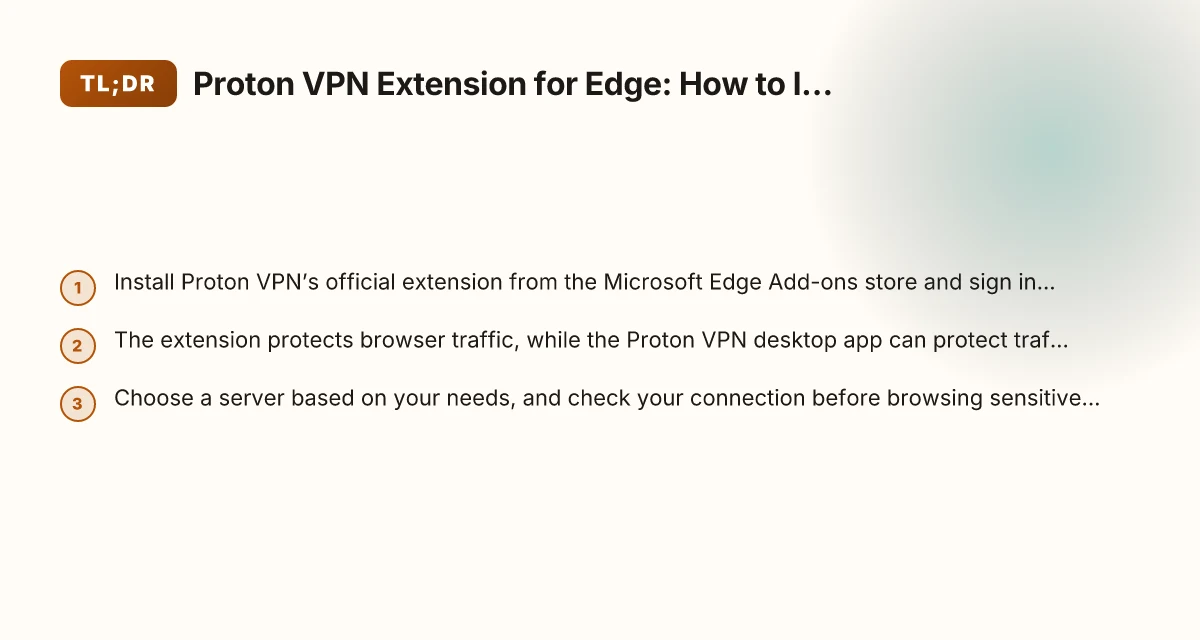
If you’re looking for a Proton VPN extension for Edge, you can install the official browser extension from the Microsoft Edge Add-ons store, then sign in with your Proton account and connect to a VPN server. The extension routes traffic from your browser through the VPN, helping mask your IP address and encrypting the connection between Edge and the VPN server. It does not automatically protect every app on your computer, so use the Proton VPN desktop app if you want device-wide coverage.

Editor's pick: NordVPN — fast, secure VPN — Strong encryption, a no-logs policy and apps for every device. 30-day money-back guarantee. Get NordVPN →
Compare the Proton VPN Edge extension with the desktop app
| Feature | Edge extension | Desktop app |
|---|---|---|
| Where it runs | In Microsoft Edge | On your device |
| Protects browser traffic | Yes | Yes |
| Protects other apps | No | Yes |
| Browser setup | Install from Edge Add-ons | Install the app |
| Server selection | In the extension | In the app |
| Works outside Edge | No | Yes |
| Best suited for | Edge browsing | Device-wide VPN use |
Compiled November 2026; check the provider's site for current details.
| VPN | Obfuscation | From / month | Plan | Free plan | Refund | Alipay | UnionPay | Crypto | Website opens in China | Trustpilot | |
|---|---|---|---|---|---|---|---|---|---|---|---|
 Proton VPN | Turn on manually Stealth, free plan too | $2.99/mo | 12 months: $35.88 | Yes | 30 days | ✗ | ✗ | ✗ | ✓ | ✗ Blocked | 2.1/5 (1,040 reviews) |
 ZoogVPN | Turn on manually Shadow | $2.49/mo | 27 months: $59.99 | Yes | 7 days | ✓ | ✓ | ✓ | ✓ | Official site blocked; our special link opens (4.4 s) | 4.2/5 (195 reviews) |
 NordVPN | Turn on manually Obfuscated Servers / NordWhisper | $3.49/mo | 27 months: $94.23 | No | 30 days | ? | ✗ | ✓ | ✓ | ✗ Blocked | 4.2/5 (51,628 reviews) |
 ExpressVPN | ✓ On by default all servers | $3.00/mo | 28 months: $84 | No | 30 days | ✗ | ✗ | ✓ | ✗ | ✗ Blocked | 4.4/5 (29,706 reviews) |
 Surfshark | ✓ On by default Camouflage, with OpenVPN | See site | See site | No | 30 days | ✗ | ✗ | ✗ | ✓ | ✗ Blocked | 4.3/5 (31,823 reviews) |
 Astrill VPN | Turn on manually StealthVPN / OpenWeb | $12.50/mo | 24 months: $300 | No | See site | ✗ | ✗ | ✗ | ✓ | ✗ Blocked | 1.3/5 (110 reviews) |
 Private Internet Access | Turn on manually Shadowsocks, OpenVPN only | $2.03/mo | 40 months: $81.2 | No | 30 days | ✗ | ✗ | ✗ | ✗ | ✗ Blocked | 4.2/5 (11,033 reviews) |
 CyberGhost | Turn on manually selected servers | $2.19/mo | 28 months: $61.32 | No | 45 days | ✗ | ✗ | ✗ | ✓ | ✗ Blocked | 4.0/5 (24,178 reviews) |
 PureVPN | Turn on manually switch to OpenVPN | $1.69/mo | 60 months: $101.55 | No | 31 days | ? | ? | ✗ | ✓ | ✗ Blocked | 4.4/5 (17,994 reviews) |
 AdGuard VPN | ✓ On by default TrustTunnel | $2.99/mo | 24 months: $71.76 | Yes | 30 days | ✓ | ✗ | ✓ | ✓ | Official site blocked; our special link opens (3.7 s) | 4.3/5 (290 reviews) |
 Mullvad | Turn on manually QUIC / Shadowsocks / LWO | $5.61/mo | €5/mo | No | 14 days | ✗ | ✗ | ✗ | ✓ | ✗ Blocked | 3.2/5 (192 reviews) |
 Windscribe | Turn on manually Stealth / WStunnel | $5.75/mo | 12 months: $69 | Yes | See site | ✗ | ✗ | ✗ | ✓ | ✗ Blocked | 4.7/5 (13,355 reviews) |
 StrongVPN | Turn on manually Scramble, OpenVPN TCP | See site | See site | No | 30 days | ✓ | ✗ | ✗ | ✗ | ✗ Blocked | 4.4/5 (2,695 reviews) |
 LightXtreme 闪连 | Not listed | $7.08/mo | 12 months: $84.99 | Yes | 30 days | ✓ | ✓ | ✓ | ✓ | ✓ Yes (3.5 s) | No page |
Prices checked 2026-11-10 on each vendor's pricing page (cheapest long plan, USD). Check the vendor's checkout for the final price.
Obfuscation checked 2026-11-14 on each vendor's site and help center: "on by default" = nothing to set; "turn on manually" = switch protocol or mode in settings; "not listed" = the vendor describes no obfuscation.
Payment methods checked 2026-11-10 on each vendor's payment pages: all 14 take cards and PayPal; ✗ = not listed, ? = the vendor's own pages disagree.
China access: whether the official website opens from mainland China networks (tests the website only, not the VPN connection). Last checked 2026-11-18 01:02 Beijing time.
Trustpilot score and review count checked 2026-11-10.
How to install Proton VPN in Microsoft Edge
Edge supports many extensions made for Chromium-based browsers, including the official Proton VPN browser extension. The safest way to install it is through Microsoft’s own add-ons store.
- Open Microsoft Edge.
- Go to the Microsoft Edge Add-ons store and search for “Proton VPN.”
- Check that the listing is published by Proton, then select Get.
- Confirm the installation when Edge asks.
- Open the Proton VPN extension from the Extensions menu, pin it to the toolbar if you like, and sign in.
You’ll need a Proton account to use the extension. Available servers, features, and connection limits can depend on your Proton plan. Review the current plan details on Proton VPN’s official website before choosing a subscription.
Avoid downloading extension files from unofficial websites. A look-alike extension could expose your browsing activity or account information.
What the Edge extension protects
A browser VPN extension is designed to route the browser’s web traffic through a VPN server. Websites will generally see the server’s IP address instead of your regular public IP address. The connection between Edge and the VPN server is encrypted, which can be useful when browsing on public Wi-Fi. How to Fix Virgin TV Go App Not Working With VPN
The extension’s protection is limited to the browser. Other software on your device, such as email apps, games, or desktop messaging tools, may still connect directly to the internet. The extension also does not make you completely anonymous: websites may still identify you through account logins, cookies, browser settings, or other tracking methods.
| Option | Traffic typically protected | Best suited for |
|---|---|---|
| Proton VPN Edge extension | Browser traffic in Edge | Protecting Edge browsing without routing every app through a VPN |
| Proton VPN desktop app | Device traffic, subject to app settings and exceptions | Broader protection across your computer |
| No VPN connection | Direct internet connection | Browsing without VPN routing |
The exact behavior can depend on your device, settings, and Proton VPN version. If you need protection beyond Edge, check the desktop app’s settings and connection status rather than assuming the browser extension covers other programs.
What to check when choosing a Proton VPN server
| Choice | What it means | When to use it | What to check |
|---|---|---|---|
| Quick Connect | Connects to a recommended server | You want a simple connection | Confirm the extension shows connected |
| Specific country | Connects through a chosen country | You need a country location | Check the country before connecting |
| Specific server | Lets you choose an available server | You prefer a particular server | Check that it is available |
| Free server | Uses a server available on the free plan | You use a free account | Confirm the server is included in your plan |
| Paid-plan server | Uses a server available to paid users | Your plan includes more server options | Confirm your account is signed in |
| No connection | VPN is not currently active | You need to troubleshoot | Check sign-in and connection status |
Compiled November 2026; check the provider's site for current details. BSNL VPN.ovpn File: What It Is and How to Set Up a Safe Connection
How to connect and choose a server
After signing in, open the extension and select a server or connection option available on your plan. The fastest or recommended server is a sensible starting point for everyday browsing. If you need an IP address associated with a particular country, select a server location there, keeping in mind that available locations vary by plan.
Once connected, give the extension a moment to establish the tunnel. Then visit a reputable IP-checking website in Edge to confirm that your browser appears to be using the VPN server’s location. If a page fails to load, try another server or reconnect.
For a more reliable connection:
- Keep the extension up to date.
- Use a nearby server when speed matters.
- Disconnect and reconnect if the extension reports an error.
- Check whether another VPN, proxy, or security extension is interfering.
- Avoid relying on a VPN as a substitute for HTTPS, strong passwords, or safe browsing habits.
Extension or desktop app: which should you use?
Choose the Edge extension if you mainly want to protect your browsing in Edge and prefer a quick browser-level connection. It can be convenient when you want VPN routing for the browser without changing how other applications connect. Total VPN on Fire Stick: How to Install and Use It
Choose the Proton VPN desktop app if you want VPN protection for more than one browser or for other internet-connected programs. The desktop app may also offer device-level settings that are not available in a browser extension. You can use the official Proton VPN support pages to compare current features and check whether the extension and app can run together on your particular setup.
Running both at once may not always be useful. If you do, check which connection is active and test your IP address. Conflicting VPN or proxy settings can cause connection problems or unexpected routing.
Troubleshooting common problems
If you cannot find the extension, confirm that you are searching the Microsoft Edge Add-ons store and that Edge is up to date. If the store listing is unavailable in your region or on your device, visit Proton VPN’s official support site for current installation guidance. Do not install an unofficial copy as a workaround.
If sign-in fails, check your internet connection and account credentials, then make sure Edge allows the extension to run. If the extension connects but websites still do not load, try a different server and temporarily check whether another proxy or privacy extension is interfering. Axgate VPN Client Download: Safe Setup and Troubleshooting Guide
If the extension disconnects repeatedly, update Edge and Proton VPN, restart the browser, and reconnect. For persistent problems, consult Proton VPN support with details about your Edge version, operating system, and any error message. Never share your password or recovery codes when asking for help.
Troubleshoot common Proton VPN Edge extension problems
| Problem | Check first | Try this | If it continues |
|---|---|---|---|
| Extension missing | Edge Add-ons installation | Install or enable the extension | Reopen Edge |
| Cannot sign in | Proton VPN account details | Sign in again | Check your account access |
| Cannot connect | Internet connection | Select another available server | Retry later |
| Server unavailable | Server selection | Choose another server | Check your plan’s server options |
| VPN appears disconnected | Extension status | Connect again | Reload the page |
| Page does not load | VPN connection | Try another server | Check whether the site works without the VPN |
| Other apps are unprotected | Extension coverage | Use the desktop app | Connect through the app |
Compiled November 2026; check the provider's site for current details.
Recommendation
Install the official Proton VPN extension from the Microsoft Edge Add-ons store if you want VPN protection specifically for Edge browsing. Sign in, connect to a suitable server, and verify the connection before relying on it. For protection across your computer, not just the browser, use the Proton VPN desktop app and review its settings. Best Free VPN for Edge: Top Picks and What to Know