VPN Change Location Free: How to Switch Your Virtual Location Safely
Learn how a free VPN can change your virtual location, what limitations to expect, and how to choose a safer option.
A free VPN can change your apparent online location by routing your internet connection through a server in another place. To do it, choose a trustworthy VPN, install its app, connect to an available server, and check your new IP address. Keep in mind that a VPN changes the location associated with your internet traffic. It does not change your GPS location or guarantee access to every location-restricted service.

Editor's pick: NordVPN — fast, secure VPN — Strong encryption, a no-logs policy and apps for every device. 30-day money-back guarantee. Get NordVPN →
Compare free VPN options by location-changing features
| Option | Available locations | Free data allowance | Platform support | Best suited for |
|---|---|---|---|---|
| VPN with a free tier | Check the provider’s list | Check the provider’s limits | Check supported devices | Occasional location changes |
| VPN with a free trial | Check trial terms | Check trial terms | Check supported devices | Short-term testing |
| Browser-based VPN or proxy | Usually limited | Check the service’s limits | Usually browser-only | Basic browser tasks |
| Paid VPN plan | Usually broader choice | Usually unrestricted | Often multiple platforms | Frequent location changes |
| Public proxy | Varies by service | Varies by service | Often browser or app specific | Low-sensitivity browsing |
| No VPN | Uses your usual connection | Not applicable | Any connected device | Local access without location switching |
Compiled November 2026; check the provider's site for current details.
| VPN | Obfuscation | From / month | Plan | Free plan | Refund | Alipay | UnionPay | Crypto | Website opens in China | Trustpilot | |
|---|---|---|---|---|---|---|---|---|---|---|---|
 ZoogVPN | Turn on manually Shadow | $2.49/mo | 27 months: $59.99 | Yes | 7 days | ✓ | ✓ | ✓ | ✓ | Official site blocked; our special link opens (4.4 s) | 4.2/5 (195 reviews) |
 NordVPN | Turn on manually Obfuscated Servers / NordWhisper | $3.49/mo | 27 months: $94.23 | No | 30 days | ? | ✗ | ✓ | ✓ | ✗ Blocked | 4.2/5 (51,628 reviews) |
 ExpressVPN | ✓ On by default all servers | $3.00/mo | 28 months: $84 | No | 30 days | ✗ | ✗ | ✓ | ✗ | ✗ Blocked | 4.4/5 (29,706 reviews) |
 Surfshark | ✓ On by default Camouflage, with OpenVPN | See site | See site | No | 30 days | ✗ | ✗ | ✗ | ✓ | ✗ Blocked | 4.3/5 (31,823 reviews) |
 Proton VPN | Turn on manually Stealth, free plan too | $2.99/mo | 12 months: $35.88 | Yes | 30 days | ✗ | ✗ | ✗ | ✓ | ✗ Blocked | 2.1/5 (1,040 reviews) |
 Astrill VPN | Turn on manually StealthVPN / OpenWeb | $12.50/mo | 24 months: $300 | No | See site | ✗ | ✗ | ✗ | ✓ | ✗ Blocked | 1.3/5 (110 reviews) |
 Private Internet Access | Turn on manually Shadowsocks, OpenVPN only | $2.03/mo | 40 months: $81.2 | No | 30 days | ✗ | ✗ | ✗ | ✗ | ✗ Blocked | 4.2/5 (11,033 reviews) |
 CyberGhost | Turn on manually selected servers | $2.19/mo | 28 months: $61.32 | No | 45 days | ✗ | ✗ | ✗ | ✓ | ✗ Blocked | 4.0/5 (24,178 reviews) |
 PureVPN | Turn on manually switch to OpenVPN | $1.69/mo | 60 months: $101.55 | No | 31 days | ? | ? | ✗ | ✓ | ✗ Blocked | 4.4/5 (17,994 reviews) |
 AdGuard VPN | ✓ On by default TrustTunnel | $2.99/mo | 24 months: $71.76 | Yes | 30 days | ✓ | ✗ | ✓ | ✓ | Official site blocked; our special link opens (3.7 s) | 4.3/5 (290 reviews) |
 Mullvad | Turn on manually QUIC / Shadowsocks / LWO | $5.61/mo | €5/mo | No | 14 days | ✗ | ✗ | ✗ | ✓ | ✗ Blocked | 3.2/5 (192 reviews) |
 Windscribe | Turn on manually Stealth / WStunnel | $5.75/mo | 12 months: $69 | Yes | See site | ✗ | ✗ | ✗ | ✓ | ✗ Blocked | 4.7/5 (13,355 reviews) |
 StrongVPN | Turn on manually Scramble, OpenVPN TCP | See site | See site | No | 30 days | ✓ | ✗ | ✗ | ✗ | ✗ Blocked | 4.4/5 (2,695 reviews) |
 LightXtreme 闪连 | Not listed | $7.08/mo | 12 months: $84.99 | Yes | 30 days | ✓ | ✓ | ✓ | ✓ | ✓ Yes (3.5 s) | No page |
Prices checked 2026-11-10 on each vendor's pricing page (cheapest long plan, USD). Check the vendor's checkout for the final price.
Obfuscation checked 2026-11-14 on each vendor's site and help center: "on by default" = nothing to set; "turn on manually" = switch protocol or mode in settings; "not listed" = the vendor describes no obfuscation.
Payment methods checked 2026-11-10 on each vendor's payment pages: all 14 take cards and PayPal; ✗ = not listed, ? = the vendor's own pages disagree.
China access: whether the official website opens from mainland China networks (tests the website only, not the VPN connection). Last checked 2026-11-18 01:02 Beijing time.
Trustpilot score and review count checked 2026-11-10.
What “change location” means
Websites and apps commonly estimate your location from your IP address. When you connect to a VPN server, the site generally sees the server’s IP address rather than your own. If the server is in another country, your connection may appear to come from that country.
This can help protect your IP address on public Wi-Fi, reduce exposure to local network operators, or test how a website appears from another region. It does not make you completely anonymous. Websites can still identify you through account details, cookies, browser settings, GPS permissions, or other signals.
A VPN also differs from a location-spoofing app. It changes the network route and apparent IP location, while GPS-enabled apps may use your device’s physical location. A VPN alone usually cannot change that GPS data.
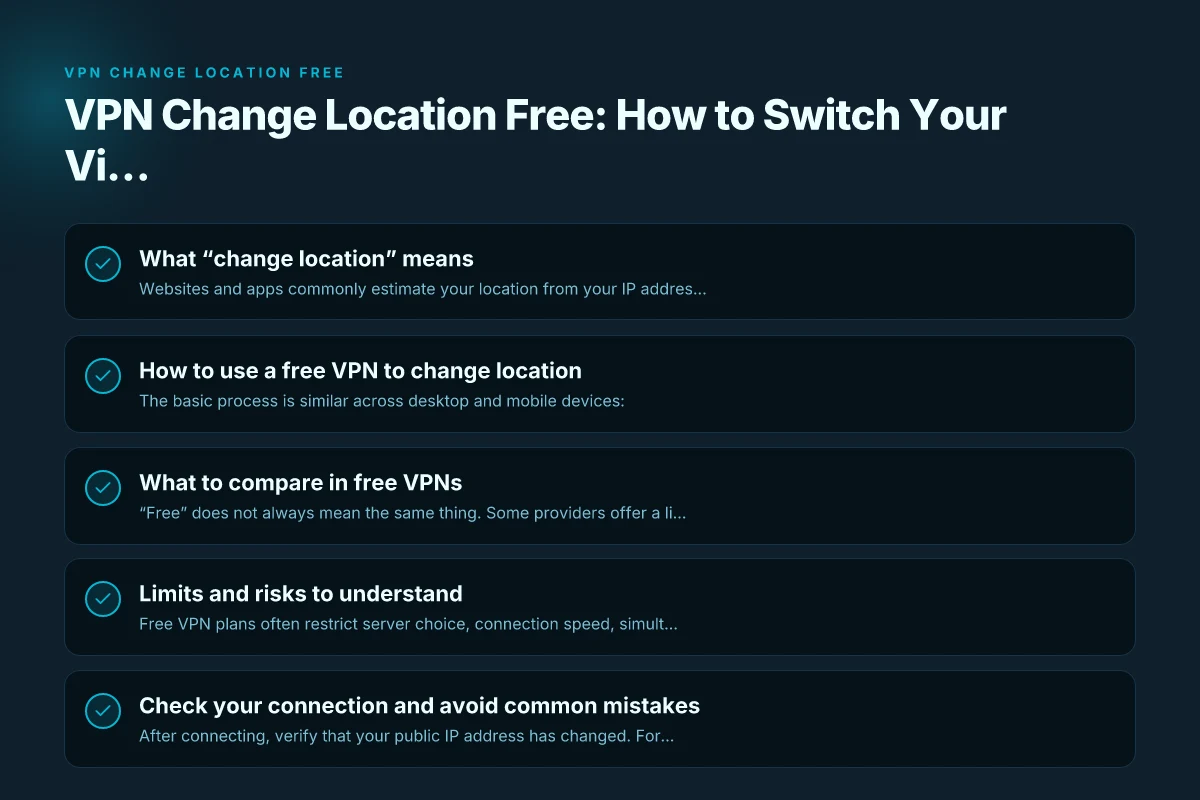
How to use a free VPN to change location
The basic process is similar across desktop and mobile devices: Forticlient VPN download Windows 11: Safe Download and Setup Guide
- Choose a VPN provider with a clear privacy policy and a reputable track record.
- Download its official app from the provider’s website or your device’s official app store.
- Create an account if required, then review the app’s permissions and settings.
- Open the server list and select an available country or region.
- Tap or click Connect, and wait for the app to confirm the connection.
- Check your public IP address using a trusted IP-checking website. Confirm that the displayed country matches the VPN server.
If the location has not changed, disconnect and reconnect, try another server, or check whether the VPN connection has dropped. Some services use your device’s GPS, account region, or stored cookies in addition to your IP address. A browser’s cached data may also affect what you see, so try a private window or clear the relevant site data.
Check these points before choosing a free VPN
| Comparison point | What to check | Why it matters | Caution |
|---|---|---|---|
| Server locations | Whether the desired country is available | Determines the virtual location you can select | Free tiers may offer fewer locations |
| Data allowance | Whether a limit applies | Affects how long you can use the VPN | Check what happens at the limit |
| Speed | Whether performance suits your task | Slow connections can disrupt browsing or streaming | Speed can vary by server |
| Privacy policy | What connection data is collected | Helps you understand data handling | Avoid unclear policies |
| Security | Whether traffic is encrypted | Helps protect data on the connection | A VPN does not prevent every online risk |
| Device support | Whether your device and apps are supported | Helps ensure the VPN can be used where needed | Check simultaneous-connection limits |
| Server switching | Whether you can change locations easily | Makes location changes more practical | Switching may interrupt active sessions |
| Terms of use | Any service or activity restrictions | Helps avoid blocked or prohibited use | Follow local laws and service rules |
Compiled November 2026; check the provider's site for current details.
What to compare in free VPNs
“Free” does not always mean the same thing. Some providers offer a limited version of a paid service. Others may rely on advertising or collect more data than users expect. Check the details before installing an app. Proxy Server: What It Is, How It Works, and When to Use One
| Feature | What to check | Why it matters |
|---|---|---|
| Server locations | Which countries are included in the free plan? | You may not be able to select your preferred location. |
| Data allowance | Is there a monthly or daily cap? | Video, downloads, and long sessions can use data quickly. |
| Speed and congestion | Are speeds limited or shared among free users? | Busy servers can make browsing slow or unreliable. |
| Privacy policy | What data is collected, retained, or shared? | A VPN provider handles information about your connection. |
| Security features | Does it use modern encryption and offer leak protection? | These features can help prevent exposure if the connection fails. |
| Business model | How does the provider pay for the service? | Transparent funding is easier to evaluate than vague claims. |
A large server list is not the only measure of quality. For many people, a provider with fewer locations but clear privacy practices is a better choice than an unknown app promising unlimited access.
Limits and risks to understand
Free VPN plans often restrict server choice, connection speed, simultaneous devices, or monthly data. Some may make certain locations available only on paid plans. A free service may also be less dependable during peak hours.
Privacy deserves particular attention. A VPN can see or process connection information, so choosing one simply because it is free may be a poor trade-off. Avoid apps with unclear ownership, vague privacy statements, excessive permissions, or claims that sound too good to be true. Do not assume that an app’s presence in an app store proves that it is secure.
A VPN does not guarantee that a website or streaming service will accept your connection. Services may block VPN IP addresses or use other signals to determine where you are. Follow the service’s terms and local laws. Changing an apparent location does not override those rules. NordVPN Download: How to Get and Install the App Safely
Troubleshoot a VPN location change safely
| Check | What to do | What you should see | If it does not work |
|---|---|---|---|
| VPN connection | Connect to a server in the chosen location | The VPN shows as connected | Reconnect or choose another server |
| IP location | Check your public IP location | It matches the selected server location | Try a different server |
| DNS results | Check for DNS leaks | DNS requests use the VPN connection | Enable leak protection if available |
| WebRTC exposure | Check for browser IP leaks | Your usual IP is not exposed | Adjust browser settings or use another browser |
| App location data | Review app permissions and settings | Apps use the expected location signals | Disable unnecessary location access |
| Existing sessions | Close and reopen location-sensitive apps | The app reloads using the VPN connection | Sign out and back in if appropriate |
| VPN failure settings | Check the kill switch option | Traffic stops if the VPN disconnects | Avoid sensitive activity until protected |
| Free-tier limits | Review data and server restrictions | Your use fits the plan’s terms | Switch servers or consider another option |
Compiled November 2026; check the provider's site for current details.
Check your connection and avoid common mistakes
After connecting, verify that your public IP address has changed. For added reassurance, use a reputable DNS or WebRTC leak test in your browser. If a test reveals your real IP address, review the VPN’s leak-protection settings, update the app, or switch providers.
Use these practical precautions: Cj VPN login: How to Access Your Account Safely
- Keep the VPN app and your device’s operating system updated.
- Enable the kill switch if your provider offers one, especially on public Wi-Fi.
- Avoid logging into sensitive accounts on a device you do not trust.
- Do not grant GPS access unless the app genuinely needs it.
- Remember to disconnect when you no longer need the VPN, as it may affect speed or access to local services.
If you need to change the location shown by a map, delivery app, or other GPS-based service, check that app’s location permissions and settings. A VPN by itself is not designed to alter the device’s physical GPS position.
Recommendation
For a free VPN change of location, choose a reputable provider that clearly explains its data practices, offers the country you need, and includes basic security protections. Install it from an official source, connect to a server, and verify the result with an IP check. If you need reliable access to a specific region, higher speeds, or more data, compare paid plans rather than sacrificing privacy for an unknown free service.